
Key Takeaways:
- Open App Store and sign in.
- Select your account name and country/region.
- Fill out the required information to complete the change.
Changing your country or region on your iPhone can help you access apps and content restricted in your current location. Whether you’re moving or simply want to explore another region’s app offerings, this guide will show you exactly how to change your App Store settings. Follow these steps to successfully update your country or region without hassle.
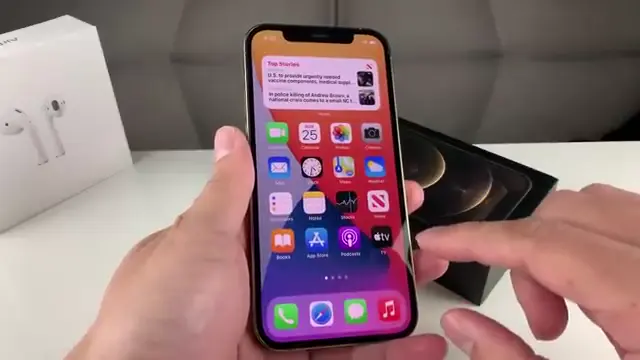
Step 1: Open the App Store
Begin by launching the App Store app on your iPhone. Ensure that you are connected to Wi-Fi or have a SIM card with internet access. This is crucial to proceed with changing your country or region.
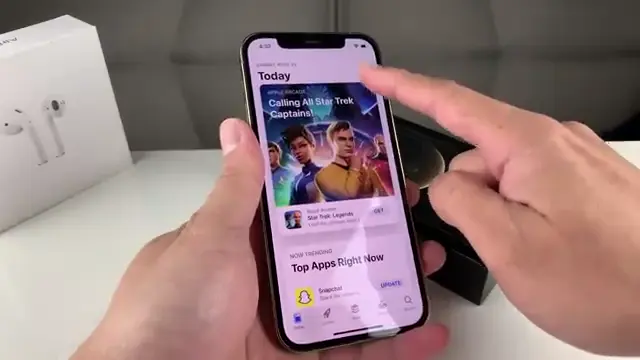
Step 2: Access Your Account Settings
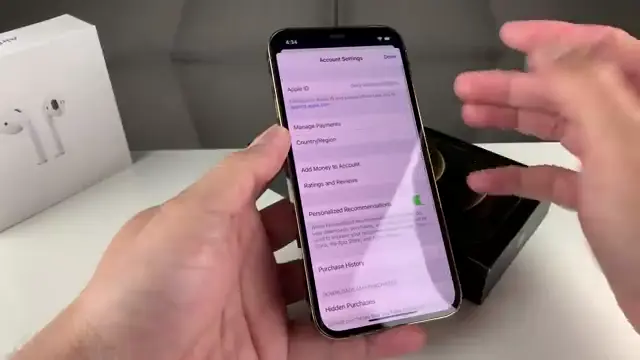
Next, tap on your profile icon in the top right corner of the App Store. This will take you to your account settings where you can manage your App Store details, including your country and region.
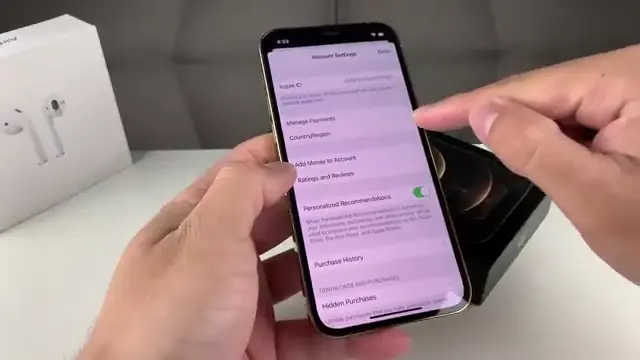
Step 3: Select Country or Region
In the account settings, locate the option that says ‘Country/Region’. Click on it to view options for changing your country or region setting based on where you want to access apps.
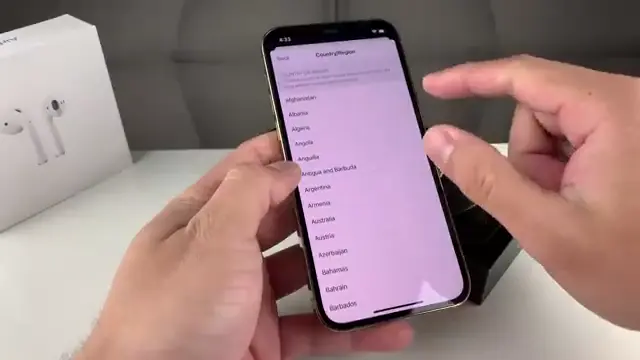
Step 4: Choose Your Desired Region
After selecting ‘Country/Region’, select the country you wish to change to. Make sure to check if the apps you want are available in that region. For instance, choosing the United States may allow you access to more apps.
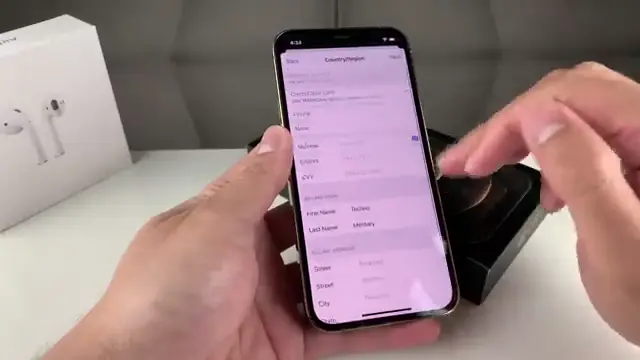
Step 5: Fill Out Required Information
You will be prompted to agree to the terms and conditions and enter addresses. Even if you don’t have a specific address, you can use a random address from the selected country. Ensure to fill in the zip code accurately to avoid issues.
Step 6: Complete the Process
Once you’ve filled in the necessary details, hit ‘Next’ to finalize the change. Your App Store will now reflect the new country or region settings, allowing you to download region-specific apps.
Frequently Asked Questions
How often can I change my iPhone region?
You can change your iPhone’s App Store country or region as often as you’d like, but be aware that you may need to wait for a set period between changes.
Do I need a credit card to change my country/region?
No, you can choose the ‘None’ option for payment information when prompted, but you will need to provide an address and a zip code.
What happens to my apps after changing my region?
Some apps may not be available in certain regions, and you may need to download different versions depending on your selected country.
Can I use my existing Apple ID after changing regions?
Yes, you can continue using your Apple ID, but some purchases and subscriptions may be impacted based on the new region settings.
Watch the Video Tutorial
Conclusion
By following these straightforward steps, you can change your iPhone’s App Store country or region to explore a wider variety of apps and content. If you encounter any issues, remember to revisit these instructions for a successful transition.








Leave a comment