
· By KAI
Key Takeaways:
- Understand how to disable shuffle on Spotify.
- Learn to locate your playlist and play songs in order.
- Discover tips on managing your Spotify settings.
Are you tired of your Spotify playlist shuffling songs? Fortunately, it’s easy to turn off shuffle play and enjoy listening to your songs in order. In this guide, we’ll walk you through the steps to disable shuffle on Spotify, whether you’re using the mobile app or desktop version. Follow these straightforward instructions to take control of your music experience.
Step 1: Access Spotify App or Desktop
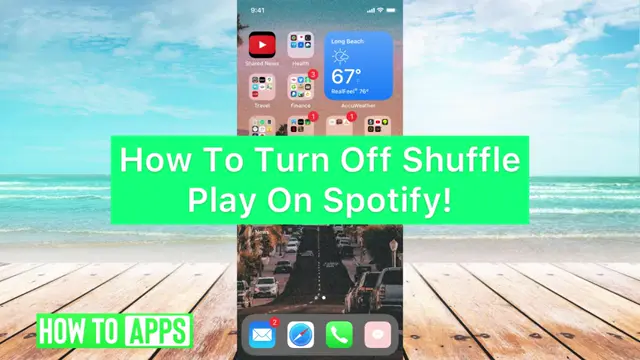
Launch the Spotify app on your device or open it on your desktop. Log into your account to get started. Make sure you’re connected to the internet to access your playlists.
Step 2: Log into Your App
Type in Spotify on your device and log into your app using your account credentials to access your playlists.

Step 3: Select Your Playlist
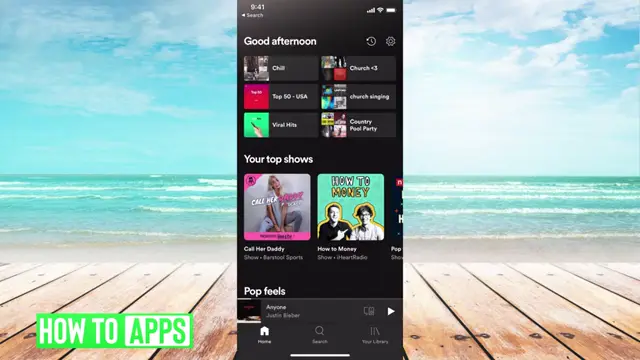
Once logged in, locate the playlist you want to play. Click on the playlist to open it and prepare to play your songs without shuffle.
Step 4: Open the First Song
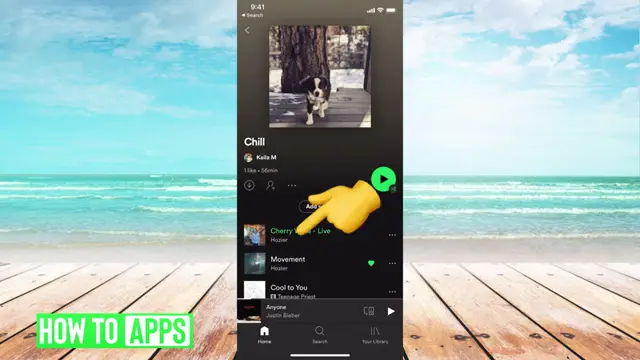
Tap on the first song in your playlist to bring it up to full screen, making it easier to manage playback settings.
Step 5: Identify the Shuffle Icon
While in your playlist, find the icon with crossing arrows at the bottom left of the screen. This icon represents the shuffle option in Spotify.

Step 6: Toggle Shuffle On
If you want to turn shuffle on again, simply click on the crossing arrows icon which represents shuffle in the Spotify interface.

Step 7: Toggle Shuffle Off
Tap that icon to toggle shuffle off and start playing from the first song.

Step 8: Play Your Playlist in Order
After toggling shuffle off, click on the first song to start playing your playlist in the order of the songs listed.

Step 9: Turn Shuffle Back On If Desired
If you want to turn back on shuffle, all you have to to is toggle that crossing arrows icon back on, and your songs will be shuffled.

Can I disable shuffle for all playlists at once on Spotify?
No, disabling shuffle must be done individually for each playlist in Spotify. Each playlist’s shuffle setting operates separately, so you will need to repeat the process for every playlist you prefer to listen to in order.
To disable shuffle, you will need to follow the same steps outlined in this article for each specific playlist. This means selecting your desired playlist, identifying the shuffle icon, and toggling it off. It can be slightly inconvenient if you have many playlists, but such individual control allows you to customize your experience for different types of listening sessions.
What should I do if the shuffle icon is missing on Spotify?
If the shuffle icon is missing, ensure you’re actively playing a song from a playlist, as the icon won’t appear in all contexts. Often, the shuffle option can be hidden if you’re playing a podcast or a radio station instead of a playlist.
Here are a few steps to troubleshoot this issue:
- Check your internet connection to ensure Spotify is functioning properly.
- Restart the app or refresh the playlist you are using.
- Update the app to the latest version to resolve potential bugs or issues.
- If none of these steps work, consider reinstalling Spotify to see if it restores the full functionality.
How can I shuffle a playlist on Spotify after disabling it?
After disabling shuffle, you can easily shuffle a playlist again by clicking on the shuffle icon, which resembles crossing arrows. This will randomize your song order once more.
Simply follow these steps:
- Open the desired playlist from which you want to shuffle songs.
- Ensure that the shuffle icon is currently off.
- Click the shuffle icon to turn it back on, and your playlist will begin to play in random order.
This can be particularly useful for re-discovering songs in a playlist you enjoy and adds an element of surprise to your listening experience.
Frequently Asked Questions
How can I turn shuffle back on in Spotify?
To turn shuffle back on, simply tap the crossing arrows icon again and your playlist will play in shuffle mode.
Does turning off shuffle only apply to one playlist?
Yes, turning off shuffle affects the current playlist you’re listening to, not your entire account.
Can I disable shuffle for all my playlists at once?
Unfortunately, you need to disable shuffle individually for each playlist you want to play in order.
What if I don’t see the shuffle icon?
Make sure you’re playing a song from a playlist, as the shuffle icon may not appear in other contexts.
Watch the Video Tutorial
Conclusion
By following these simple steps, you can easily turn off shuffle on Spotify and enjoy your playlists in the correct order. If you have any questions or need further assistance, feel free to reach out.






Leave a comment