
Key Takeaways:
- Learn how to access voicemail settings
- Steps to customize your voicemail greeting
- Troubleshooting voicemail setup issues
Setting up voicemail on your iPhone is essential for staying connected. If you’re using an iPhone for the first time, this guide walks you through the process of setting up your voicemail quickly and efficiently. Follow the steps below to ensure you don’t miss any messages.
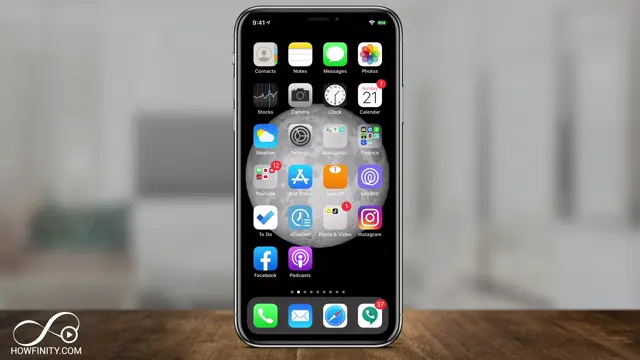
Step 1: Open the Phone App
Locate and click the green phone icon on your iPhone’s home screen. This app is essential for accessing your calls and voicemails. Once you’re in, it will display several options related to your phone’s features.
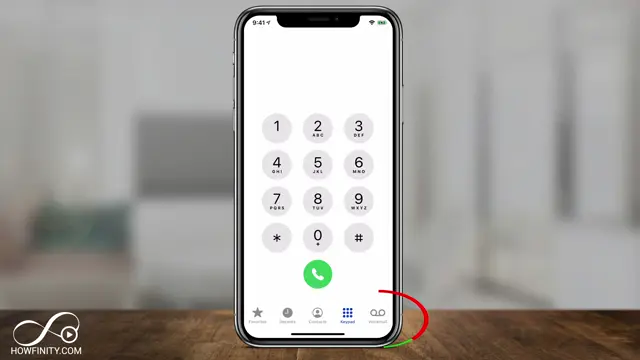
Step 2: Access the Voicemail Section
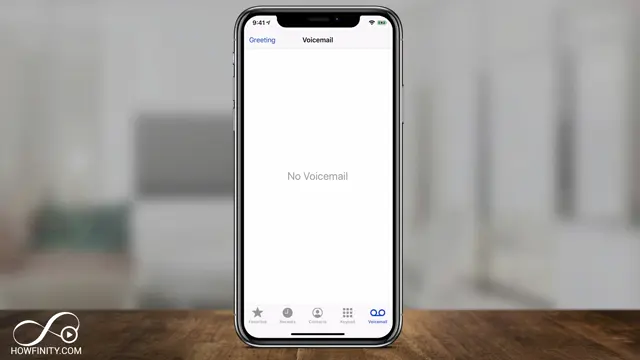
Scroll to the bottom of the screen after opening the Phone app and select the ‘Voicemail’ option. This will take you to the voicemail section, where initial setup occurs.
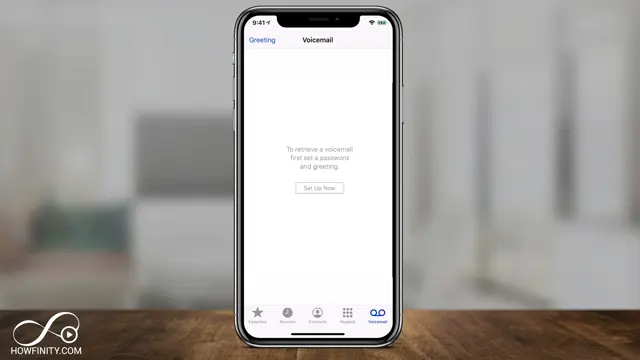
Step 3: Set Up Your Voicemail
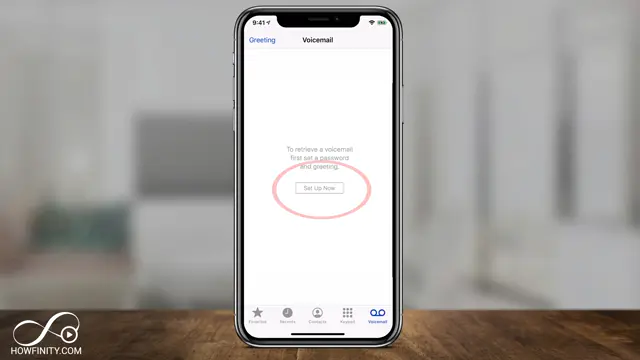
If this is your first time setting up voicemail, you will see an option in the center of the screen to set up your voicemail. Click on this option to proceed with creating your voicemail account.
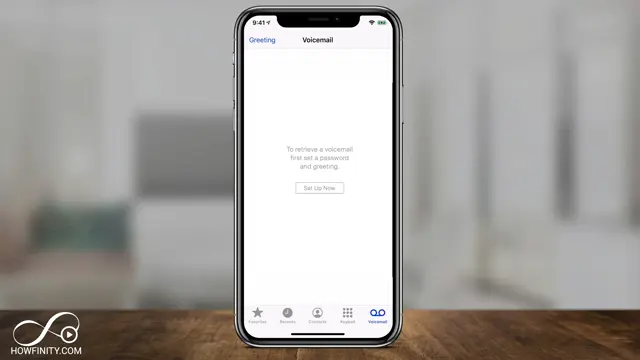
Step 4: Initiate Voicemail Setup
Once you see the option presented, click to set up your voicemail. This begins the process to create your voicemail password and greeting. Make sure to follow the prompts carefully to complete this setup.
Step 5: Enter Your Password
You will be prompted to type in a 4 to 6 digit password for your voicemail. Make sure to choose a password that is easy for you to remember but hard for others to guess.
Step 6: Record Your Greeting
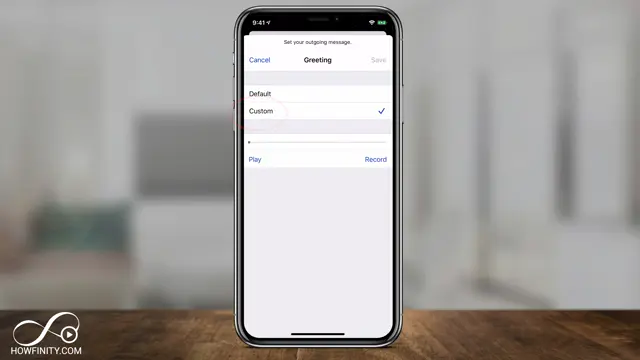
After setting up your password, you’ll reach the greeting page. Press the ‘Record’ button to start recording your personalized voicemail message. Speak clearly and ensure your message is concise and to the point.
Step 7: Stop Recording
Once you are satisfied with your recorded message, press the ‘Stop’ button. This will end the recording and allow you to listen to your message before saving it.
Step 8: Save Your Greeting
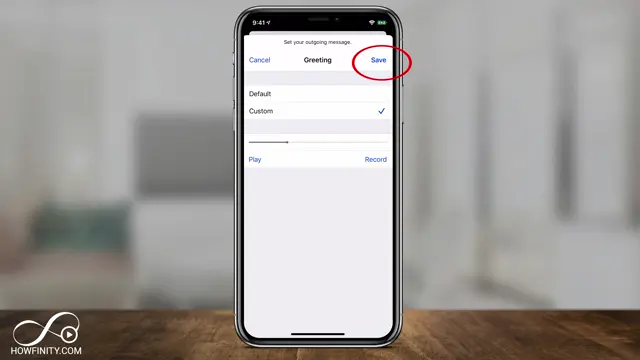
If you are happy with your recorded greeting, press the ‘Save’ button to ensure that your message is set for callers. This completes the voicemail setup process.
Step 9: Complete Voicemail Setup
Now that your greeting is set, when people call you, they will hear your custom greeting followed by the option to leave a voicemail after the beep. You can listen to these voicemails in the voicemail section of your Phone app.
Frequently Asked Questions
What if I don’t see the voicemail setup option?
If the voicemail setup option is missing, your cellular plan may not include voicemail, and you’ll need to contact your service provider.
Can I record a custom greeting for my voicemail?
Yes, you can choose to record a custom greeting instead of using the default greeting provided by Apple.
How do I record my voicemail greeting?
To record your greeting, tap the ‘Record’ button, speak your message, press ‘Stop,’ and then ‘Save’ your greeting.
What should I do if I have trouble with voicemail?
If you encounter issues, ensure voicemail is included in your phone plan, and consider calling your service provider for further assistance.
Watch the Video Tutorial
Conclusion
Setting up voicemail on your iPhone is a straightforward process that ensures you never miss an important message. By following these steps, you’ll have your voicemail ready in just a few minutes.




Leave a comment