
Key Takeaways:
- Identify if your iPhone is listening to you
- Turn off privacy settings to protect your information
- Limit app tracking for a better experience
If you’ve ever wondered whether your iPhone is listening to you, you’re not alone. Many users are concerned about their privacy and the possibility of their device tracking their conversations and interests. In this guide, we’ll walk you through the key settings on your iPhone that can help enhance your privacy and ensure that your device isn’t inadvertently listening or tracking you.
Step 1: Open Settings and Navigate to Privacy
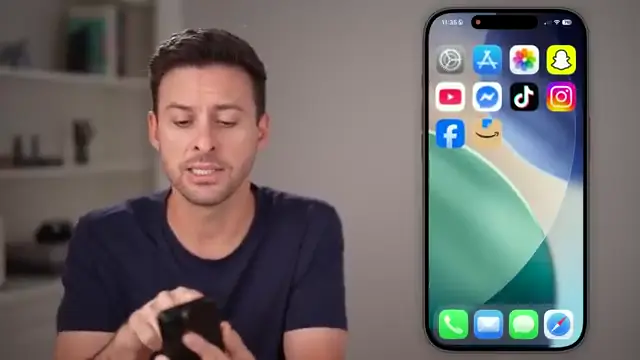
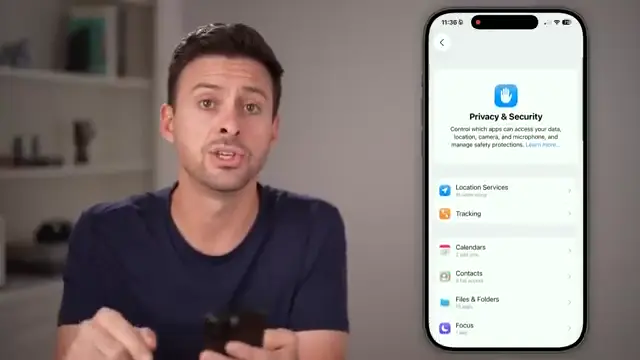
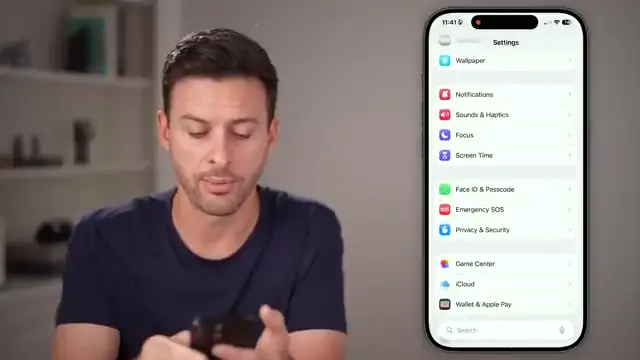
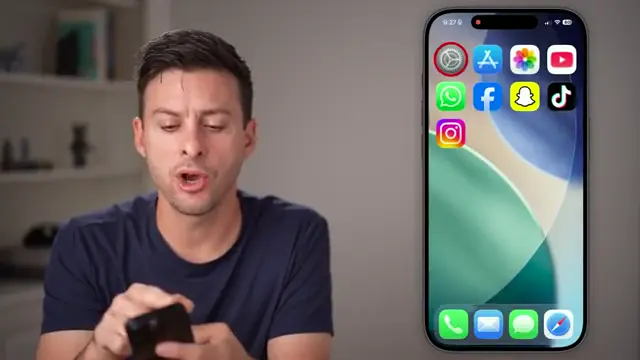
Tap on the ‘Settings’ app on your iPhone. Once inside, scroll down until you see the option labeled ‘Privacy & Security’. This section contains critical settings for managing your privacy effectively.
Step 2: Check Microphone Access for Apps
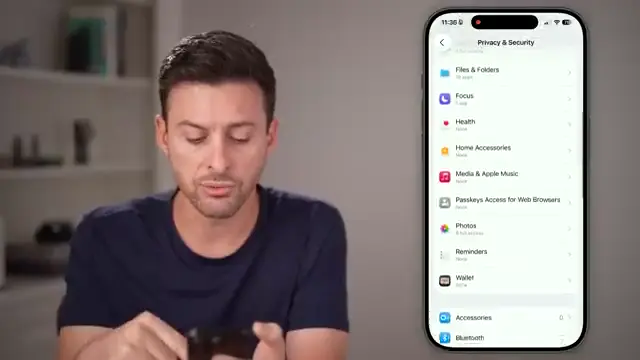
In the Privacy & Security menu, scroll down and select ‘Microphone’. Review the list of apps that have access to your microphone. Tap on any app that you don’t want to have microphone access and turn off the toggle.
Step 3: Adjust Analytics & Improvements Settings
Return to the main Settings menu, scroll down, and select ‘Analytics & Improvements’. Here you can manage settings related to sending analytics and improvement data to Apple; it’s advisable to turn these functionalities off for privacy.
Step 4: Disable Siri’s Always Listening Feature
Back in the main Settings menu, find ‘Siri & Search’. Tap on ‘Listen for “Hey Siri”‘ and switch it off to prevent your device from continuously listening for voice commands.

Step 5: Set Restrictions on App Tracking
Go to the Privacy & Security section again, this time selecting ‘Tracking’. Disable the option that allows apps to request to track your activity. This will limit apps from following your behavior across other applications.
Frequently Asked Questions
How do I know if my iPhone is listening to me?
Check the microphone access in the privacy settings to see which apps are allowed to use your microphone.
What settings should I turn off for privacy?
Turn off microphone access for unnecessary apps, disable Siri’s listening, and restrict app tracking.
Does turning off Siri stop my iPhone from listening?
Yes, disabling Siri’s listening feature will prevent your iPhone from listening for voice commands.
Can apps track me even if I turn off my microphone?
Yes, apps can still track user behavior through other means, so adjust privacy settings accordingly.
Watch the Video Tutorial
Conclusion
By following the steps outlined in this guide, you can take control of your privacy settings on your iPhone. It’s essential to regularly check these settings to ensure your device is not listening or tracking you unnecessarily.





Leave a comment