
Target Audience: Beginner iPhone Users | Estimated Read Time: 2 min
Key Takeaways:
- Learn how to access the Settings app on your iPhone.
- Understand how to enable Wi-Fi calling for better call quality.
- Discover how to make and receive calls when cellular signals are weak.
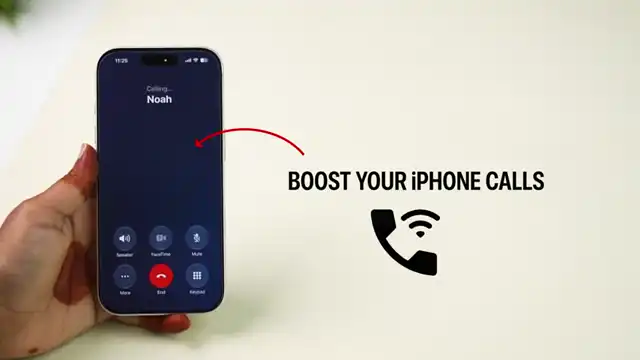
If you’re struggling with call quality on your iPhone, enabling Wi-Fi calling can significantly improve your experience. This guide walks you through the simple steps to boost your iPhone calls using Wi-Fi.
Step 1: Open the Settings App on Your iPhone
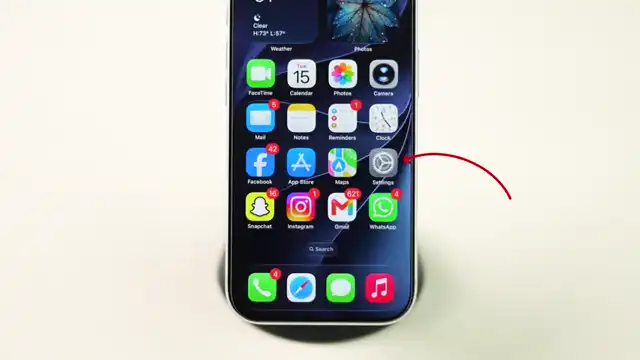
First, open the Settings app on your iPhone. This is your main hub for managing all settings for your device. Locate the Settings icon on your home screen and tap to access it.
Step 2: Scroll to Find the Apps Option
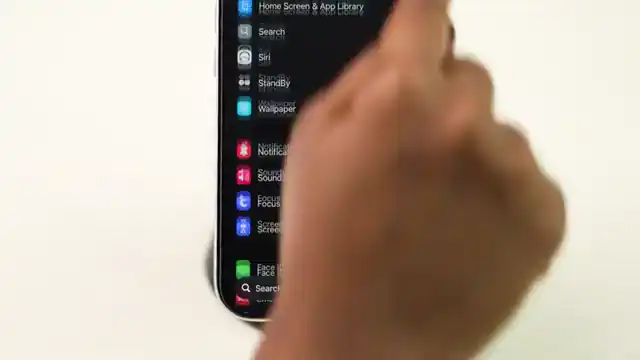
Once in Settings, scroll all the way down to find the Apps section. You’ll need to navigate this area to manage your calling options effectively.
Step 3: Select Phone from the List
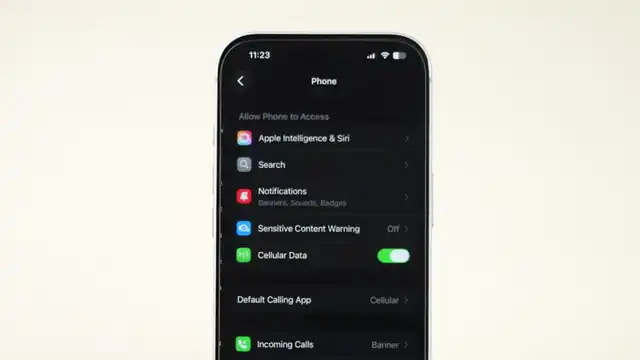
In the Apps section, use the alphabetical index on the right and select the letter ‘P’. Tap on Phone from the list to access phone settings.
Step 4: Enable Wi-Fi Calling
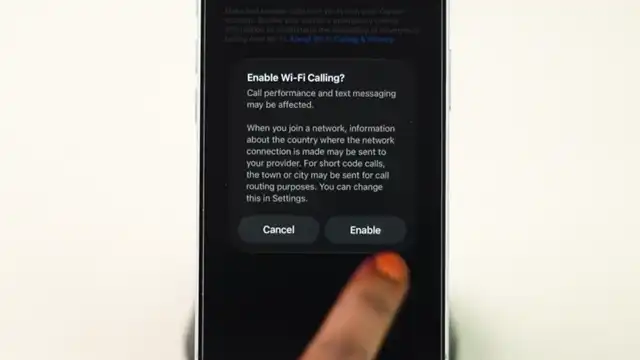
After selecting Phone, scroll down and tap on ‘Wi-Fi Calling’. Turn on the toggle next to Wi-Fi Calling on this iPhone. If prompted, tap ‘Enable’ to confirm this setting.
Step 5: Confirm Wi-Fi Calling Activation
Once Wi-Fi calling is enabled, your iPhone can use a Wi-Fi connection to make and receive calls when your cellular signal is weak or unavailable. That’s all it takes to boost your iPhone calls!
Frequently Asked Questions
What is Wi-Fi calling on my iPhone?
Wi-Fi calling allows you to make and receive calls using a Wi-Fi connection instead of cellular data, improving call quality in low-signal areas.
How do I enable Wi-Fi calling on my iPhone?
You can enable Wi-Fi calling by going to Settings > Phone > Wi-Fi Calling and turning on the toggle.
Will I be charged for Wi-Fi calls on my iPhone?
Wi-Fi calls typically won’t incur additional charges, but check with your carrier for specific details regarding your plan.
Can I use Wi-Fi calling when traveling abroad?
Yes, Wi-Fi calling can be used while traveling, but be sure to check your carrier’s policies to avoid unexpected charges.
Watch the Video Tutorial
Conclusion
By enabling Wi-Fi calling, you can ensure that even without cellular signal, you can stay connected. Follow these steps, and experience improved call quality on your iPhone!
{“@context”:”https://schema.org”,”@graph”:[{“@type”:”HowTo”,”name”:”Boost Your iPhone Calls with Wi-Fi”,”description”:”Learn how to boost iPhone calls by enabling Wi-Fi calling in simple steps.”,”step”:[{“@type”:”HowToStep”,”position”:1,”name”:”Open the Settings App on Your iPhone”,”text”:”First, open the Settings app on your iPhone. This is your main hub for managing all settings for your device. Locate the Settings icon on your home screen and tap to access it.”},{“@type”:”HowToStep”,”position”:2,”name”:”Scroll to Find the Apps Option”,”text”:”Once in Settings, scroll all the way down to find the Apps section. You’ll need to navigate this area to manage your calling options effectively.”},{“@type”:”HowToStep”,”position”:3,”name”:”Select Phone from the List”,”text”:”In the Apps section, use the alphabetical index on the right and select the letter ‘P’. Tap on Phone from the list to access phone settings.”},{“@type”:”HowToStep”,”position”:4,”name”:”Enable Wi-Fi Calling”,”text”:”After selecting Phone, scroll down and tap on ‘Wi-Fi Calling’. Turn on the toggle next to Wi-Fi Calling on this iPhone. If prompted, tap ‘Enable’ to confirm this setting.”},{“@type”:”HowToStep”,”position”:5,”name”:”Confirm Wi-Fi Calling Activation”,”text”:”Once Wi-Fi calling is enabled, your iPhone can use a Wi-Fi connection to make and receive calls when your cellular signal is weak or unavailable. That’s all it takes to boost your iPhone calls!”}]},{“@type”:”FAQPage”,”mainEntity”:[{“@type”:”Question”,”name”:”What is Wi-Fi calling on my iPhone?”,”acceptedAnswer”:{“@type”:”Answer”,”text”:”Wi-Fi calling allows you to make and receive calls using a Wi-Fi connection instead of cellular data, improving call quality in low-signal areas.”}},{“@type”:”Question”,”name”:”How do I enable Wi-Fi calling on my iPhone?”,”acceptedAnswer”:{“@type”:”Answer”,”text”:”You can enable Wi-Fi calling by going to Settings > Phone > Wi-Fi Calling and turning on the toggle.”}},{“@type”:”Question”,”name”:”Will I be charged for Wi-Fi calls on my iPhone?”,”acceptedAnswer”:{“@type”:”Answer”,”text”:”Wi-Fi calls typically won’t incur additional charges, but check with your carrier for specific details regarding your plan.”}},{“@type”:”Question”,”name”:”Can I use Wi-Fi calling when traveling abroad?”,”acceptedAnswer”:{“@type”:”Answer”,”text”:”Yes, Wi-Fi calling can be used while traveling, but be sure to check your carrier’s policies to avoid unexpected charges.”}}]}]}



Leave a comment