
Key Takeaways:
- Understand how to customize charging animations
- Learn the steps to access routines
- Get tips on choosing the right wallpaper
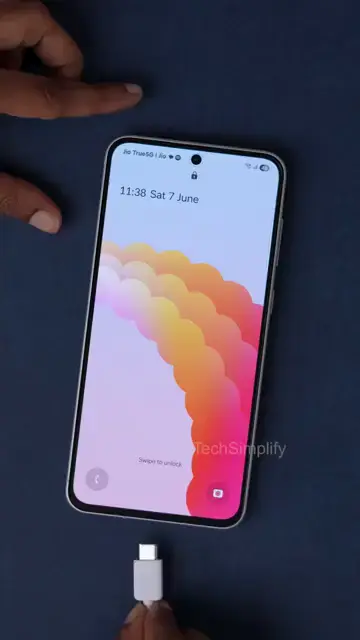
If you want your Samsung phone to have a unique charging experience, adding a custom charging animation is a fun way to achieve that. With just a few taps in your settings, you can personalize your charging mode without needing any apps. Here’s how to set it up!
Step 1: Access Settings on Your Samsung Phone
Start by going to the Settings app on your Samsung phone, where you will find various customization options. This is where you will add your new charging animation.
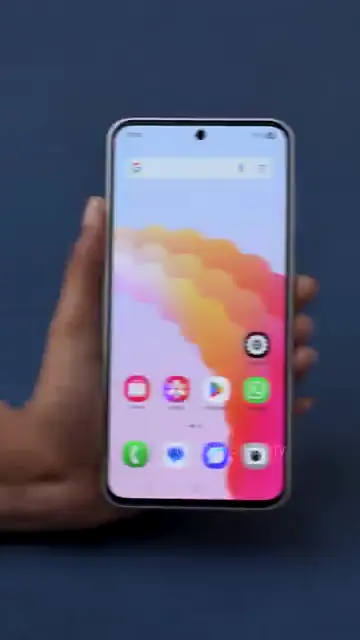
Step 2: Navigate to Modes and Routines
Next, locate the ‘Modes and Routines’ section within the settings menu. This is where you’ll find options to change how your phone behaves when charging.
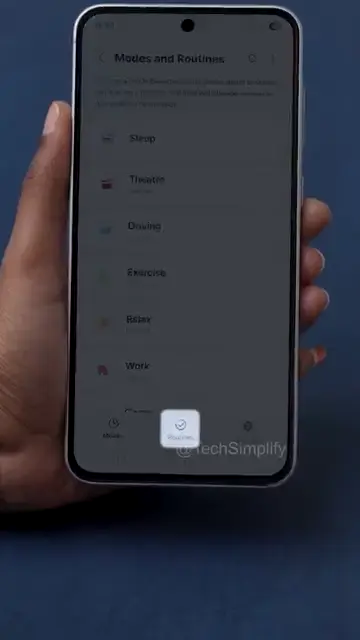
Step 3: Select the Routines Tab
Tap on the ‘Routines’ tab to access the routines settings. This area allows you to set conditions for your charging animation.
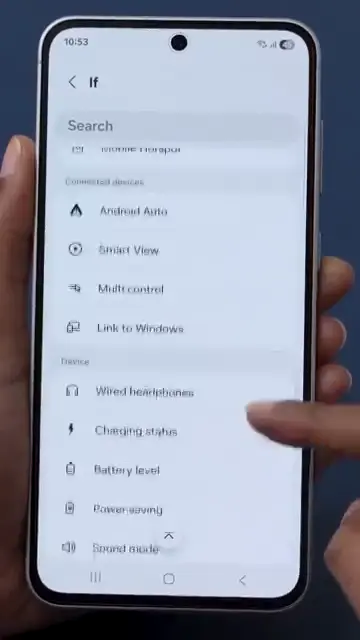
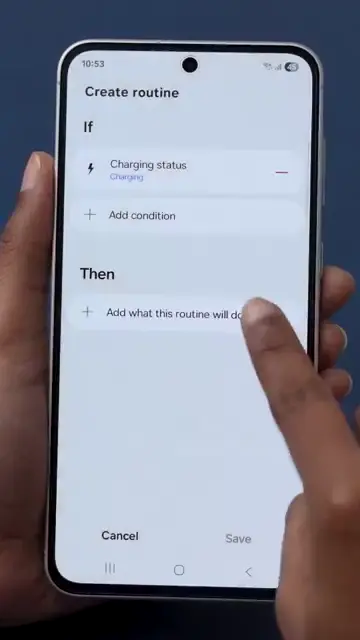
Step 4: Set Charging Condition
Under the ‘If’ section, select ‘Charging Status.’ This defines the condition that will trigger your custom animation when charging begins.
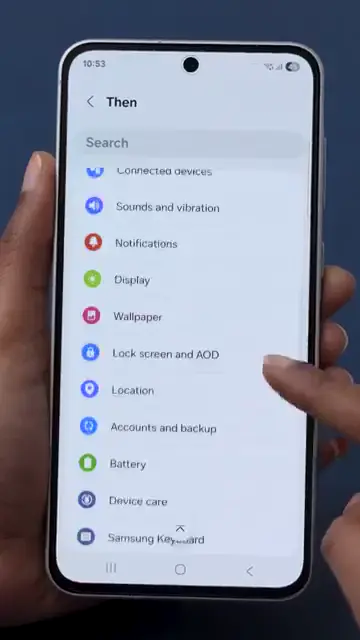
Step 5: Choose Animation Type
Now, under the ‘Then’ section, choose the option for ‘Wallpaper.’ This allows you to set the visual aspect of the charging animation.
Step 6: Change Lock Screen Wallpaper
Change your lock screen wallpaper to any image or video that you want for your charging animation. This step is crucial to personalize your experience.
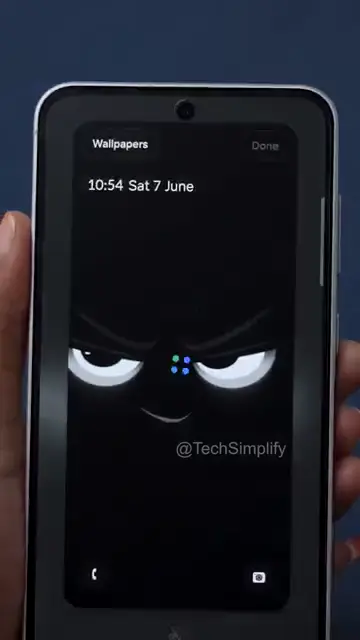
Step 7: Select Your Custom Image or Video
Pick an image or video that best signifies your charging mode activated. This will be displayed on your screen while the device is charging.
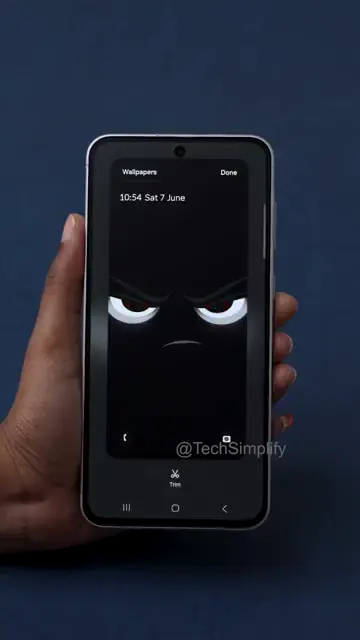
Step 8: Finalize Your Settings
Finally, tap ‘Done’ to save your settings. This will activate your custom charging animation every time your phone is charged.
Frequently Asked Questions
Do I need an app to customize my Samsung charging animation?
No, you can customize your Samsung charging animation directly through the settings.
Can I use videos as a charging animation?
Yes, you can select any image or video as your custom charging animation.
How do I reset my charging animation to the default?
You can revert back to the default charging animation by going into the settings and removing your custom animation.
Will this feature work on all Samsung models?
Most recent Samsung models support custom charging animations, but older models may vary.
Watch the Video Tutorial
Conclusion
Customizing your Samsung phone’s charging animation can add a personal touch to your device. Follow these steps to set it up and enjoy a unique charging experience!




Leave a comment