
Key Takeaways:
- Learn how to set up your Facebook profile.
- Understand how to add friends on Facebook.
- Create your first Facebook post and explore features.
Today, we’re diving into how to use Facebook, especially if you’re a beginner. Facebook has evolved significantly since its launch and can be a great way to connect with friends and family. Whether you’re newly signing up or returning after some time, this guide will help you navigate the platform step by step. Let’s get started on your journey to using Facebook effectively!
Step 1: Create a Facebook Account
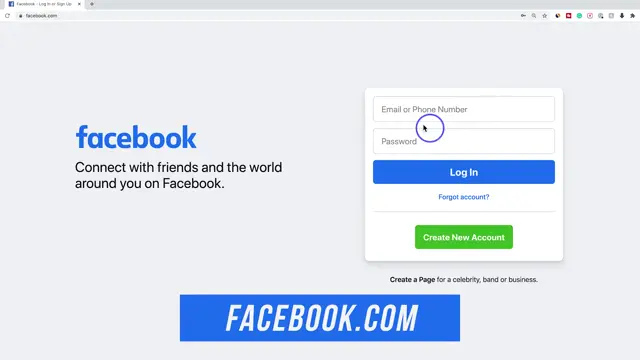
To start using Facebook, visit the login page. If you don’t have an account, click ‘Create New Account’ and fill in the required details, ensuring you use a valid email or phone number for verification. Also, remember the age requirement: you must be at least 13 years old to sign up for Facebook.
Step 2: Add a Profile Picture
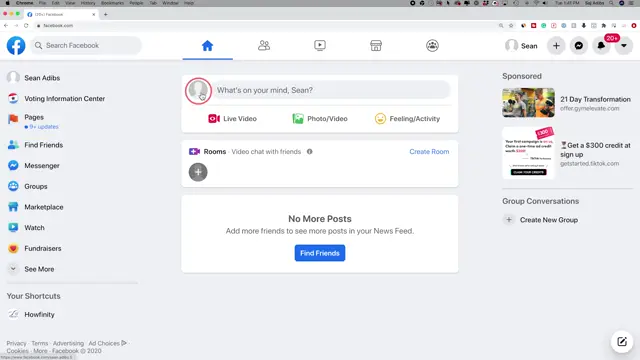
Once signed in, Facebook will prompt you to add a profile picture. Click on the profile picture icon and upload an image that represents you. Select a clear image so your friends can easily recognize you. Make sure it is centered in the frame before saving it.
Step 3: Add Friends on Facebook
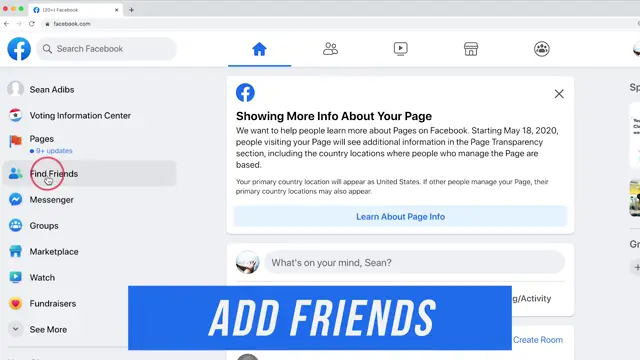
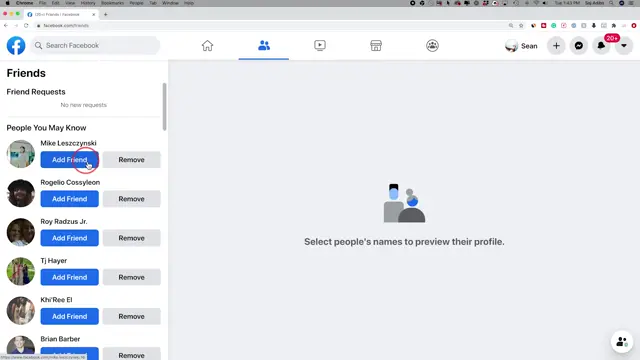
To connect with others, go to the ‘Friends’ tab or look for the ‘Find Friends’ option in the left sidebar. Here you can see friend suggestions based on mutual connections. You can send friend requests to people you know or follow public figures without them needing to approve your request.
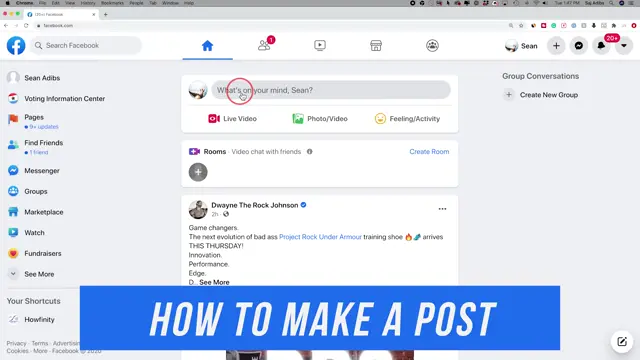
Step 4: Make Your First Facebook Post
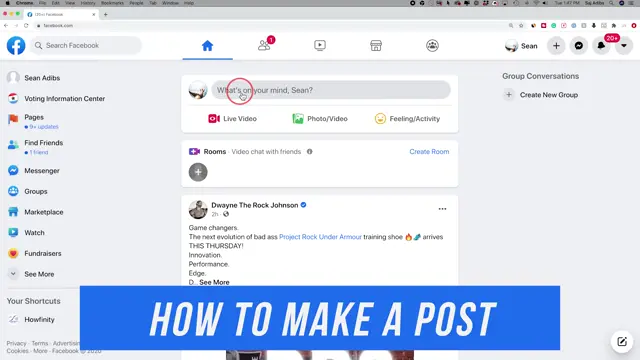
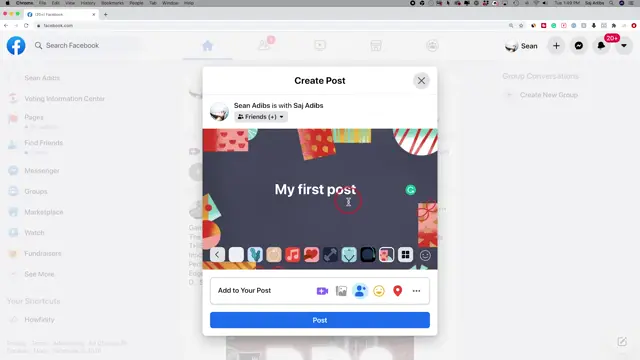
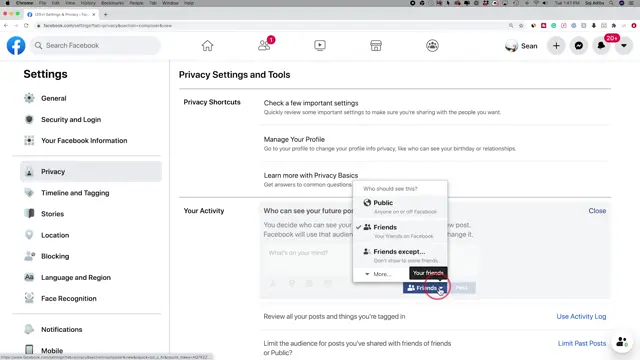
After adding friends, you can share your thoughts by creating a post. On the homepage, find the ‘What’s on your mind?’ box. Type a status update, add photos or videos if desired, and select who can see your post from the privacy options. Click ‘Post’ to share it with your friends.
Step 5: Create an Account
If you don’t have a Facebook account yet, click on ‘Create New Account’. Fill out the necessary information to set up your profile.
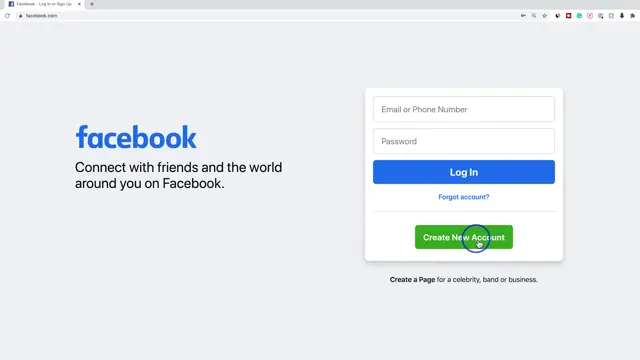
Step 6: Create New Account
When prompted, click on ‘Create New Account’ to begin your registration process.
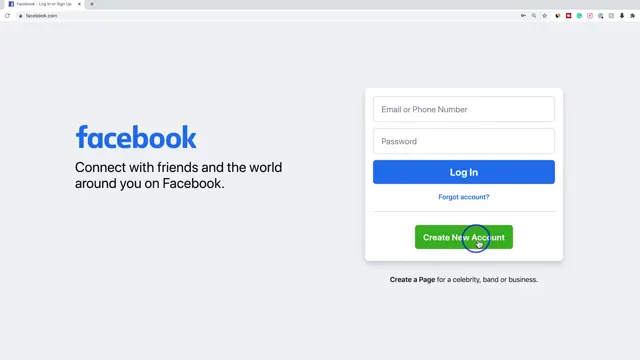
Step 7: Fill Out Your Information
Complete the form by entering your name, email or phone number, password, date of birth, and gender. Ensure all details are correct before continuing.
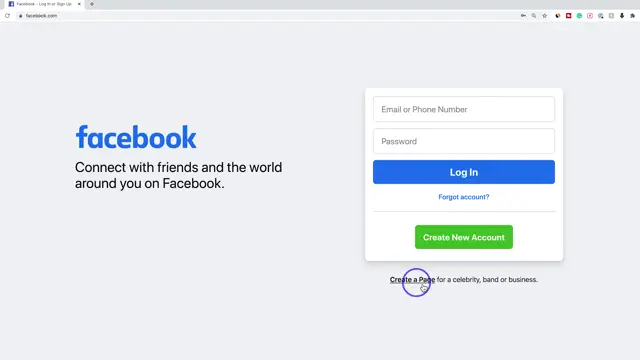
Step 8: Upload Profile Picture
To upload your profile picture, click on the profile picture icon located on your profile page.
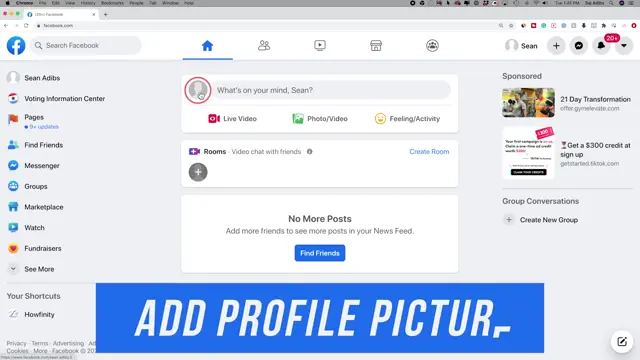
Step 9: Send Friend Request
To connect with friends, find someone you know and click ‘Add Friend’ to send them a request.
Step 10: Add Friend
Click the ‘Add Friend’ button next to a person’s profile to send them a friend request.
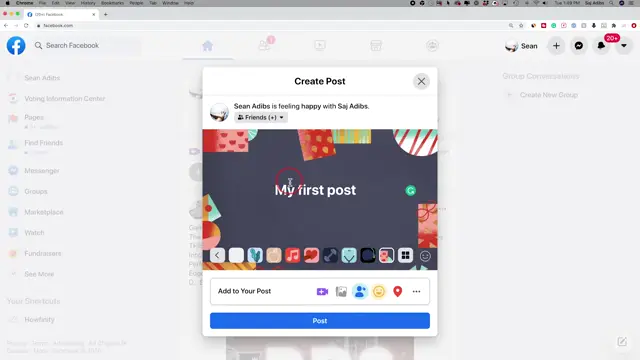
Step 11: Tag Friends in Posts
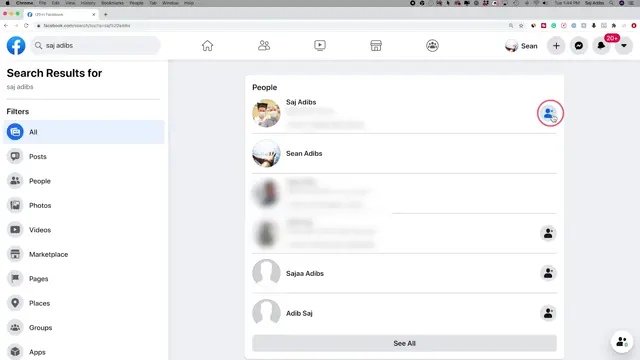
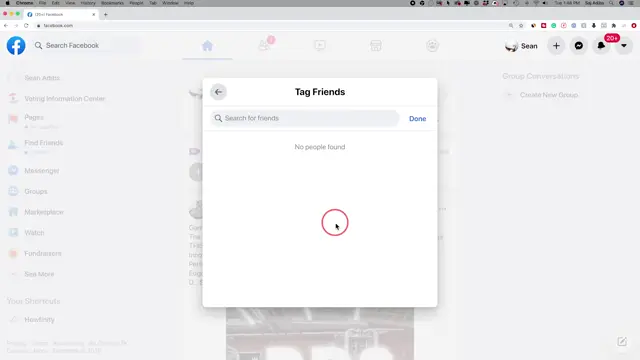
When creating a post, use ‘Tag Friends’ to include friends in your status update for greater engagement.
Step 12: Confirm Tagging
After selecting friends to tag, click ‘Done’ to confirm their inclusion in your post.
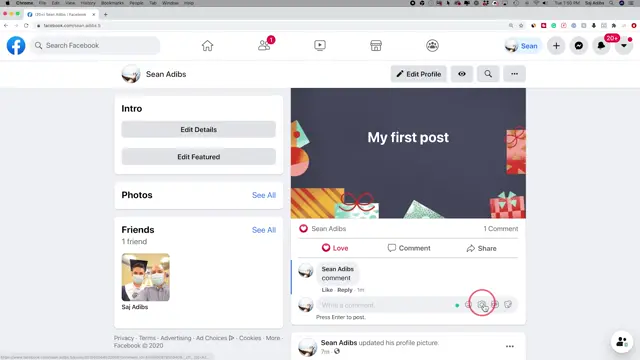
Step 13: Submit Your Comment
After typing your comment, press ‘Enter’ to post it under any friend’s status or your own.
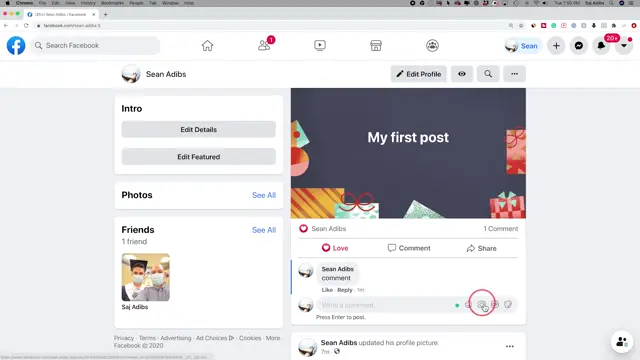
Step 14: Post Your Status
When you are ready, click the ‘Post’ button to share your thoughts and updates with your friends.
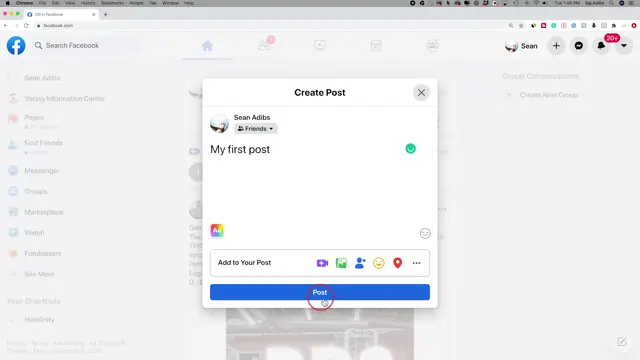
Step 15: Save Profile Picture Changes
After positioning your profile picture, click ‘Save’ to apply changes and update your profile.
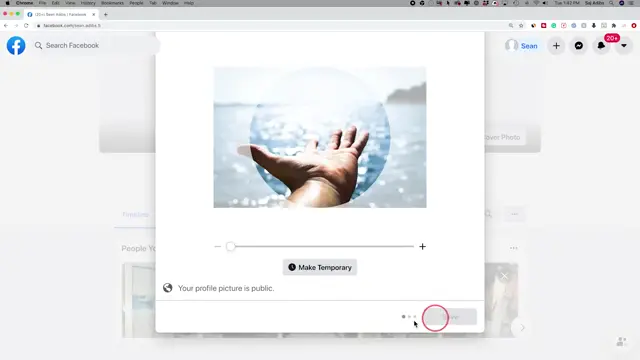
Step 16: Close Photo Upload
If you decide not to upload a certain photo, click the ‘X’ button to exit that section without saving it.
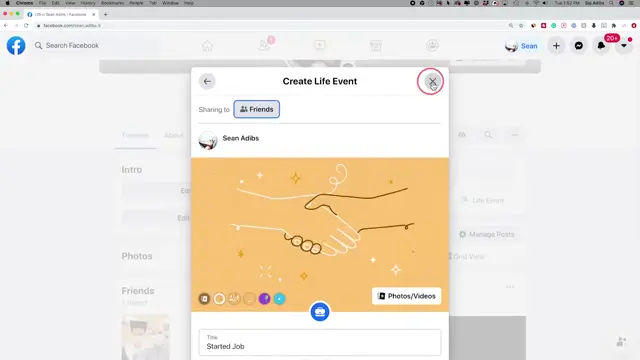
Step 17: Explore Create Options
Click the ‘+’ sign on your homepage to explore options for creating events or ads on Facebook.
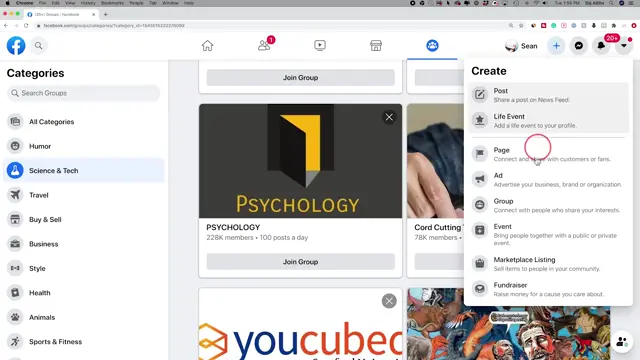
Step 18: Edit Privacy Settings
While viewing your profile, click ‘Edit’ next to privacy settings to adjust who can see your posts and information.
Step 19: Post Your Comment
To submit your comment, press ‘Enter’ on your keyboard after typing in the comment box.
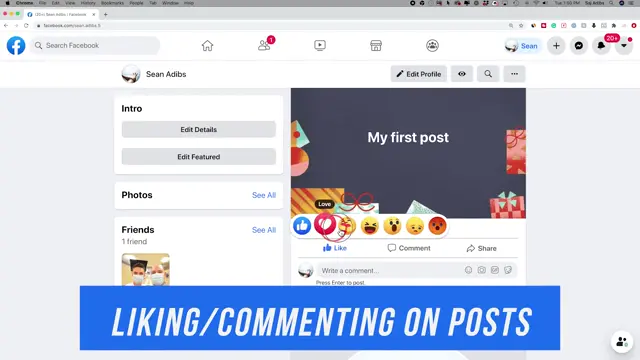
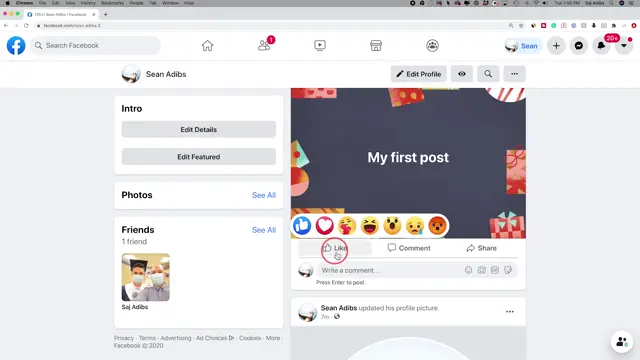
Step 20: Like a Post
To show appreciation for someone’s post, click ‘Like’ underneath the post you want to react to.
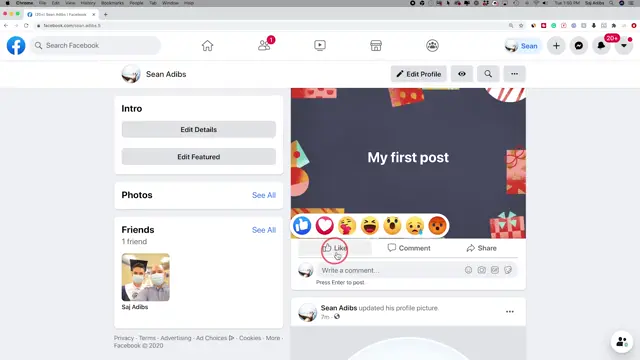
Step 21: View More Reactions
For additional reaction options, hold down the ‘Like’ button to choose from other reactions like Love, Laugh, etc.
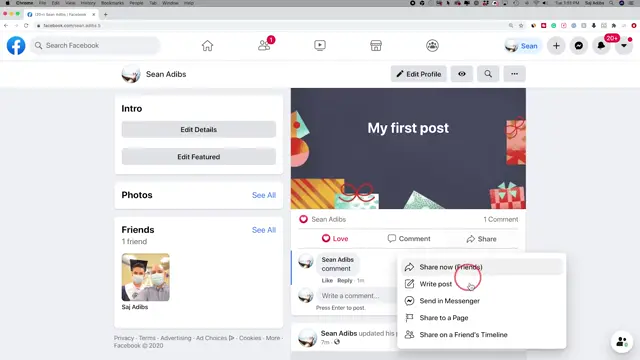
Step 22: Share a Post
To share someone else’s post, click on the ‘Share’ button to repost it on your own profile.
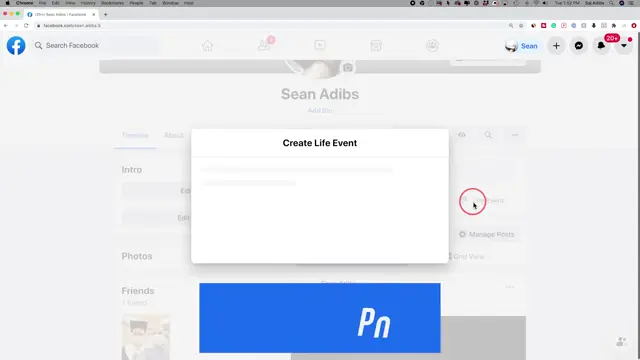
Step 23: Start a Live Video
To engage with your followers in real-time, click ‘Live’ to start a live video broadcast from your profile.
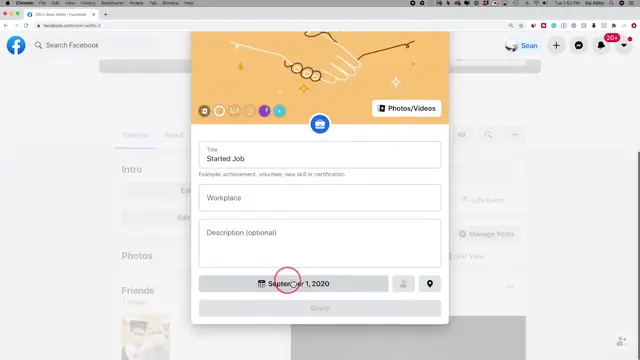
Step 24: Edit Your Post
After posting, if you want to make changes, click ‘Edit’ on your post to add or remove information.
Step 25: Finalize Your Post
Once you’re satisfied with your status, click ‘Post’ to share it with your connections.
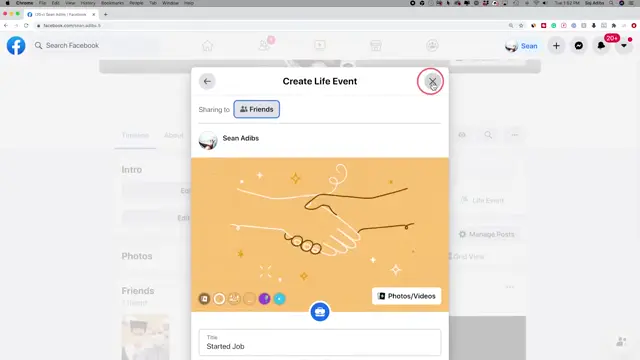
Step 26: Open Settings Menu
To access more options, click the small arrow in the top right corner of Facebook.
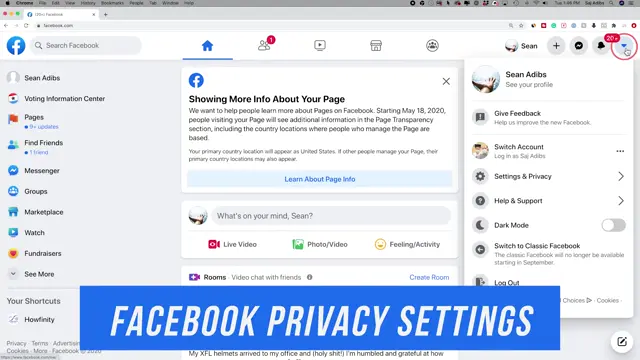
Step 27: Go to Settings and Privacy
Select ‘Settings and Privacy’ to adjust your account settings, including privacy options.
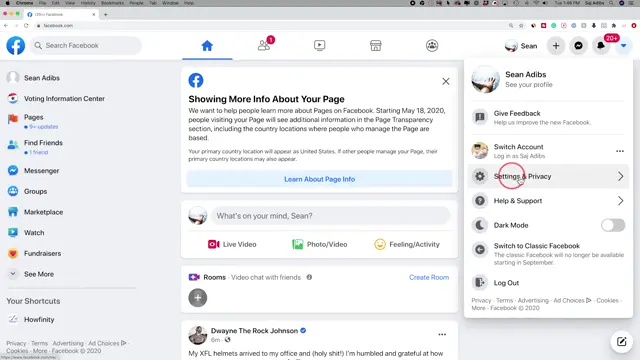
Step 28: View Account Settings
Click ‘Settings’ again to access your full account settings including security and information.
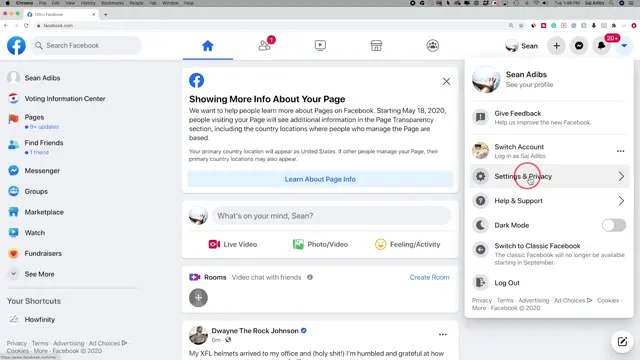
Step 29: Open Privacy Settings
Click on ‘Privacy’ to view and manage your privacy settings on Facebook.
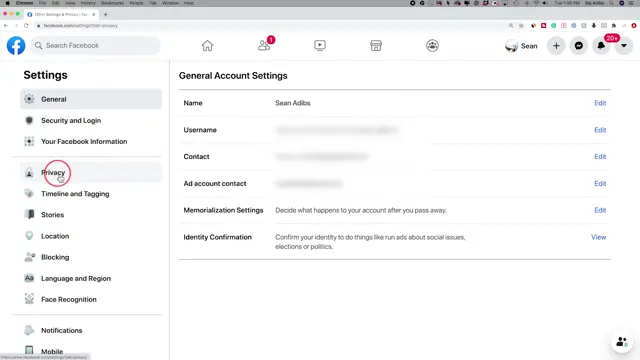
Step 30: Navigate to the Login Page
When accessing Facebook, ensure you are on the correct login page where you can enter your credentials.
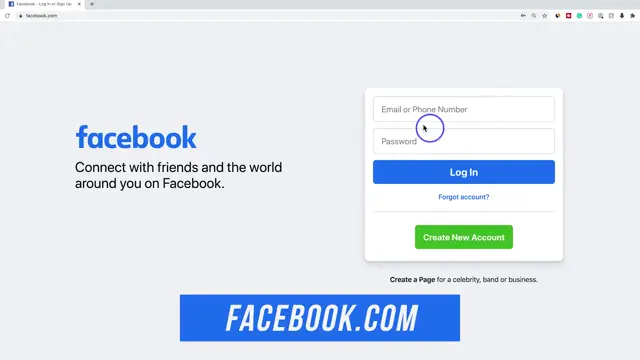
Step 31: Return to Facebook Homepage
Click the Facebook logo at the top left of the screen to navigate back to your homepage anytime.
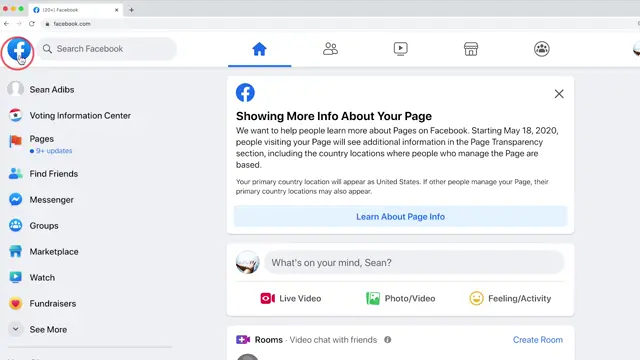
Step 32: Access Friends List
To view your friends on Facebook, click on the ‘Friends’ icon located in the menu.
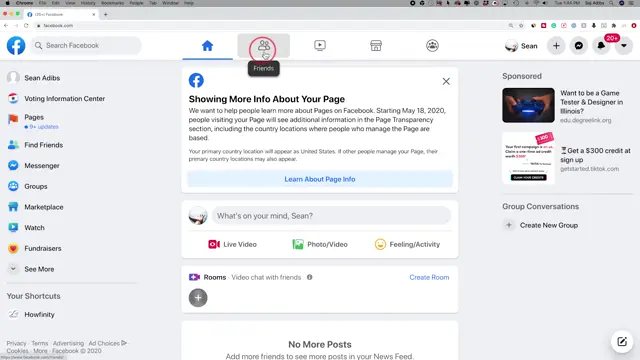
Step 33: Search for Friends
Utilize the search bar at the top of the page to find friends or public figures by name.
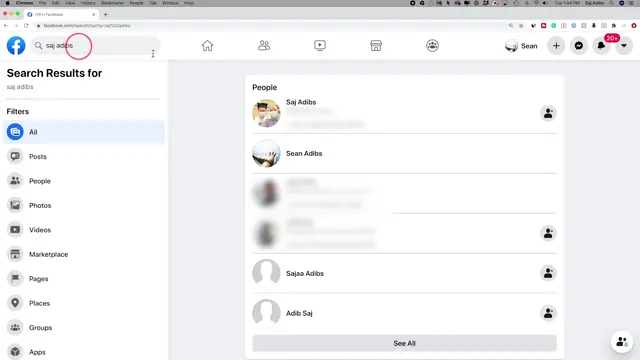
Step 34: Search for a Public Figure
To follow a public figure or celebrity, type their name into the search bar and select their profile.
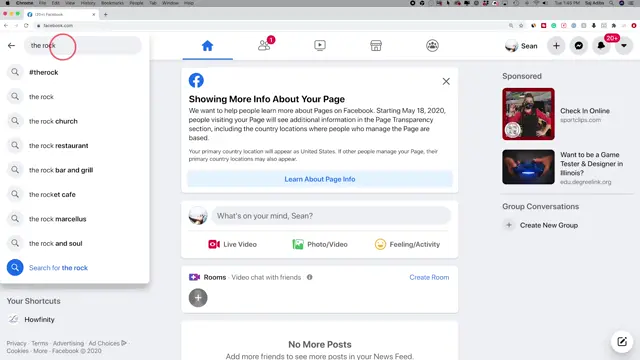
Step 35: Refresh Your Homepage
To view your latest feeds and posts, return to your homepage by clicking on the Facebook logo.
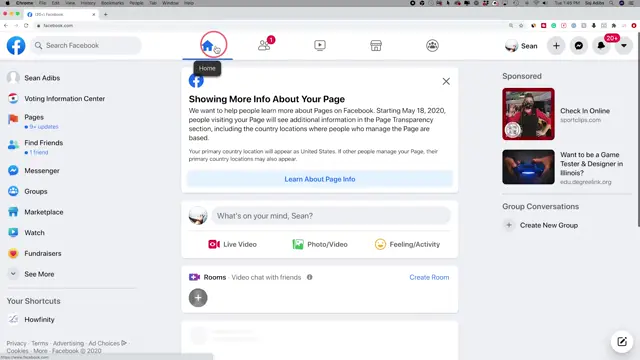
Step 36: Access Video Links
For additional resources or videos, check the description box located beneath the video for links.
Step 37: Follow Video Links
To explore related content or tutorials, click on any provided links in the description box.
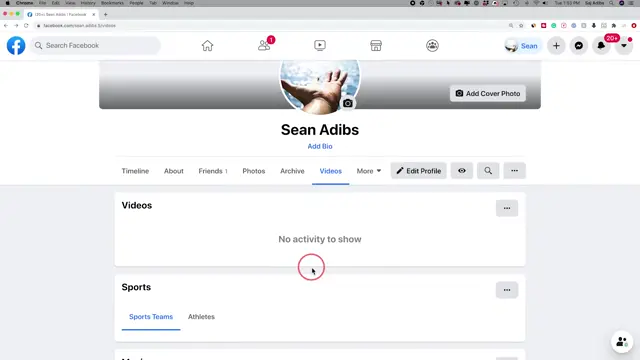
Step 38: View Your Video Posts
To see all videos you’ve posted, navigate to the ‘Video’ section of your profile.
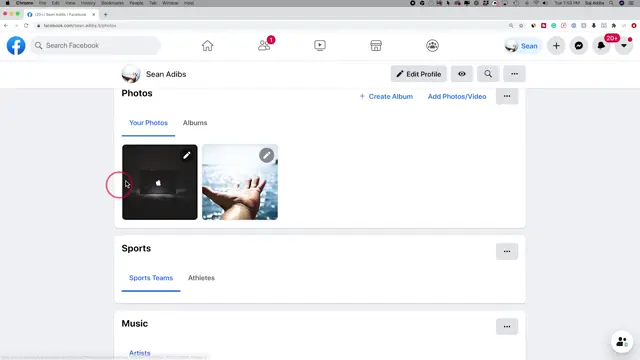
Step 39: Access Your Photos
Click on the ‘Photos’ section to view and manage all images you have uploaded to your Facebook profile.
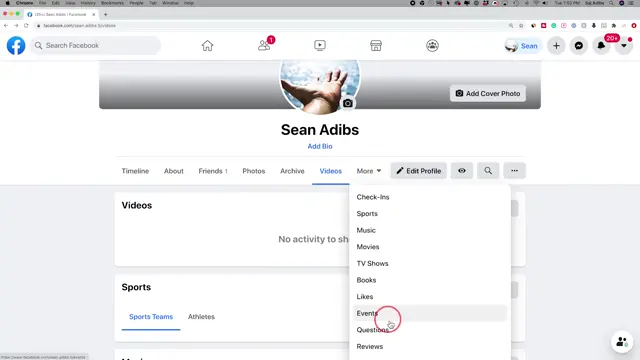
Step 40: View Posted Videos
Inside your profile, select the ‘Video’ section to see all your uploaded videos.
Step 41: Edit Your Profile Information
To make changes to your personal information, go to ‘Edit Profile’ and update any necessary fields.
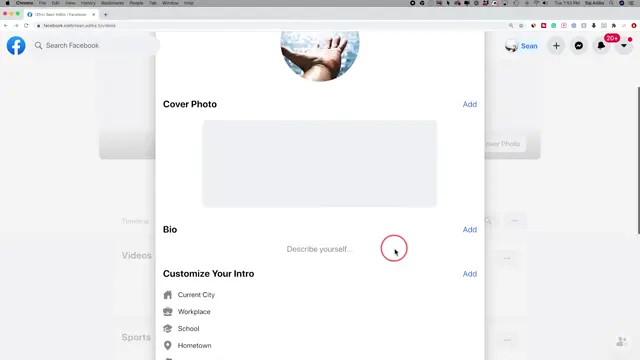
Step 42: Start at the Homepage
Begin your Facebook journey from the homepage where all updates and options are visible.
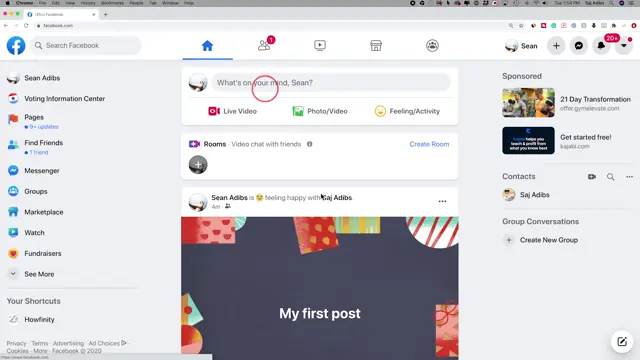
Step 43: Watch Facebook Videos
Explore the ‘Watch’ section to find various video content shared by other users or organizations.
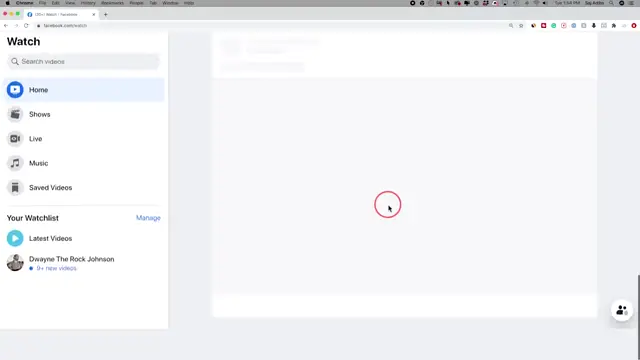
Step 44: Explore Marketplace
Navigate to the ‘Marketplace’ to buy or sell items in your local area on Facebook.
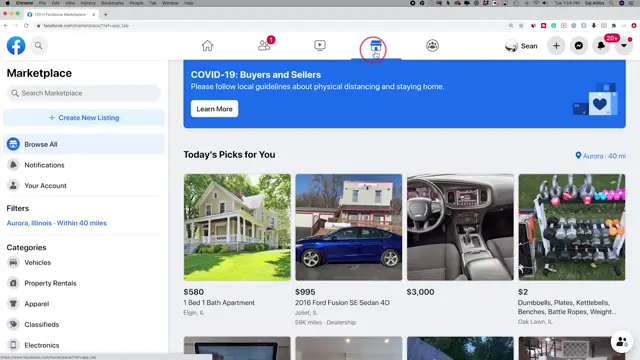
Step 45: Join Facebook Groups
Visit the ‘Groups’ section to find communities based on your interests and request to join them.
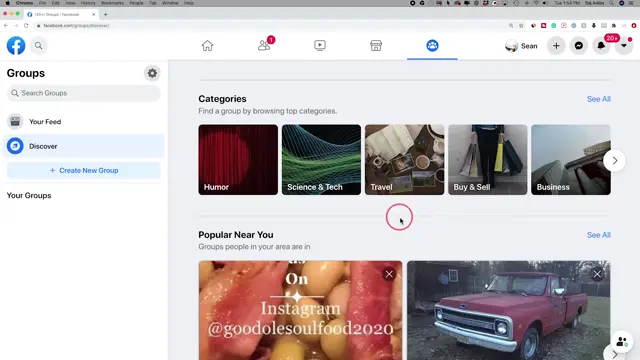
Step 46: Discover More Features
Click the ‘+’ sign to explore additional features like creating events, pages, or fundraisers.
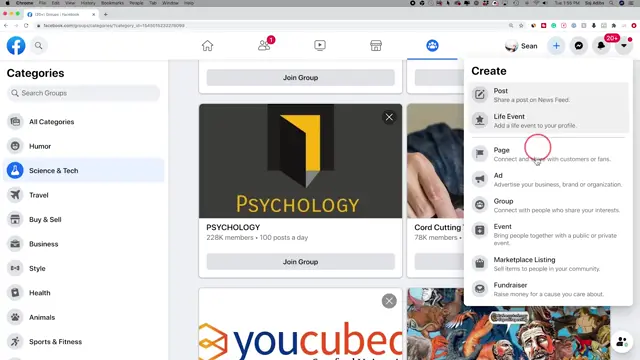
Step 47: Create a Business Page
If you have a business, use the ‘+’ sign to create a dedicated Facebook page for it.
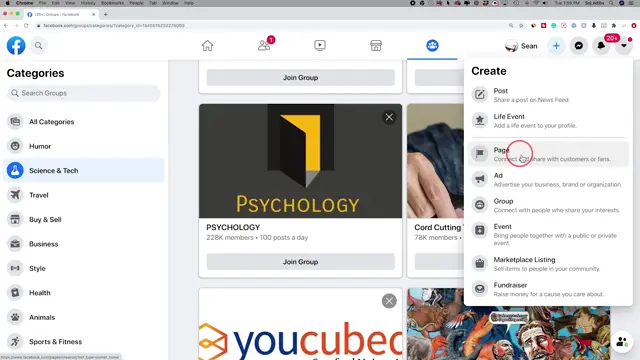
Step 48: Begin Advertising
To promote a post or page, click the option to run ads to reach a larger audience on Facebook.
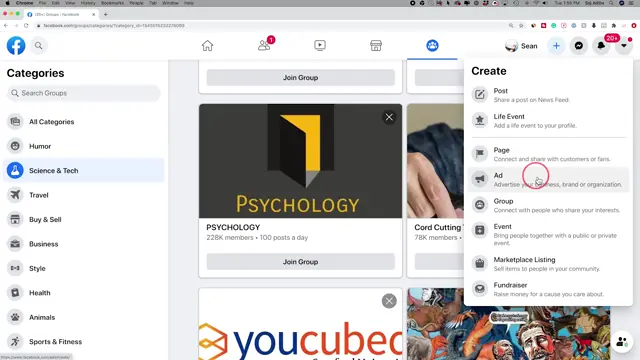
Step 49: Create an Event
Use the ‘+’ sign to set up an event, either public or private, for your friends and followers.
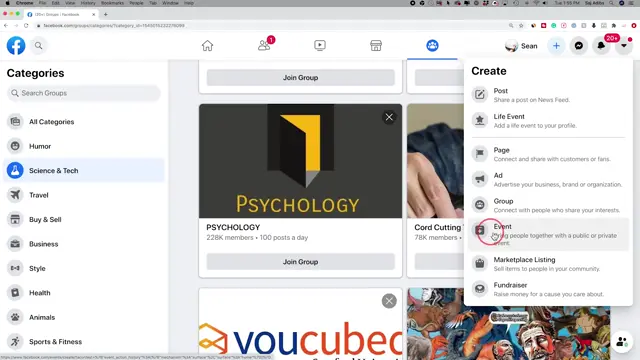
Step 50: Start a Fundraiser
If you want to organize a fundraiser, click the appropriate option to start one from your page.
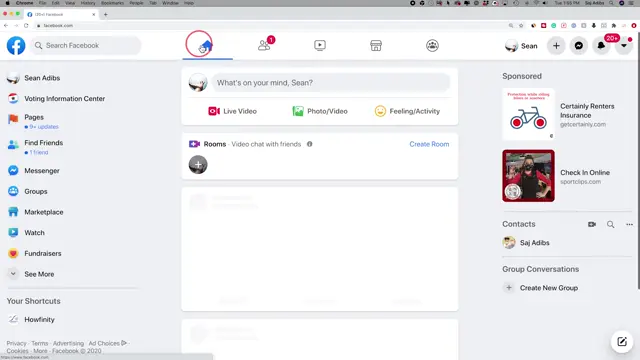
Step 51: Explore Additional Features
Discover more functionalities on Facebook by navigating through various sections on the platform.
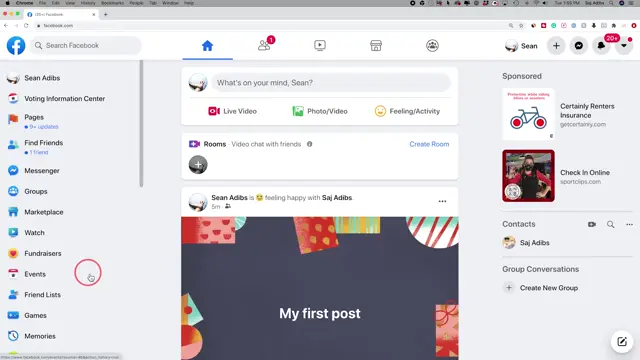
Step 52: Play Facebook Games
Check the sections devoted to games for casual gaming with friends on Facebook.
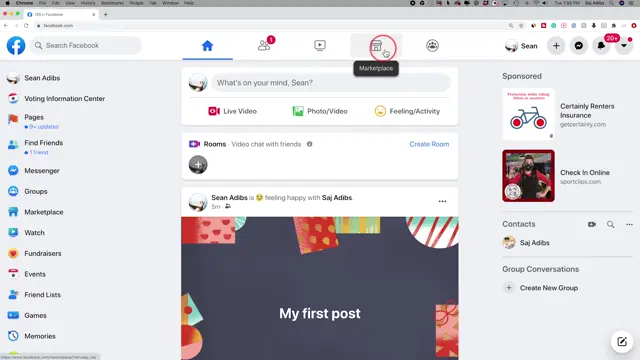
Step 53: Search for Jobs
Navigate to the Jobs section on Facebook to explore employment opportunities available around you.
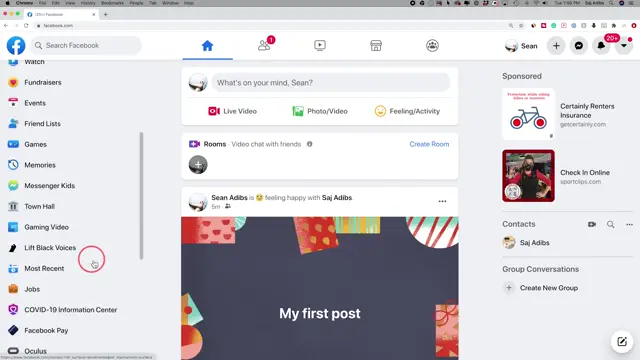
Step 54: Navigate Left Sidebar
Use the left sidebar to explore all accessible features, including groups, events, and more.
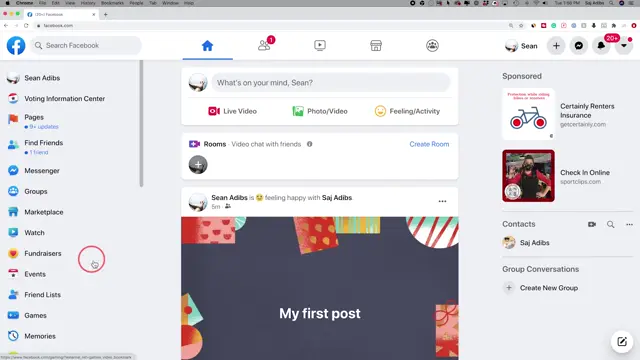
Step 55: Upload Your Profile Picture
To create a recognizable online presence, upload a quality profile picture to your account.
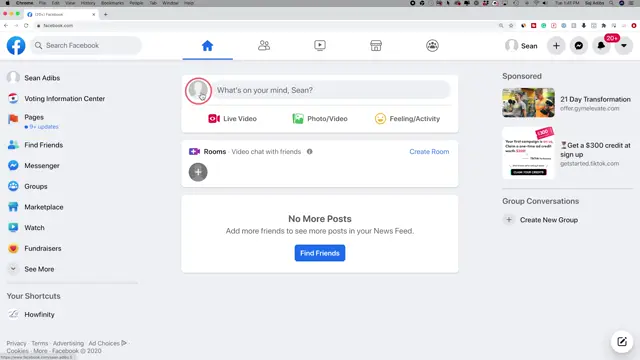
Step 56: Add More Friends
Build your social network by adding more friends to your Facebook account.
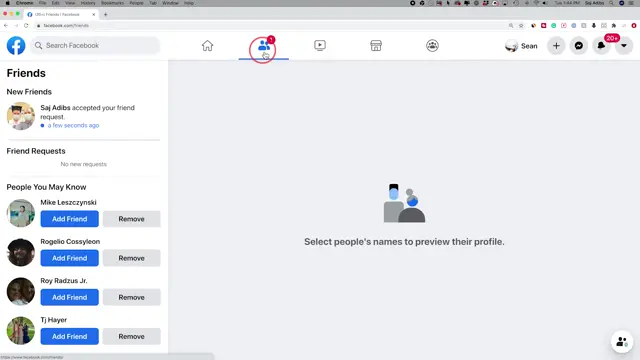
Step 57: Post an Update
Engage your friends by making your very first post to share your thoughts.
Step 58: Add Photos to Your Posts
Enhance your posts by adding photos. Click the photo option when creating a new status.
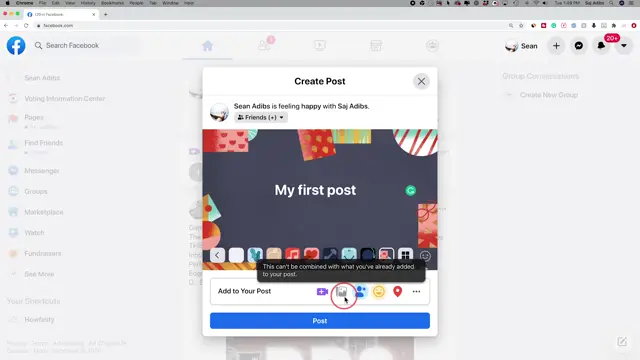
Step 59: Include Videos in Your Posts
For a more engaging post, add videos by selecting the video option when creating a new status update.
Step 60: Follow Accounts
Expand your feed by following more accounts, including friends and public figures.
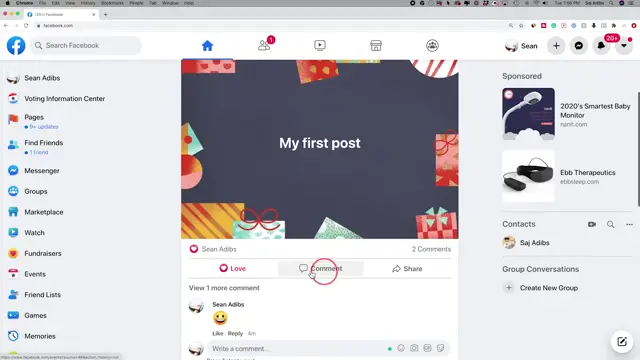
Step 61: Engage with Friends
Interact with your friends by liking and commenting on their posts to foster connections.
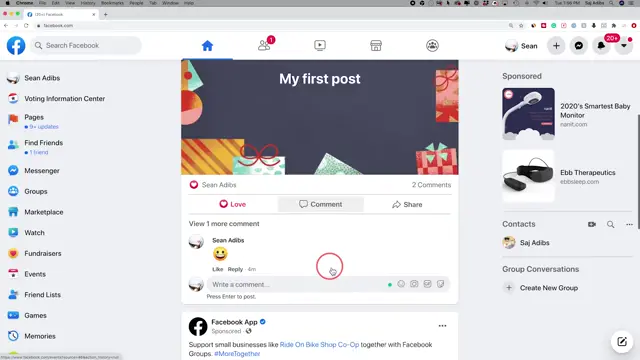
Step 62: Comment on Posts
Add value to your interactions by commenting on your friends’ posts or sharing your thoughts.
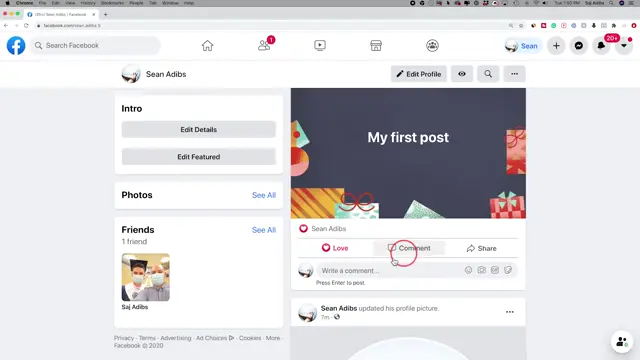
Step 63: Like Friends’ Posts
Show your appreciation for your friends’ content by liking their posts regularly.
Step 64: Learn About Facebook Features
Take time to explore Facebook further and discover all its functionalities and options.
Frequently Asked Questions
How do I create a Facebook account?
Visit the Facebook site, click ‘Create New Account’, and fill in your details like email, password, and birthday to get started.
What should I put as my profile picture?
Your profile picture should be clear and recognizable, ideally a headshot of yourself to help others identify you quickly.
How can I find friends on Facebook?
Go to the ‘Friends’ tab or use the ‘Find Friends’ feature to see suggestions and send friend requests to people you know.
What type of posts can I make on Facebook?
You can share text updates, photos, videos, and links, and also tag friends in your posts.
Watch the Video Tutorial
Conclusion
With these steps, you’re now ready to navigate Facebook confidently! Remember to explore the platform further to discover all the features it has to offer. Happy connecting!





Leave a comment