
· By KAI
Key Takeaways:
- Understand how to access Windows settings
- Learn the steps to change your product key
- Check if your Windows is activated
Activating Windows 10 is crucial for getting the most out of your operating system. In this guide, we will take you through each step needed to safely activate your Windows environment using a product key. Follow along to ensure your copy of Windows 10 is fully authorized and operational.
Step 1: Open Search Menu
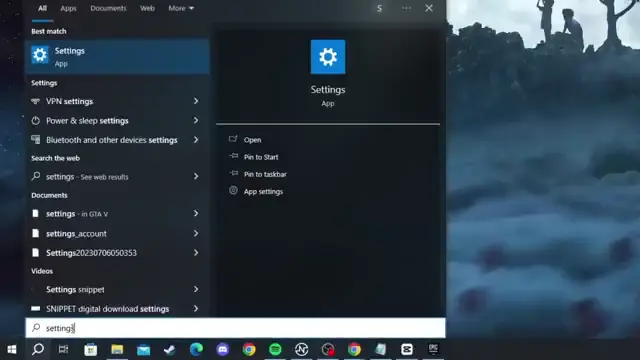
Start by clicking the search button located on the bottom of your desktop taskbar. This will allow you to quickly access the settings application.

Step 2: Find Settings Application
Type ‘settings’ into the search bar and select the settings application from the suggestions that appear. This is where you manage your system settings.
Step 3: Select System Settings
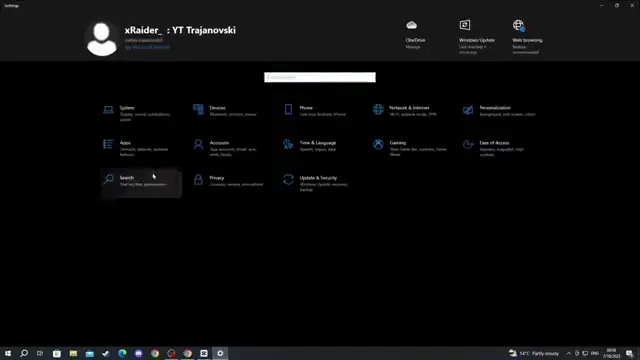
In the settings menu, click on the ‘System’ option. This will lead you to further options regarding your device and its specifications.
Step 4: Access About Page
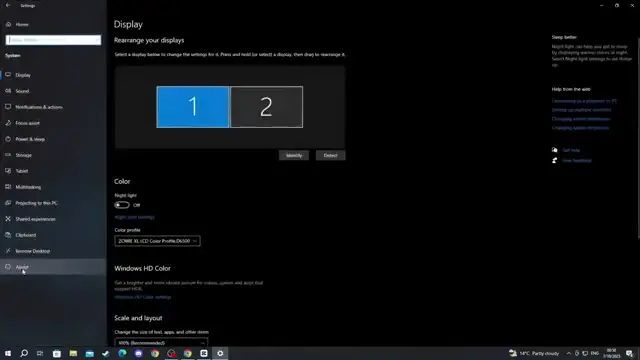
Scroll down and click on the ‘About’ button located at the bottom of the System options. Here, you can verify your current activation status.
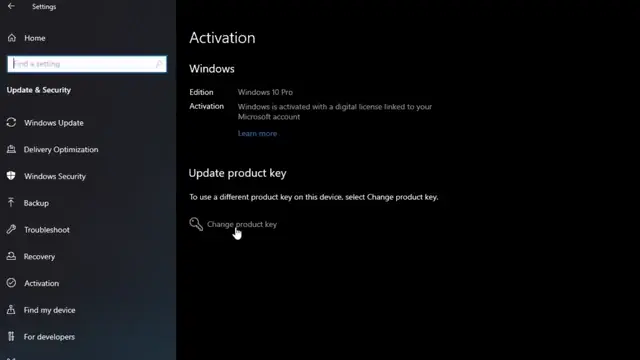
Step 5: Change Product Key
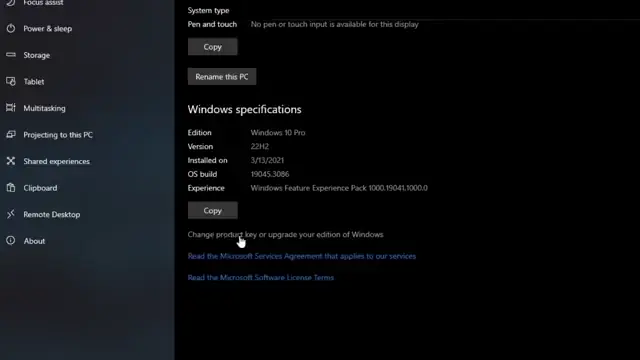
On the About page, select ‘Change product key or upgrade your edition’. This step is essential for activating your Windows if it’s not already activated.
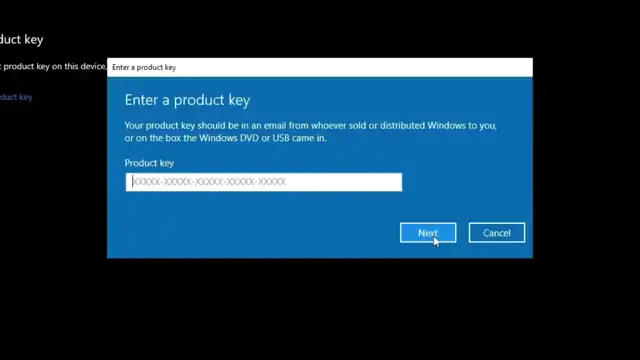
Step 6: Enter Product Key
After selecting the change product key option, you will be prompted to enter a product key. This key can be obtained from authorized retailers.
Step 7: Activate Windows 10
Once you have entered the product key, press the ‘Next’ button to initiate the activation process. Follow any additional prompts to complete the process.
Step 8: Activate Windows 10
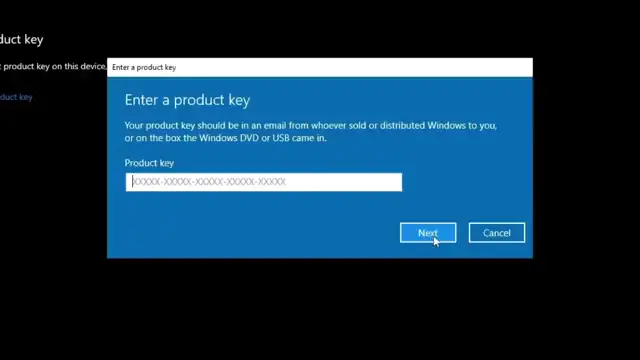
Once you have entered the product key, press the ‘Next’ button to initiate the activation process. Follow any additional prompts to complete the process.
What is the best way to activate Windows 10?
The best way to activate Windows 10 is by purchasing an original product key from authorized Microsoft retailers or directly from Microsoft’s website.
For optimal activation, ensure you buy from trusted sources. Licensed retailers will provide you with a unique product key that can be used for a seamless activation process. Once you have the key, follow the activation steps as detailed earlier. It is advisable to perform the activation online for real-time verification, which is quicker and often more reliable than phone activation. In case a key stops working, reaching out to Microsoft Support can help resolve issues. Activating Windows not only makes your installation official but also unlocks additional features and updates.
How to troubleshoot Windows 10 activation issues?
To troubleshoot Windows 10 activation issues, ensure you are entering the correct product key and check your internet connection.
If Windows 10 fails to activate, begin by verifying that the product key is correctly entered without any errors. If confirmed correct, check your internet connection, as a stable connection is needed for online activation. Windows also provides a built-in troubleshooter that can assist in diagnosing and fixing common activation problems. To access this, navigate to Settings > Update & Security > Activation and select the “Troubleshoot” option. Additionally, examine your system date and time settings to ensure they are accurate, as discrepancies can interfere with activation. If problems persist, contacting Microsoft customer support for expert advice may be necessary.
What are the benefits of activating Windows 10?
Activating Windows 10 provides several benefits, including access to updates, personalization options, and better security features.
When Windows 10 is activated, users receive regular updates, which can include security patches, new features, and performance enhancements. This keeps the system running smoothly and securely. Activation also allows users to customize their desktops, including theme settings and personalization options, enhancing their overall user experience. Moreover, activated copies support troubleshooting through official channels, allowing users to receive proper support if issues arise. A genuine activation defends against potential malware risks associated with counterfeit software. Overall, activation ensures users enjoy the full advantages of the Windows 10 operating system, providing reliability and a seamless computing experience.
How do I check my Windows 10 activation status?
You can check your Windows activation status by navigating to Settings > Update & Security > Activation.
To verify if your Windows 10 is activated, open Settings and proceed to the Update & Security section. Click on Activation, and you will be shown your activation status prominently at the top of the page. If your Windows is activated, a message will indicate that “Windows is activated with a digital license.” If there are issues, the system will also provide information on the error codes, which can be used for further troubleshooting. Regular checks on your activation status are advisable, especially after major updates or changes to your hardware, as these can sometimes impact activation.
Can I use a Windows 7 product key to activate Windows 10?
Yes, a Windows 7 product key can be used to activate Windows 10 if it is a valid key.
Microsoft allows users to upgrade from Windows 7 to Windows 10 using a legitimate product key from the older version. This option is available even after the official free upgrade period, although Microsoft does not officially advertise this. When entering the Windows 7 product key during installation or upgrade, it must be from a genuine and authorized version; otherwise, it will not work. Keep in mind that the upgrade will still provide you with a Windows 10 license, allowing you to enjoy the improved features of the new operating system. Ensure that your device meets Windows 10 requirements for optimal performance.
What to do if I lost my Windows 10 product key?
If you lost your Windows 10 product key, check your email confirmation, Microsoft account, or use key recovery software.
In case the product key is lost, your first step should be to check the confirmation email received upon purchase if it was bought online. If you purchased a physical copy, the key can typically be found on the packaging or inside the manual. Another option is to log into your Microsoft account, as associated product keys may be retrieved there. Additionally, if you have previously activated Windows 10 on the same device, it should automatically reactivate once connected to the internet. For further recovery options, specialized software may be employed to extract the product key from the system if it’s still installed. In any case, preventing future loss by storing product keys safely is advised.
Frequently Asked Questions
How do I know if Windows 10 is activated?
You can check Windows activation by navigating to Settings > Update & Security > Activation.
Where can I buy a Windows 10 product key?
Windows 10 product keys can be purchased from authorized vendors such as Amazon or eBay.
What if my Windows 10 is not activating?
If Windows 10 doesn’t activate, ensure you have entered the correct product key and check your internet connection.
Is it safe to buy a product key online?
Always purchase product keys from reputable sources to avoid counterfeit products.
Watch the Video Tutorial
Conclusion
By following these easy steps, you’ve successfully activated your Windows 10. Always ensure to keep your product key secure for future references.






Leave a comment