
Key Takeaways:
- Step-by-step methods to change background color
- Tips for adding images without covering them
- Using the eraser tool effectively to adjust colors
Instagram Stories offer a fun way to express creativity, but changing the background color can be tricky. In this guide, we’ll explore multiple ways to change the background color of your Instagram Stories, ensuring your images remain visible while giving your posts a personalized touch. You’ll learn the best techniques to enhance the visual appeal of your stories with the right background colors.
Step 1: Open Instagram Stories
Start by launching the Instagram app and navigate to your profile. Tap on your profile icon to access your stories. This is the first step in changing the background color of your Instagram Stories, where you can decide to use a photo or a color-based background.

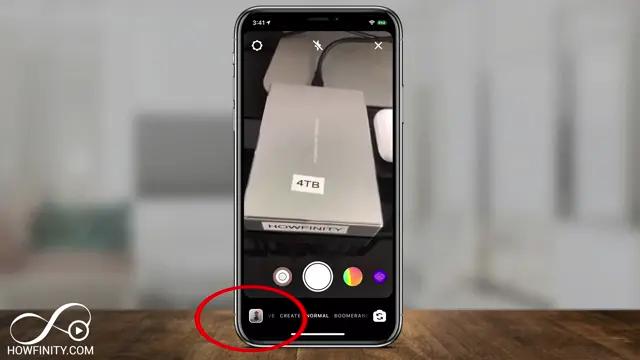
Step 2: Add an Image to Your Story
To customize your background, select an image. Tap on the ‘Add Image’ icon to upload a specific photo from your gallery. This will serve as the base for your story and allow you to overlay colors or stickers as needed.
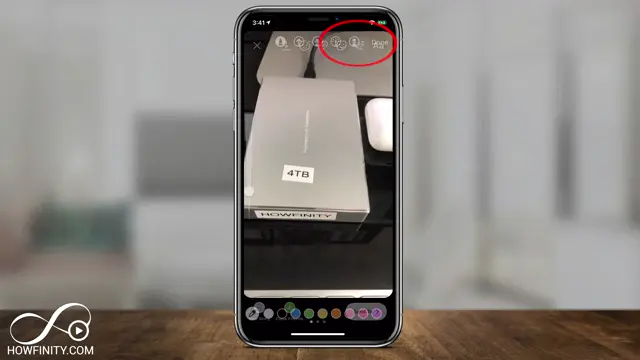
Step 3: Select the Marker for Background Color
To change the background color, tap on the marker icon at the top. Choose your desired color from the selection available at the bottom of the screen. You can hold down on the color to select it and apply it as your background.

Step 4: Use the Eraser Tool to Reveal Image
If the new background color covers your image, select the eraser tool next. Adjust the eraser size using the slider, then carefully erase around your image. This method allows for a seamless background change while keeping your image visible.

Step 5: Capture a New Picture for Customization
If you’d like to change the background color without worrying about the initial image, take a new picture. This will give you a blank canvas to work with for your desired background color before adding any specific image on top later.
Step 6: Copy Image from Photo Library
After selecting and modifying your background color, go to your photo library and choose an image. Use the copy option to quickly retrieve this image and return to your Instagram story, where it will appear as a sticker overlay on your new background.

Frequently Asked Questions
How do I change the background color on Instagram Stories?
To change the background color, open your story, select the marker tool, choose a color, and press and hold on the screen.
Can I add an image and change the background color?
Yes, you can add an image first, then use the marker tool to change the background color, using the eraser tool to reveal the image.
Does this method work for videos as well?
The method primarily works for images. When using videos, the background color is applied to the entire video frame.
What if my background color covers my image?
You can use the eraser tool to reveal the image after applying the background color.
Watch the Video Tutorial
Conclusion
Changing the background color on Instagram Stories is an easy yet effective way to enhance your visual storytelling. By following these steps, you can personalize your stories while ensuring your content stands out.
{“@context”:”https://schema.org”,”@graph”:[{“@type”:”HowTo”,”name”:”Change Background Color on Instagram Stories”,”description”:”Learn how to change the background color on Instagram stories using easy step-by-step methods. Perfect for customizing your stories!”,”step”:[{“@type”:”HowToStep”,”position”:1,”name”:”Open Instagram Stories”,”text”:”Start by launching the Instagram app and navigate to your profile. Tap on your profile icon to access your stories. This is the first step in changing the background color of your Instagram Stories, where you can decide to use a photo or a color-based background.”},{“@type”:”HowToStep”,”position”:2,”name”:”Add an Image to Your Story”,”text”:”To customize your background, select an image. Tap on the ‘Add Image’ icon to upload a specific photo from your gallery. This will serve as the base for your story and allow you to overlay colors or stickers as needed.”},{“@type”:”HowToStep”,”position”:3,”name”:”Select the Marker for Background Color”,”text”:”To change the background color, tap on the marker icon at the top. Choose your desired color from the selection available at the bottom of the screen. You can hold down on the color to select it and apply it as your background.”},{“@type”:”HowToStep”,”position”:4,”name”:”Use the Eraser Tool to Reveal Image”,”text”:”If the new background color covers your image, select the eraser tool next. Adjust the eraser size using the slider, then carefully erase around your image. This method allows for a seamless background change while keeping your image visible.”},{“@type”:”HowToStep”,”position”:5,”name”:”Capture a New Picture for Customization”,”text”:”If you’d like to change the background color without worrying about the initial image, take a new picture. This will give you a blank canvas to work with for your desired background color before adding any specific image on top later.”},{“@type”:”HowToStep”,”position”:6,”name”:”Copy Image from Photo Library”,”text”:”After selecting and modifying your background color, go to your photo library and choose an image. Use the copy option to quickly retrieve this image and return to your Instagram story, where it will appear as a sticker overlay on your new background.”}]},{“@type”:”FAQPage”,”mainEntity”:[{“@type”:”Question”,”name”:”How do I change the background color on Instagram Stories?”,”acceptedAnswer”:{“@type”:”Answer”,”text”:”To change the background color, open your story, select the marker tool, choose a color, and press and hold on the screen.”}},{“@type”:”Question”,”name”:”Can I add an image and change the background color?”,”acceptedAnswer”:{“@type”:”Answer”,”text”:”Yes, you can add an image first, then use the marker tool to change the background color, using the eraser tool to reveal the image.”}},{“@type”:”Question”,”name”:”Does this method work for videos as well?”,”acceptedAnswer”:{“@type”:”Answer”,”text”:”The method primarily works for images. When using videos, the background color is applied to the entire video frame.”}},{“@type”:”Question”,”name”:”What if my background color covers my image?”,”acceptedAnswer”:{“@type”:”Answer”,”text”:”You can use the eraser tool to reveal the image after applying the background color.”}}]}]}







Leave a comment