
Key Takeaways:
- Verify iPhone authenticity using serial number.
- Check app store access to identify fake phones.
- Explore default apps to ensure device legitimacy.
In today’s guide, we’ll explore several straightforward methods to check if an iPhone is fake or authentic. These steps are crucial, especially when buying pre-owned or online devices. Knowing how to verify an iPhone’s authenticity can help you avoid scams and ensure you make a safe investment.
Step 1: Locate the iPhone Serial Number
To begin, go to your iPhone’s settings by tapping the ‘Settings’ app. Then, navigate to ‘General’ and select ‘About’. Here, you’ll find the serial number for your device. This is the key information you’ll use to verify the phone’s authenticity.
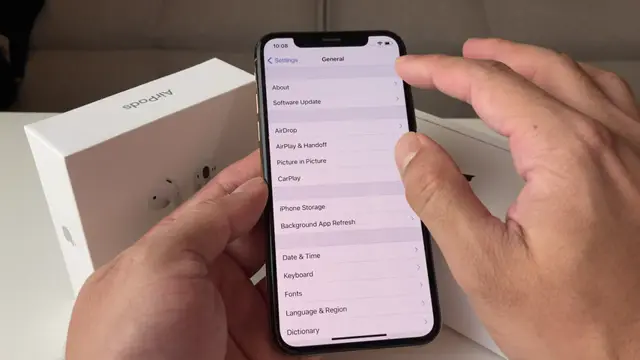
Step 2: Check the Serial Number on Apple’s Website
Next, take the serial number you found and open your web browser. Search for ‘Apple serial number lookup’ and click the link that leads to the Apple support page. Paste your serial number into the input field and follow the prompts to check if the information matches your device.
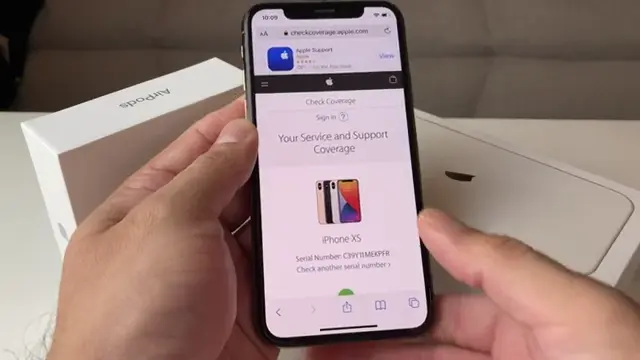
Step 3: Verify the App Store Access
Open the App Store on your iPhone. If the device is real, it should have the official Apple App Store. If it redirects you to a different or generic store, it’s likely a fake device. Ensure you can also sign into your iTunes account without issues.
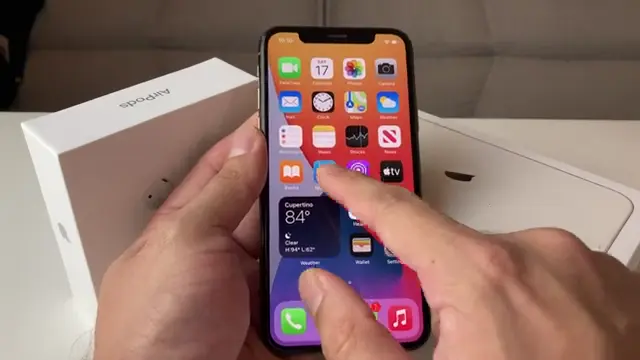
Step 4: Check for Default iPhone Apps
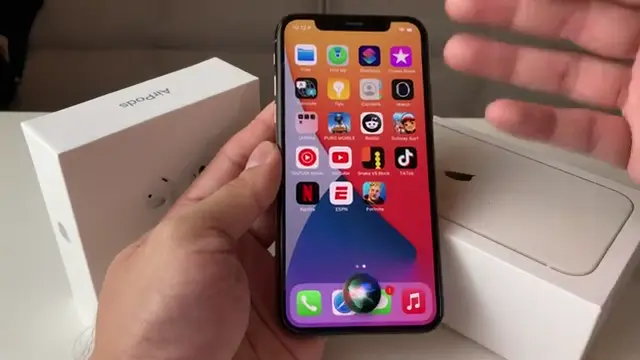
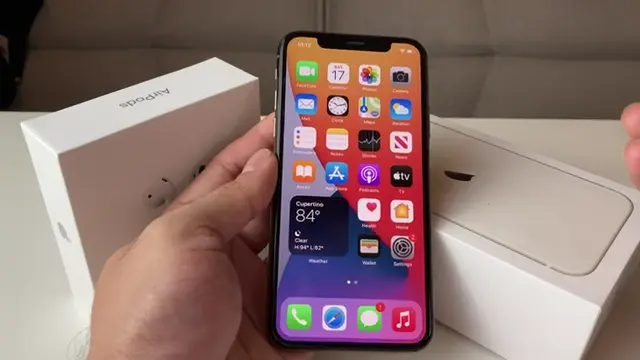
Another verification step is to check for pre-installed apps that come with genuine iPhones. Open your apps menu and look for familiar apps like FaceTime, Photos, and Calendar. If essential apps are missing, this is a red flag that could indicate a counterfeit device.
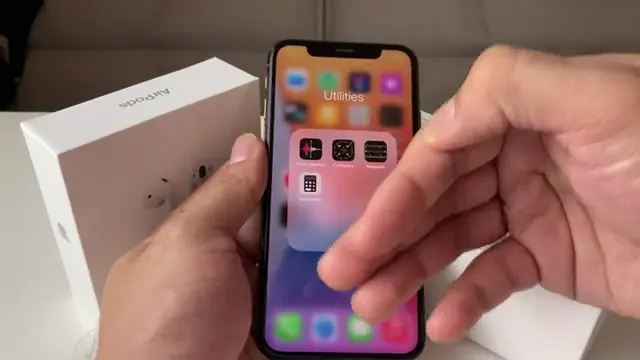
Step 5: Test Siri Functionality
To further verify authenticity, test the Siri voice assistant. Press and hold the side button to activate Siri. If Siri responds appropriately, it’s a positive sign that the device is genuine. If Siri does not activate or respond, the device may be fake.
Step 6: Connect to iTunes for Verification
If possible, connect your iPhone to a computer with iTunes installed. If iTunes recognizes the device and allows you to manage it, this is another indicator that the phone may be real. If it fails to connect, it might be a counterfeit device.
Frequently Asked Questions
How can I find the serial number on my iPhone?
Go to Settings > General > About, and you’ll see the serial number listed there.
What should I do if the serial number doesn’t match Apple’s records?
If the serial number returns an unexpected result or no result at all, it’s likely that the device is fake.
Is there a way to identify fake iPhones by checking apps?
Yes, confirming access to the official App Store is a good method to check if an iPhone is real.
What default apps should I look for on a genuine iPhone?
Look for apps like FaceTime, Calendar, and Photos, as these are standard on real iPhones.
Watch the Video Tutorial
Conclusion
By following these steps, you can effectively check if your iPhone is real, protecting yourself from potential fraud when purchasing devices. Always verify the serial number and essential features to ensure authenticity.
{“@context”:”https://schema.org”,”@graph”:[{“@type”:”HowTo”,”name”:”How to Check if an iPhone is Real”,”description”:”Learn how to check if an iPhone is real using the serial number, app store verification, and other simple methods.”,”step”:[{“@type”:”HowToStep”,”position”:1,”name”:”Locate the iPhone Serial Number”,”text”:”To begin, go to your iPhone’s settings by tapping the ‘Settings’ app. Then, navigate to ‘General’ and select ‘About’. Here, you’ll find the serial number for your device. This is the key information you’ll use to verify the phone’s authenticity.”},{“@type”:”HowToStep”,”position”:2,”name”:”Check the Serial Number on Apple’s Website”,”text”:”Next, take the serial number you found and open your web browser. Search for ‘Apple serial number lookup’ and click the link that leads to the Apple support page. Paste your serial number into the input field and follow the prompts to check if the information matches your device.”},{“@type”:”HowToStep”,”position”:3,”name”:”Verify the App Store Access”,”text”:”Open the App Store on your iPhone. If the device is real, it should have the official Apple App Store. If it redirects you to a different or generic store, it’s likely a fake device. Ensure you can also sign into your iTunes account without issues.”},{“@type”:”HowToStep”,”position”:4,”name”:”Check for Default iPhone Apps”,”text”:”Another verification step is to check for pre-installed apps that come with genuine iPhones. Open your apps menu and look for familiar apps like FaceTime, Photos, and Calendar. If essential apps are missing, this is a red flag that could indicate a counterfeit device.”},{“@type”:”HowToStep”,”position”:5,”name”:”Test Siri Functionality”,”text”:”To further verify authenticity, test the Siri voice assistant. Press and hold the side button to activate Siri. If Siri responds appropriately, it’s a positive sign that the device is genuine. If Siri does not activate or respond, the device may be fake.”},{“@type”:”HowToStep”,”position”:6,”name”:”Connect to iTunes for Verification”,”text”:”If possible, connect your iPhone to a computer with iTunes installed. If iTunes recognizes the device and allows you to manage it, this is another indicator that the phone may be real. If it fails to connect, it might be a counterfeit device.”}]},{“@type”:”FAQPage”,”mainEntity”:[{“@type”:”Question”,”name”:”How can I find the serial number on my iPhone?”,”acceptedAnswer”:{“@type”:”Answer”,”text”:”Go to Settings > General > About, and you’ll see the serial number listed there.”}},{“@type”:”Question”,”name”:”What should I do if the serial number doesn’t match Apple’s records?”,”acceptedAnswer”:{“@type”:”Answer”,”text”:”If the serial number returns an unexpected result or no result at all, it’s likely that the device is fake.”}},{“@type”:”Question”,”name”:”Is there a way to identify fake iPhones by checking apps?”,”acceptedAnswer”:{“@type”:”Answer”,”text”:”Yes, confirming access to the official App Store is a good method to check if an iPhone is real.”}},{“@type”:”Question”,”name”:”What default apps should I look for on a genuine iPhone?”,”acceptedAnswer”:{“@type”:”Answer”,”text”:”Look for apps like FaceTime, Calendar, and Photos, as these are standard on real iPhones.”}}]}]}


Leave a comment