
Quick answer: The best iPhone settings to turn off are analytics sharing, personalized ads, unnecessary location access, background app refresh, and automatic mail fetch. These changes can reduce data collection and cut down on battery use, while still letting you keep the features you actually need.
Key Takeaways:
- Learn which iPhone settings to disable for privacy.
- Understand how to improve your iPhone’s battery life.
- Gain insights into essential privacy tips for users.
Turning off unnecessary settings on your iPhone is crucial for maintaining privacy and optimizing battery life. In this guide, we’ll explore five iPhone settings you should disable right now. By making these adjustments, you can protect your personal information and ensure your device runs smoothly. Let’s dive into these essential settings to enhance your iPhone experience.
Step 1: Disable Analytics & Improvements
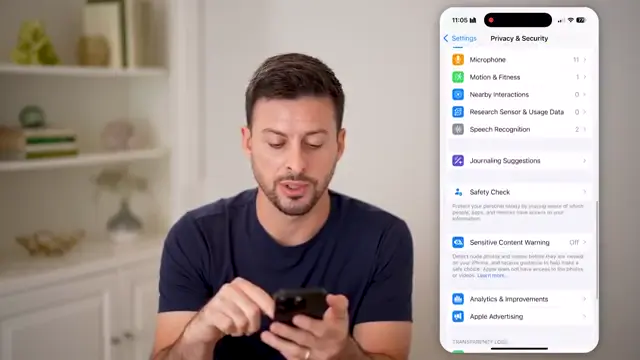
Navigate to your iPhone Settings, scroll down to Privacy and Security. At the very bottom, you’ll find ‘Analytics & Improvements’. Disable all analytics sharing options to ensure that your personal data remains private and is not shared with Apple.
Step 2: Turn Off Apple Advertising
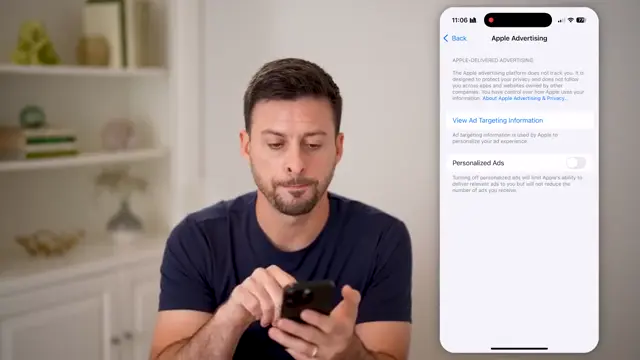
In the same Privacy and Security menu, tap on ‘Apple Advertising’. Ensure that ‘Personal Ads’ is turned off to prevent Apple from targeting advertisements based on your usage, enhancing your privacy.
Step 3: Manage Location Services
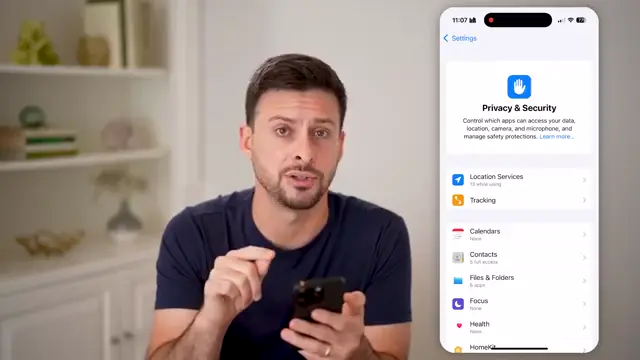
Under Privacy & Security, tap on ‘Location Services’. Review each app’s access to your location. Set access to ‘While Using’ or ‘Never’ for apps that don’t require your location, for better privacy settings.
Step 4: Disable Background App Refresh
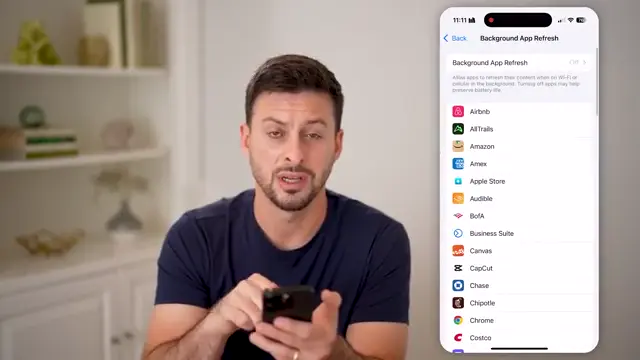
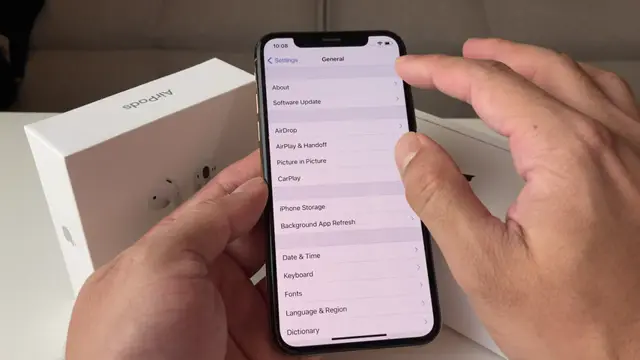
Go to Settings and select ‘General’, then tap on ‘Background App Refresh’. Turn it off completely to prevent apps from consuming battery by refreshing in the background without your interaction.
Step 5: Adjust Mail Account Fetch Settings
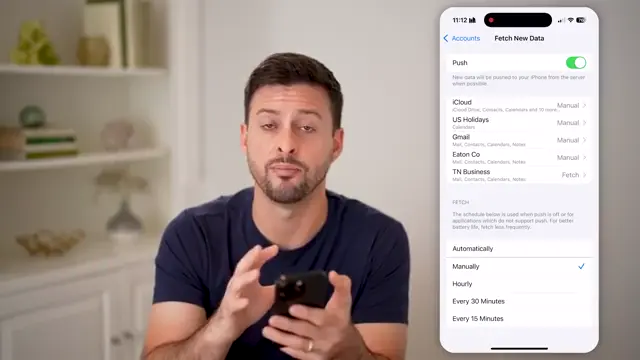
Navigate back to Settings and find ‘Mail’, then ‘Fetch New Data’. Turn off ‘Push’ and set ‘Fetch’ to ‘Manual’. This prevents the constant battery drain from automatic email updates, allowing for battery savings.
Frequently Asked Questions
What are the benefits of turning off analytics on my iPhone?
Disabling analytics on your iPhone helps protect your personal data from being shared with Apple, enhancing your privacy.
How do I turn off Apple advertising?
Navigate to Settings > Privacy & Security > Apple Advertising, and turn off ‘Personal Ads’.
Will turning off background app refresh affect my apps?
Yes, turning off background app refresh will prevent apps from updating in the background, which can save battery life.
How often should I check my privacy settings on my iPhone?
It’s a good practice to review your privacy settings regularly, especially after updates or new app installations.
Watch the Video Tutorial
Conclusion
By following these steps and turning off the recommended settings, you can enhance your iPhone’s privacy and battery life. Regularly reviewing these settings will help protect your personal data and optimize performance.
{“@context”:”https://schema.org”,”@graph”:[{“@type”:”HowTo”,”name”:”Top 5 iPhone Settings to Turn Off Now”,”description”:”Discover essential iPhone settings to turn off for better privacy and battery life. Learn how to protect your data with these tips.”,”step”:[{“@type”:”HowToStep”,”position”:1,”name”:”Disable Analytics & Improvements”,”text”:”Navigate to your iPhone Settings, scroll down to Privacy and Security. At the very bottom, you’ll find ‘Analytics & Improvements’. Disable all analytics sharing options to ensure that your personal data remains private and is not shared with Apple.”},{“@type”:”HowToStep”,”position”:2,”name”:”Turn Off Apple Advertising”,”text”:”In the same Privacy and Security menu, tap on ‘Apple Advertising’. Ensure that ‘Personal Ads’ is turned off to prevent Apple from targeting advertisements based on your usage, enhancing your privacy.”},{“@type”:”HowToStep”,”position”:3,”name”:”Manage Location Services”,”text”:”Under Privacy & Security, tap on ‘Location Services’. Review each app’s access to your location. Set access to ‘While Using’ or ‘Never’ for apps that don’t require your location, for better privacy settings.”},{“@type”:”HowToStep”,”position”:4,”name”:”Disable Background App Refresh”,”text”:”Go to Settings and select ‘General’, then tap on ‘Background App Refresh’. Turn it off completely to prevent apps from consuming battery by refreshing in the background without your interaction.”},{“@type”:”HowToStep”,”position”:5,”name”:”Adjust Mail Account Fetch Settings”,”text”:”Navigate back to Settings and find ‘Mail’, then ‘Fetch New Data’. Turn off ‘Push’ and set ‘Fetch’ to ‘Manual’. This prevents the constant battery drain from automatic email updates, allowing for battery savings.”}]},{“@type”:”FAQPage”,”mainEntity”:[{“@type”:”Question”,”name”:”What are the benefits of turning off analytics on my iPhone?”,”acceptedAnswer”:{“@type”:”Answer”,”text”:”Disabling analytics on your iPhone helps protect your personal data from being shared with Apple, enhancing your privacy.”}},{“@type”:”Question”,”name”:”How do I turn off Apple advertising?”,”acceptedAnswer”:{“@type”:”Answer”,”text”:”Navigate to Settings > Privacy & Security > Apple Advertising, and turn off ‘Personal Ads’.”}},{“@type”:”Question”,”name”:”Will turning off background app refresh affect my apps?”,”acceptedAnswer”:{“@type”:”Answer”,”text”:”Yes, turning off background app refresh will prevent apps from updating in the background, which can save battery life.”}},{“@type”:”Question”,”name”:”How often should I check my privacy settings on my iPhone?”,”acceptedAnswer”:{“@type”:”Answer”,”text”:”Itu2019s a good practice to review your privacy settings regularly, especially after updates or new app installations.”}}]}]}



Leave a comment