
Key Takeaways:
- Learn how to download DS4Windows
- Connect your PS4 controller to PC
- Finish the installation process successfully
Are you trying to connect your PS4 controller to your PC? This guide walks you through setting up DS4Windows step-by-step, ensuring your controller works seamlessly with your games. From downloading the application to installation, we’ve got you covered. Follow the simple instructions to get started!
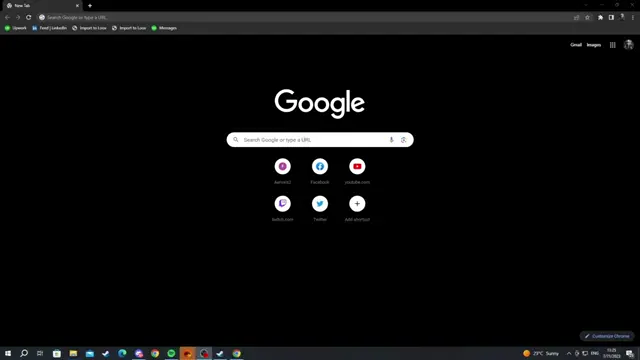
Step 1: Open Your Browser and Search for DS4Windows
Start by opening your web browser. In the address bar, type “DS4 Windows” and press enter to search for the official site. This is the first step to begin your setup process.
Step 2: Download DS4Windows Application
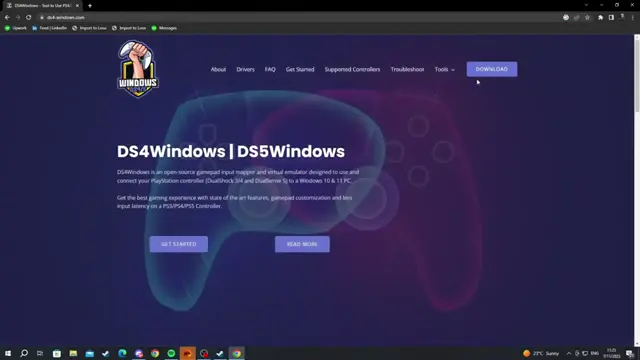
Once on the website, navigate to the top right section where you will see the download button. Click on this download button to start downloading the application.
Step 3: Extract the Downloaded Files
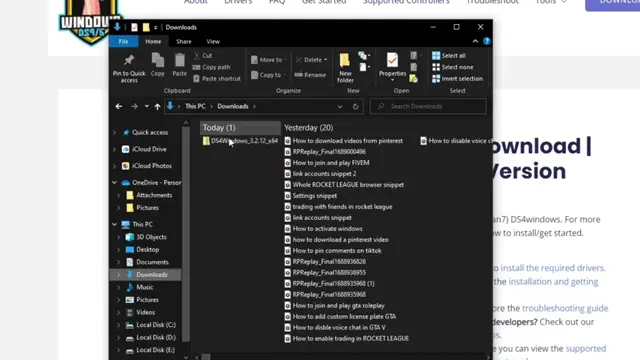
After the download is complete, locate the downloaded file in your downloads folder. Right-click on it and select ‘Extract All’ to unpack the contents before installation.
Step 4: Run the DS4Windows Application
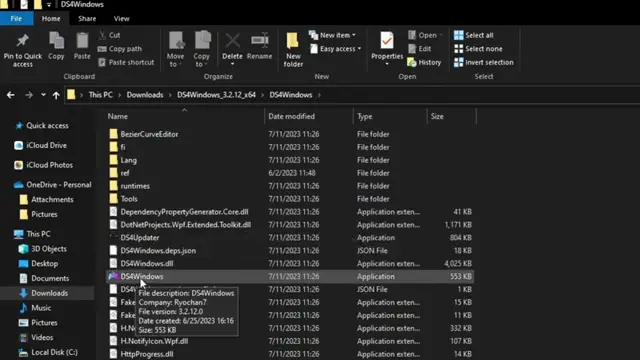
Navigate to the folder where you extracted the files. Find the DS4Windows application, left-click on it, and select open to start the setup process.
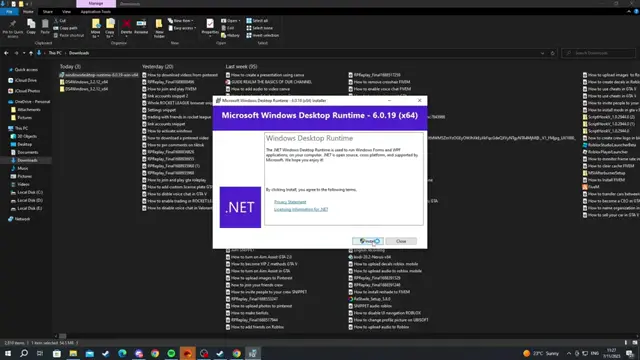
Step 5: Install the Required Runtime
You may be prompted to install the .NET Desktop Runtime for DS4Windows. Just press ‘yes’ to start this installation and follow the prompts until it completes successfully.
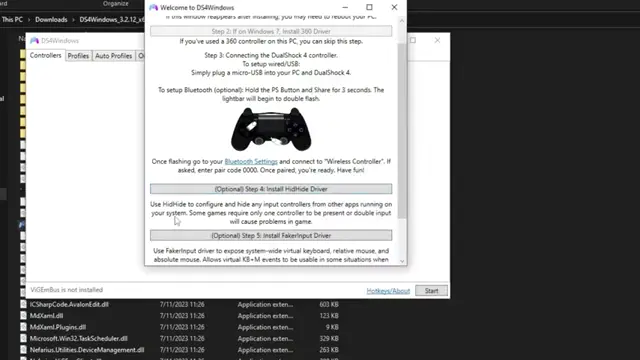
Step 6: Finish the Setup
After the installation, you will see optional steps. You can scroll down and choose to finish the setup if you don’t need any additional steps. Press the ‘finished’ button to conclude this process.
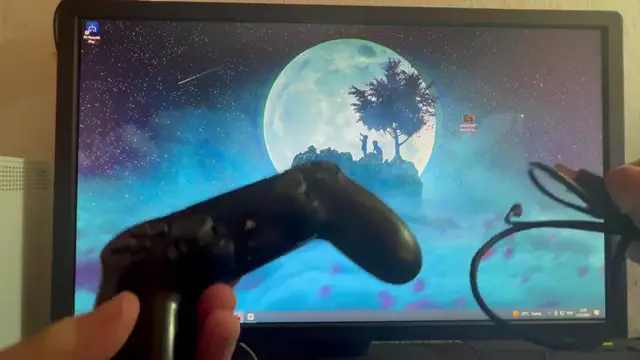
Step 7: Connect Your Controller
Locate your charging cable for the PS4 controller. Connect the USB end to your computer and the micro USB end to the controller. This is essential to sync the controller with the application.
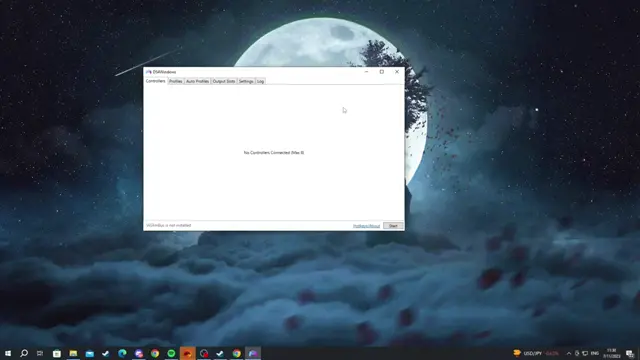
Step 8: Start the DS4Windows Application
With the controller connected, switch back to the DS4Windows application. Press the ‘start’ button within the app to recognize your controller and prepare it for use with games.
Frequently Asked Questions
What is DS4Windows?
DS4Windows is a third-party application that allows your Windows PC to recognize and use the PS4 controller for gaming.
Do I need to install additional software for DS4Windows?
Yes, the installation of .NET Desktop Runtime is required to run DS4Windows effectively.
Can I use my PS4 controller wirelessly with DS4Windows?
Yes, after the initial setup with a USB connection, you can use the PS4 controller wirelessly via Bluetooth.
Is DS4Windows safe to use?
Yes, DS4Windows is widely used and safe. However, always download software from the official website to avoid potential issues.
Watch the Video Tutorial
Conclusion
Now you have successfully set up DS4Windows and connected your PS4 controller to your PC. Enjoy gaming with your newly configured setup!




Leave a comment