
Key Takeaways:
- Learn how to access backup photos in Google Photos.
- Understand the importance of logging into the correct Google account.
- Navigate Google Photos on both mobile and web.
Accessing your backed up photos in Google Photos is a straightforward process that ensures you never lose precious memories. With just a few taps, you can view all the images stored in your Google account. This guide will provide clear instructions to help you check your backup status and see your photos online.
Step 1: Check Backup Status in Google Photos App
Open the Google Photos app on your device. Tap on your profile icon located at the top right corner. This will allow you to check your backup settings easily.
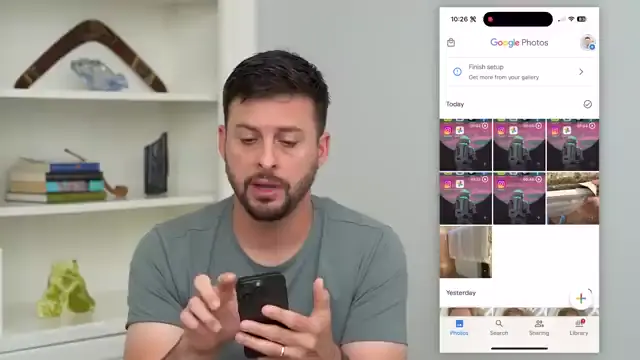
Step 2: Access Google Photos Settings
In the app, scroll down and tap on ‘Google Photos settings’ to view the backup options. Confirm that the backup is turned on to ensure your photos are being saved correctly.
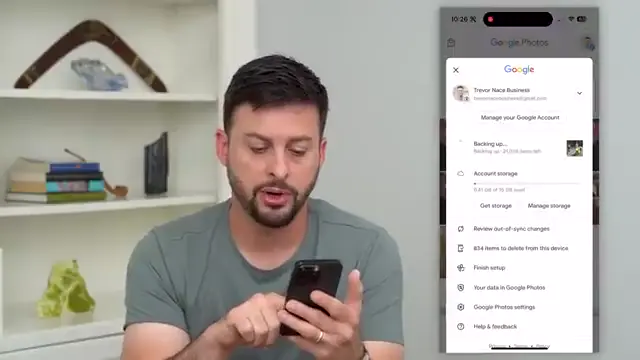
Step 3: View Backup Photos in Web Browser
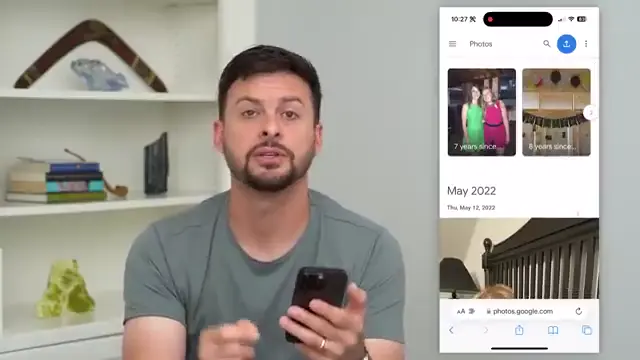
Open a web browser and navigate to photos.google.com. Make sure you are logged into the Gmail account associated with your Google Photos to access your backup images.
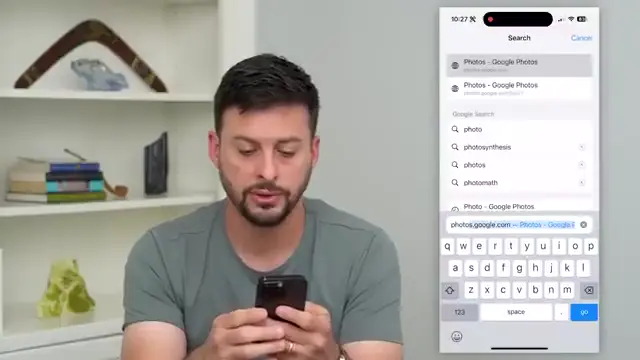
Step 4: Verify Your Linked Account
Check the profile icon at the top right of the page to ensure you are using the correct Gmail account. This step is crucial to view all your backed up photos accurately. If different, switch accounts accordingly.
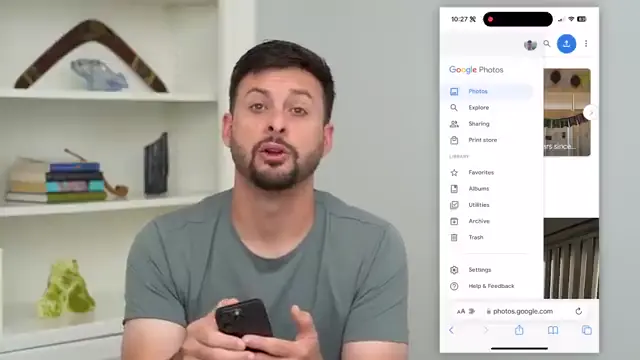
Step 5: Tap on Profile Icon
In the Google Photos app, tap on your profile icon at the top right to access your settings and backups.
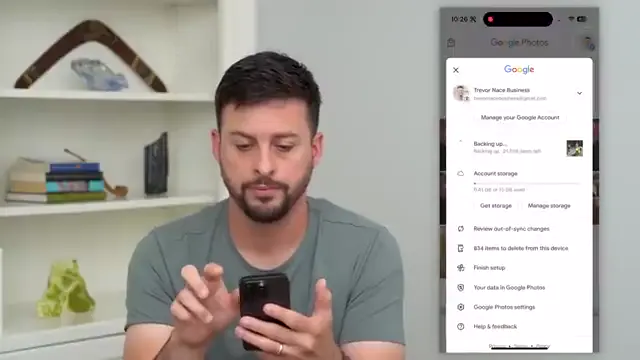
Step 6: Confirm Backup Settings
After accessing settings, tap on backup options to see the relevant configurations.
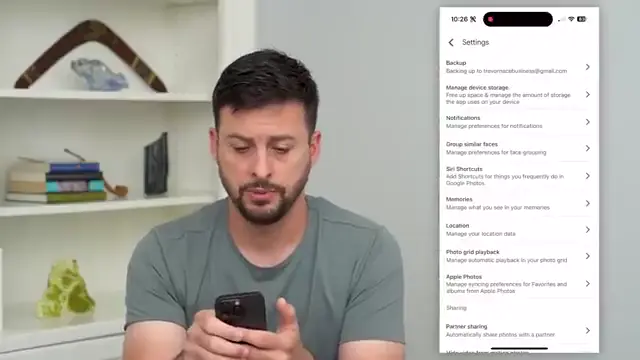
Step 7: Open Google Photos Menu
On the web version of Google Photos, tap the three lines at the top left to access the menu options.
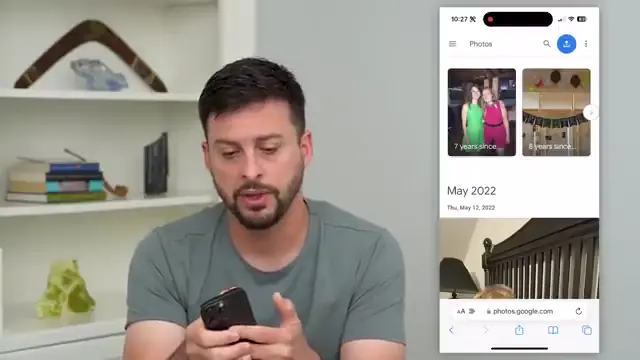
Step 8: Browse Your Photos
Once logged in, you can scroll through all your backed up photos in the Google Photos interface.
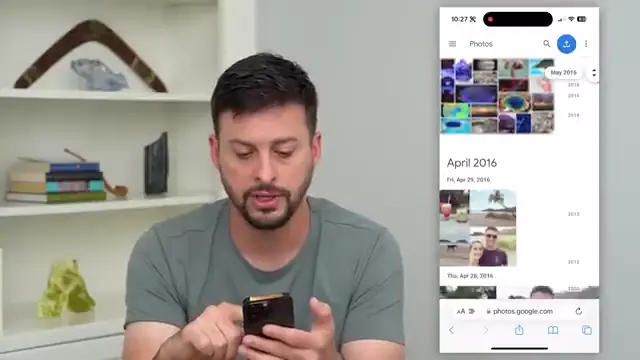
Step 9: Switch Google Accounts
If you have multiple Gmail accounts, you can switch between them to view photos associated with each one easily.
Also recommended: How to Recover Deleted Photos in Google Photos for more step-by-step guidance.
Frequently Asked Questions
How do I check if my photos are backed up in Google Photos?
Open the Google Photos app, tap on your profile icon, go to settings, and check if backup is turned on.
Can I access Google Photos from any device?
Yes, you can access Google Photos from any device using a web browser or the app, as long as you’re logged into the correct account.
What should I do if I don’t see my backed up photos?
Ensure you are logged into the correct Gmail account and check your backup settings in the Google Photos app.
How can I recover deleted photos from Google Photos?
If you’ve accidentally deleted photos, you can learn more about it in this guide: How to Recover Deleted Photos in Google Photos.
Watch the Video Tutorial
Conclusion
By following these steps, you can easily view and manage your backed up photos in Google Photos. Remember to always confirm you’re using the right account for a seamless experience.




Leave a comment