
Key Takeaways:
- Learn to access Phone settings
- Discover how to navigate to the secure folder
- Understand how to hide the secure folder option
Hiding the Samsung Secure Folder on your Galaxy S25 Ultra can enhance your privacy and security. This step-by-step guide will walk you through the simple process. Follow these instructions to easily manage your secure content and keep it discreet.
Step 1: Access Phone Settings
To begin, unlock your Galaxy S25 Ultra and navigate to your ‘Phone Settings.’ This is where you will find all options related to your device’s functionality.
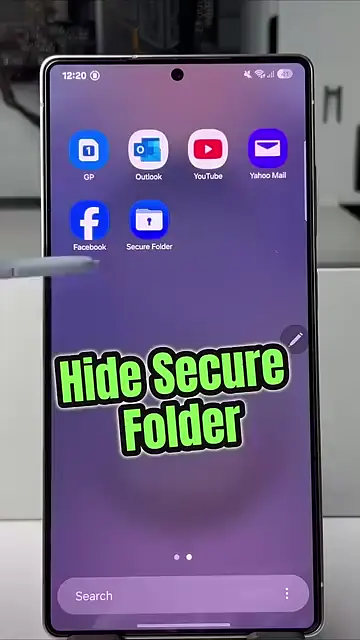
Step 2: Go to Your Phone
Start by opening your device and locating the settings option directly linked to your phone’s functionalities.
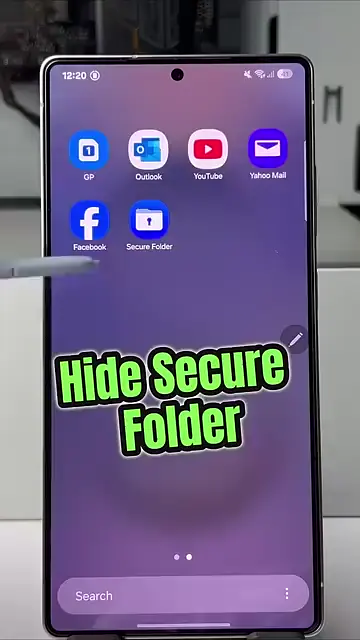
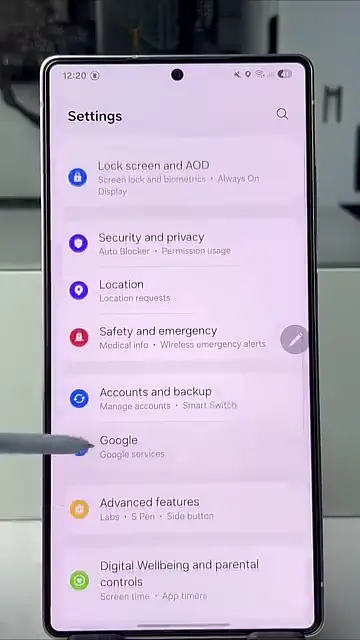
Step 3: Scroll to Security and Privacy
In the Phone Settings menu, scroll down until you find ‘Security and Privacy.’ This section houses important security options for your device.
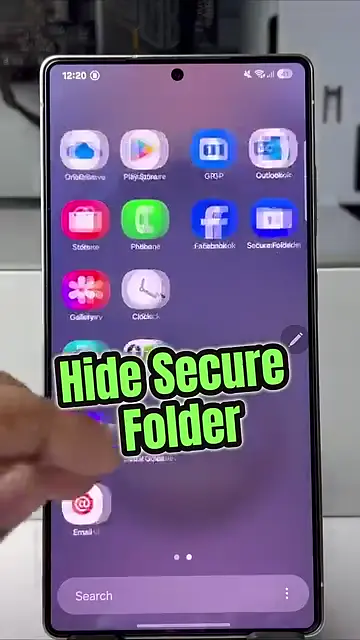
Step 4: Tap on Security and Privacy
Within the Security and Privacy section, continue to scroll down to access further options for managing your device’s security.
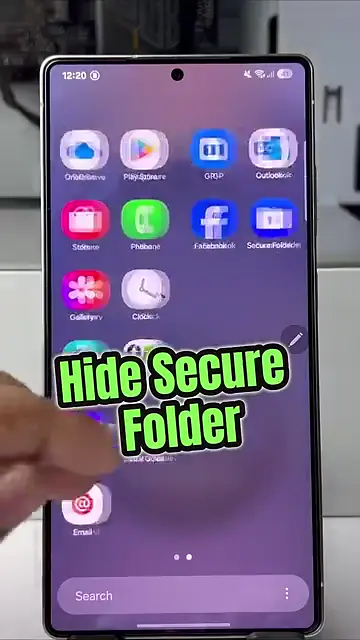
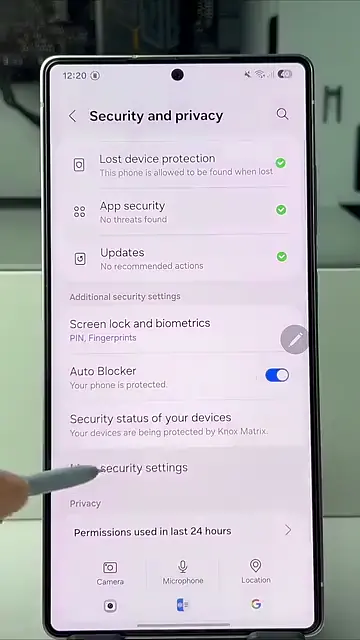
Step 5: Access More Security Settings
Once in the Security and Privacy section, tap on ‘More Security Settings.’ This expands additional security options, including the secure folder features.
Step 6: Tap on Secure Folder
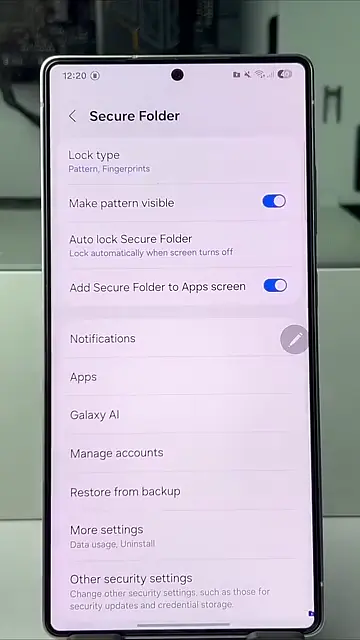
In the expanded list, locate and tap on ‘Secure Folder.’ This is where you can manage the secure folder options for your phone.
Step 7: Disable Secure Folder Option
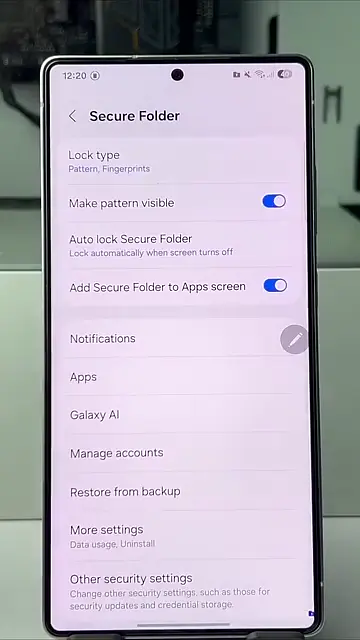
To hide the Secure Folder, simply toggle off or disable the option. This action will keep the secure folder hidden from the app screen.
Step 8: Add Secure Folder to App Screen
If you wish to access the Secure Folder easily later on, ensure you add it to the app screen before hiding it.
Frequently Asked Questions
What is the Samsung Secure Folder?
The Samsung Secure Folder is a security feature that allows you to store apps and files separately, ensuring privacy and security.
How do I access the Secure Folder again after hiding it?
To access the Secure Folder after hiding it, you may need to enable it again through the same Security and Privacy settings.
Can I temporarily hide the Secure Folder?
Yes, you can disable the Secure Folder temporarily and re-enable it whenever you need to access your secure files.
Is it safe to use the Samsung Secure Folder?
Yes, the Samsung Secure Folder provides a high level of protection for sensitive information, utilizing encryption and access controls.
Watch the Video Tutorial
Conclusion
By following these steps, you can easily hide your Samsung Secure Folder on the Galaxy S25 Ultra. Keep your private information secure and manage access effortlessly.






Leave a comment