
Key Takeaways:
- Learn to hide likes on your Facebook posts.
- Discover how to hide reactions from others’ posts.
- Understand the settings to maintain privacy on Facebook.
In this tutorial, we will show you how to hide likes on Facebook. Keeping your reactions private can help maintain your privacy and control over your social interactions. Whether you want to hide likes on your personal posts or on posts from other people, following these steps will guide you through the process quickly and easily using the Facebook mobile app.
Step 1: Open the Facebook Mobile App
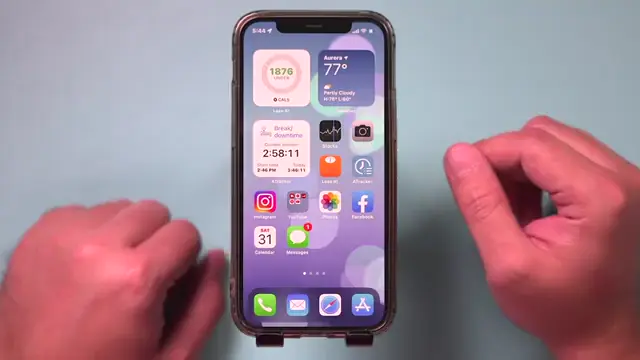
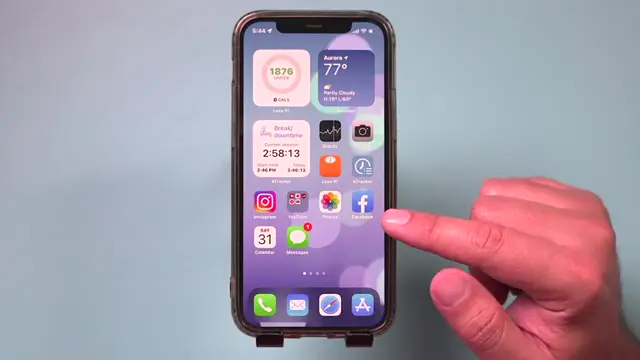
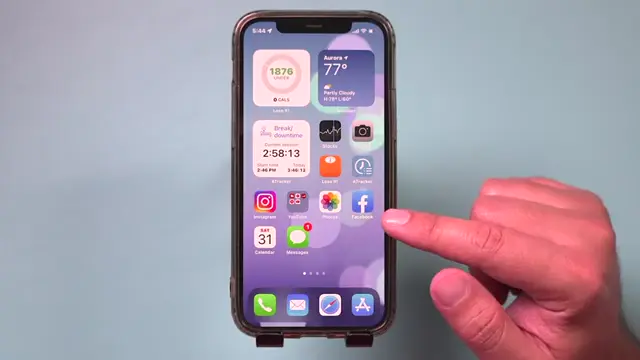
Launch the Facebook mobile app on your device to get started. This method works best when using the app rather than the desktop version. Make sure you are logged into your account before proceeding to the settings menu.
Step 2: Launch the App
Open the Facebook mobile app to access your account and settings.
Step 3: Scroll Down
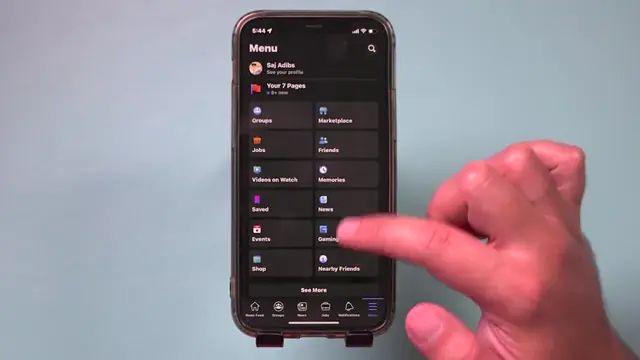
Once you’ve launched the app, scroll down to locate the settings option on the main page.
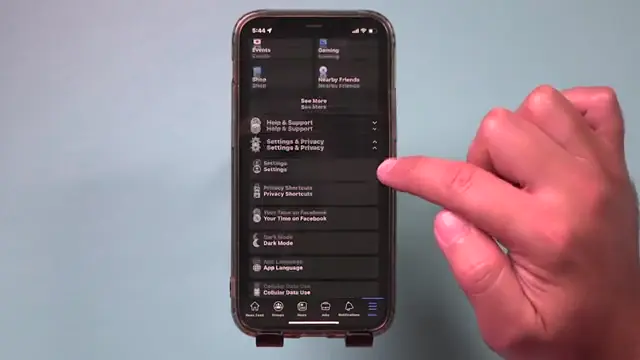
Step 4: Expand Settings and Privacy
Tap on the settings option to expand the “Settings and Privacy” menu and access the necessary settings related to reactions and likes.
Step 5: Enter the Settings Menu
After expanding the menu, tap on the settings option to go inside the settings menu where you can manage your privacy.
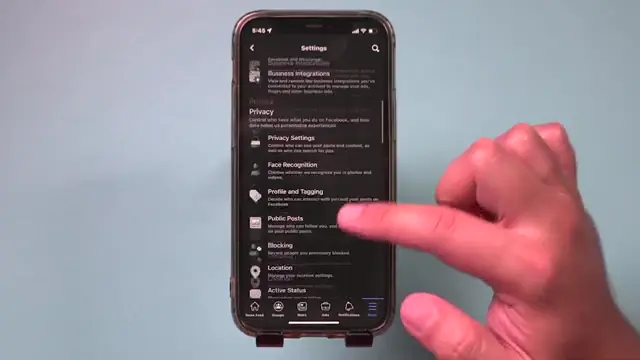
Step 6: Scroll Way Down
In the settings menu, scroll way down until you find the ‘News Feed’ section, where you can adjust your reaction settings.
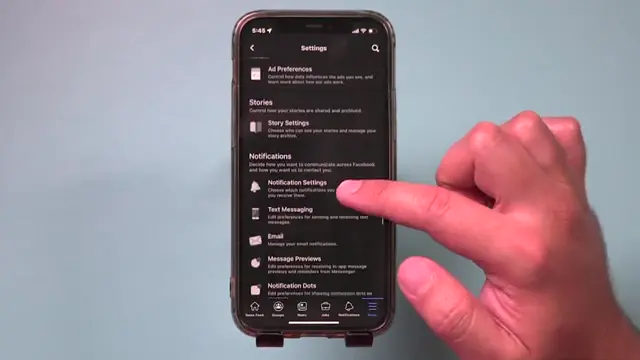
Step 7: Navigate to News Feed Settings
Once you find the ‘News Feed’ section, jump in to find options related to reactions and likes on posts.
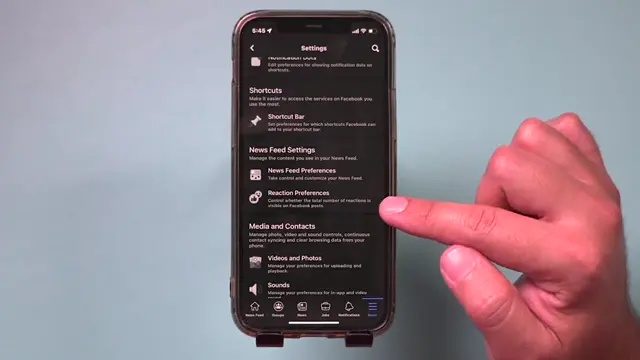
Step 8: Select Reaction Preferences
Look for the option labeled ‘Reaction Preferences’ and tap on it to enter the settings where you can control your privacy regarding likes and reactions.
Step 9: Choose Your Privacy Settings
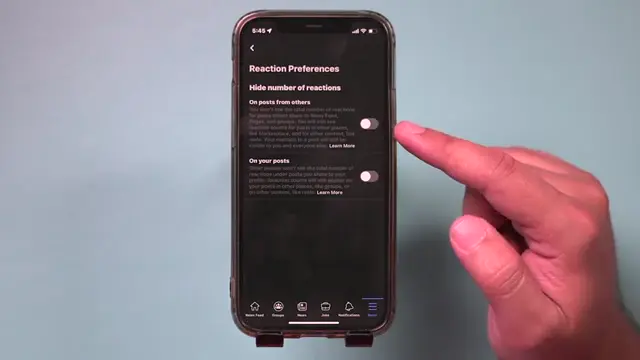
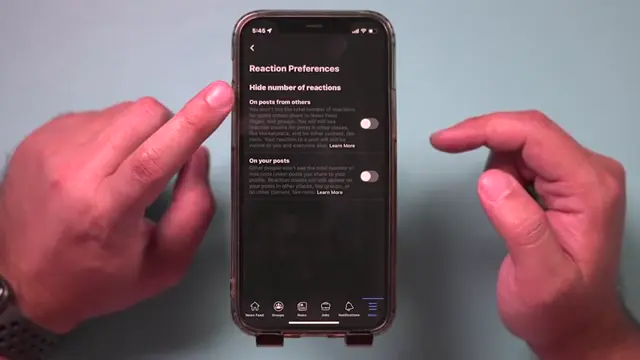
In this section, you will have two different options. The first will hide likes and reactions on posts from others. You can also adjust the setting for your own posts as well.
Step 10: Confirm Your Choices
The first option hides likes from posts you see by others. Ensure that both options are toggled on if you want to hide all reactions on Facebook.
Frequently Asked Questions
Can I hide likes on all my Facebook posts?
Yes, you can hide likes on all your posts by adjusting your reaction preferences in the settings.
Will hiding likes affect my friends’ posts?
Yes, you can hide likes on posts from other people as well, ensuring you control what appears in your feed.
How do I see the likes on my posts again?
To view likes again, simply return to the reaction preferences and toggle off the settings you previously enabled.
Is this feature available on both mobile and desktop?
The specific steps may vary, but the option to hide likes is available on both mobile and desktop versions of Facebook.
Watch the Video Tutorial
Conclusion
By following these steps, you will be able to effectively hide likes on Facebook, allowing for greater privacy and control over your social interactions. Adjust your settings according to your preferences and enjoy a more personalized Facebook experience.




Leave a comment