
Key Takeaways:
- Learn the steps to force restart iPhone 14 Pro.
- Understand how this reset fixes minor software issues.
- Discover why a force restart is often the first step.
If you’re having minor software issues with your iPhone 14 Pro, a force restart can quickly resolve these problems. This method is simple and won’t delete any of your data. Follow these steps to effectively reboot your device and clear any glitches you may be experiencing.
Step 1: Press Volume Up Button
Begin the force restart by quickly pressing and releasing the Volume Up button on your iPhone 14 Pro to initiate the process. This is the first critical step in the sequence.

Step 2: Press Volume Down Button
Next, press and immediately release the Volume Down button. This is the second step needed to complete the force restart sequence for your iPhone 14 Pro.
Step 3: Hold the Side Button
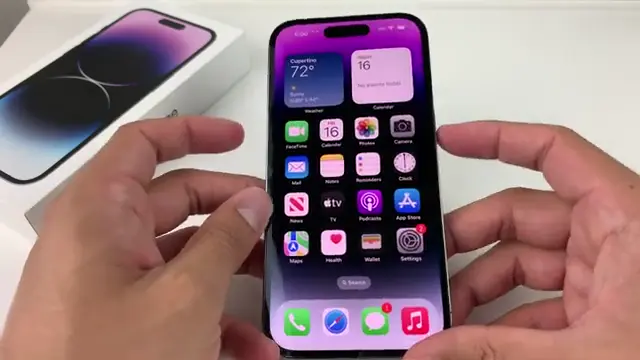
Finally, press and hold the Side button until the shutdown screen appears. Continue holding until the Apple logo reappears, indicating the device is restarting.
Frequently Asked Questions
What is a force restart on iPhone 14 Pro?
A force restart on iPhone 14 Pro is a method to reboot the device without deleting any data, ideal for resolving minor software issues.
Will a force restart delete my data?
No, a force restart will not delete any of your data; it simply refreshes the software.
How do I know if I need to force restart my iPhone?
You may need to force restart if your iPhone is freezing, apps are crashing, or the screen is unresponsive.
Is a force restart the same as a regular restart?
No, a force restart uses a specific button sequence to force the system to shut down and restart, which is more thorough than a regular restart.
Watch the Video Tutorial
Conclusion
A force restart can be an effective first step in troubleshooting your iPhone 14 Pro. Following the outlined method not only helps in resolving common issues but also gives you a fresh start without data loss.







Leave a comment