
Key Takeaways:
- Learn to create a public profile on Snapchat.
- Understand privacy settings for your profile.
- Discover how to edit and enhance your public profile.
Creating a public profile on Snapchat allows you to connect with a wider audience, grow your following, and showcase your content. Whether you want to share snap highlights or make your profile visible for public interaction, this guide will walk you through the steps to setting up your public profile effectively. Follow these instructions to get started!
Step 1: Open Snapchat
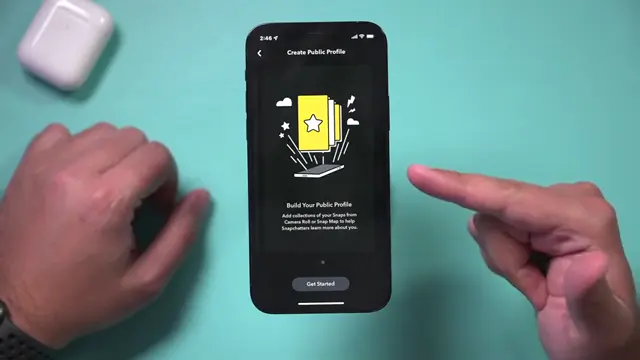
Begin by opening the Snapchat app on your mobile device. Make sure you have the latest version of the app to access new features, including public profiles.
Step 2: Access Settings
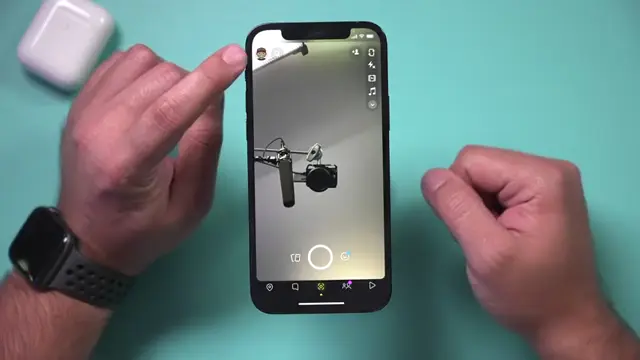
Tap on the profile icon at the top of the screen. Then, locate and tap the settings gear to enter the settings menu where you can adjust privacy options and access public profile settings.
Step 3: Create Public Profile
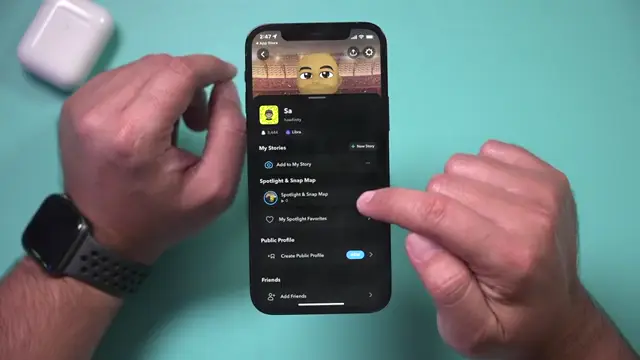
In the settings menu, choose the option to create a public profile. You can find this by either pressing the three dots or by looking for the option directly available in your settings.
Step 4: Get Started with Your Profile
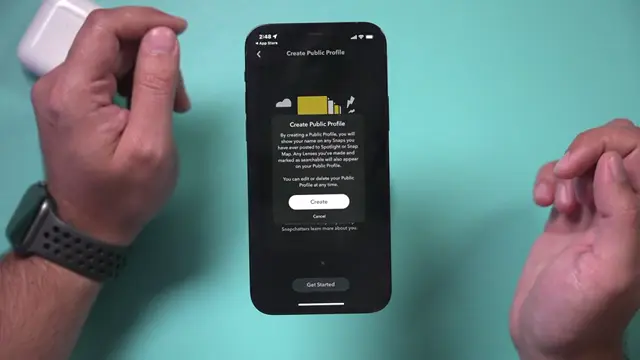
After creating your public profile, tap the get started button to proceed with setting up your public profile details.
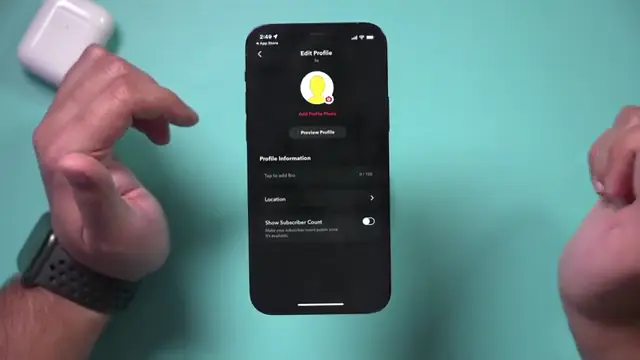
Step 5: Add a Profile Picture
Enhance your public profile by adding a profile picture. This will help others recognize you and make your profile more appealing.
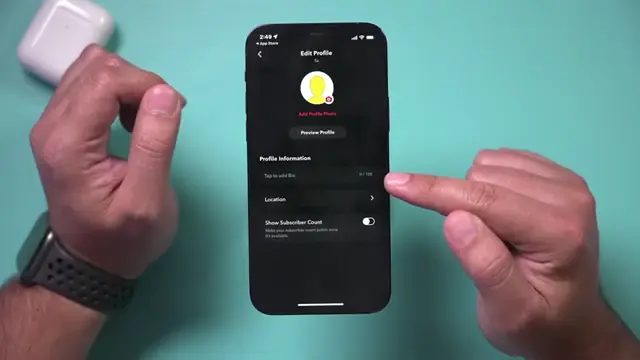
Step 6: Add Bio Text
Make your public profile more informative by adding text to your bio. Share relevant details about yourself or what followers can expect.
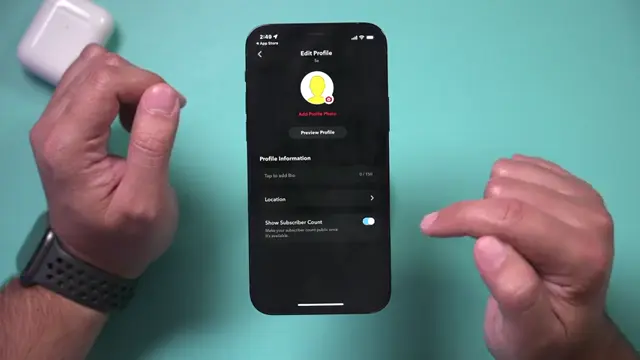
Step 7: Manage Location Visibility
Decide if you want to show your location on your public profile to enhance connection with your audience.
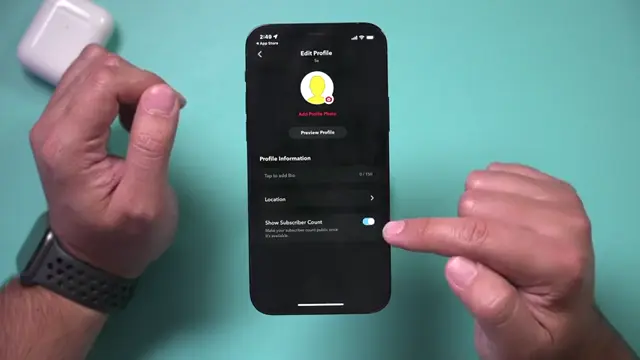
Step 8: Manage Subscriber Count Visibility
Control whether to hide or show your subscriber count on your public profile, which can influence how others perceive your profile.
Step 9: Preview Your Profile
After making edits, press the preview button to see what your public profile will look like to others before finalizing any changes.
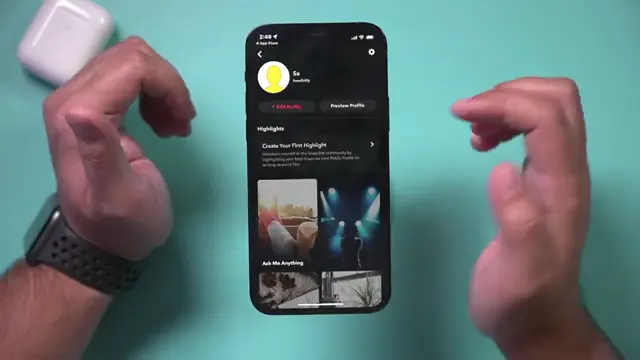
Step 10: Edit Your Public Profile
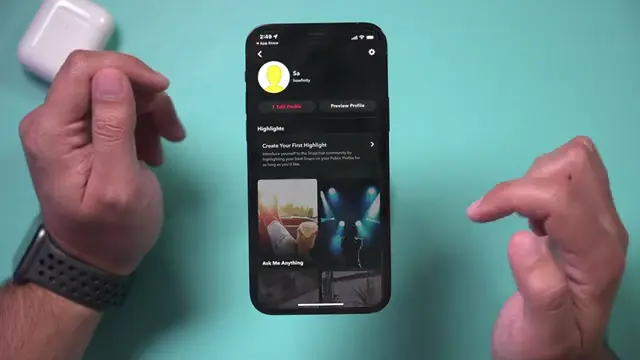
Once your public profile is created, navigate to it to make edits. Add essential elements like a profile picture, a bio, and manage your visibility settings to enhance your profile’s appeal.
Frequently Asked Questions
What is a public profile on Snapchat?
A public profile on Snapchat allows users to showcase their content to a wider audience beyond just friends.
How do I change my privacy settings for my public profile?
You can change your privacy settings in the settings menu under ‘Who Can…’ options, adjusting who can view your profile.
Can I remove my public profile later?
Yes, you can delete your public profile at any time through the settings.
Do I need a specific number of followers to create a public profile?
No, you do not need a specific number of followers to create a public profile on Snapchat.
Watch the Video Tutorial
Conclusion
Creating a public profile on Snapchat is a straightforward process that can significantly enhance your visibility on the platform. Make sure to edit your profile strategically to attract more subscribers and showcase your brand effectively.



Leave a comment