
Key Takeaways:
- Quickly hide all Facebook photos under privacy settings.
- Use the ‘Only Me’ option for photo visibility.
- Customize who can see your posts and photos.
If you’re looking to maintain your privacy on Facebook, hiding your photos can be a great step. In this guide, we will walk you through the process of setting your Facebook photos to be viewable only by you. This allows you to control what your friends or the public can see, ensuring that your personal moments remain private.
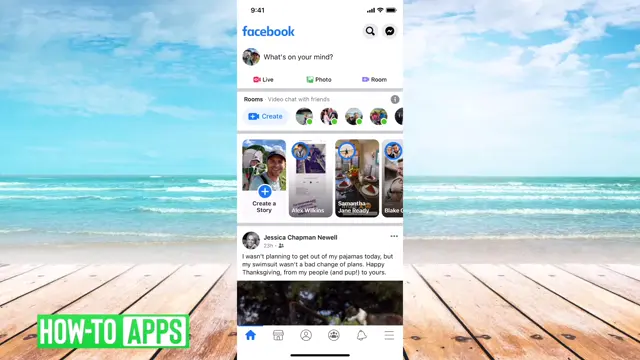
Step 1: Open Facebook Settings
Start by tapping the three horizontal lines in the bottom right corner of the app. This is crucial to access your settings for privacy management.
Step 2: Navigate to Settings & Privacy
Scroll down the menu and tap on ‘Settings & Privacy’ to find privacy-related options. This part is essential to modify your photo settings for visibility.

Step 3: Access Settings
After tapping ‘Settings & Privacy’, you’ll need to tap on ‘Settings’ to reach the detailed privacy settings.

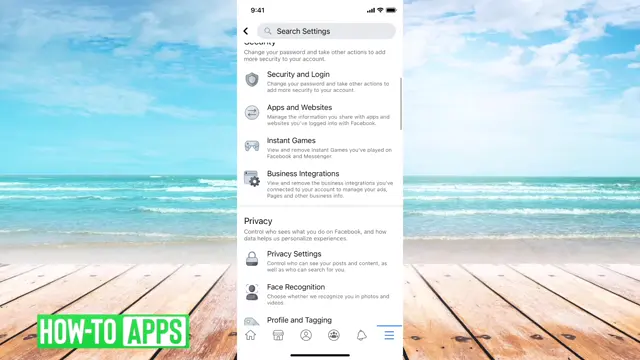
Step 4: Locate Privacy Settings
Scroll down until you see the ‘Privacy’ section. This is where you will adjust your profile and tagging options for visibility.
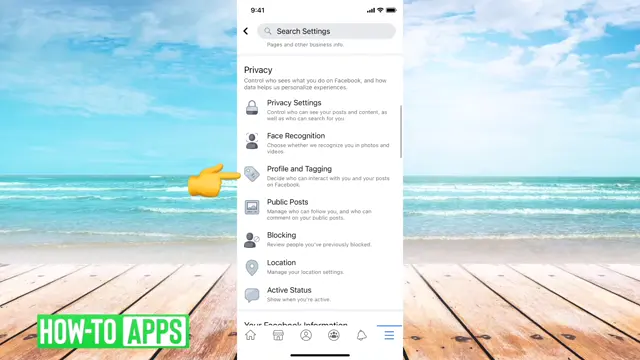
Step 5: Adjust Profile and Tagging Settings
Scroll down to ‘Privacy’. Select ‘Profile and Tagging’ to customize who can see your tagged posts and photos. This is where you will make your privacy adjustments.
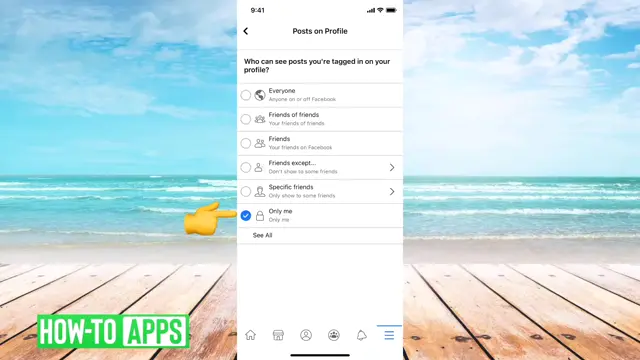
Step 6: Set Photos to Only Me
Choose ‘Only Me’ from the options available after tapping on ‘Who can see posts you’re tagged in?’. This ensures that only you can view all your tagged photos and posts on your timeline.
Frequently Asked Questions
How do I hide specific photos on Facebook?
You can hide specific photos by adjusting the privacy settings on each photo or album and selecting ‘Only Me.’
Will my friends know if I hide my photos?
No, your friends will not be notified when you hide your photos. They will simply not be able to view them.
Can I change my privacy settings later?
Yes, you can change your privacy settings at any time using the same steps to adjust who can see your photos.
Does hiding photos remove them from my timeline?
Hiding photos means they are not visible to others but still remain on your timeline for your personal view.
Watch the Video Tutorial
Conclusion
By following these simple steps, you can effectively hide your Facebook photos from others. Adjusting your visibility settings ensures that you have control over your privacy on one of the most popular social media platforms.


Leave a comment