
Key Takeaways:
- Adjust your taskbar settings for a cleaner look.
- Download and install Windhawk for customization.
- Change desktop wallpaper to enhance your style.
Are you looking to give your Windows 11 interface a fresh and stylish look in under 50 seconds? With a few simple tweaks, you can customize your taskbar and start menu to elevate your desktop experience. Follow these easy steps to transform your setup and impress your friends with an insane Windows look!
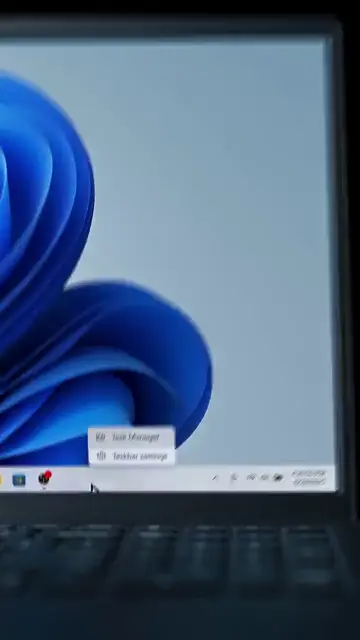
Step 1: Access Taskbar Settings
Begin by right-clicking on the taskbar. This action will prompt a menu from which you can select ‘Taskbar settings’ to manage what appears on your taskbar.
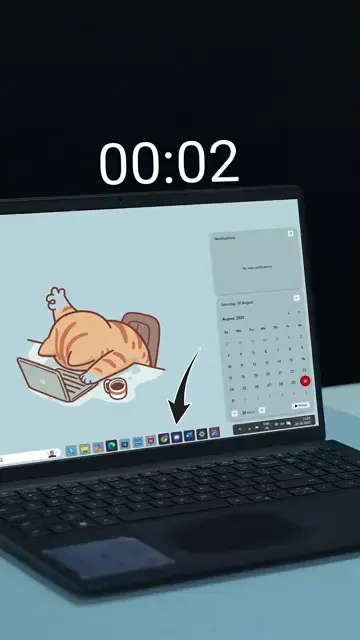
Step 2: Disable Unused Features
In the taskbar settings, disable features such as widgets and chat to clean up your interface and make it visually appealing.
Step 3: Download Windhawk
Open your browser and search for Windhawk. Download the software and follow the prompts to install it on your system, allowing for further customization.
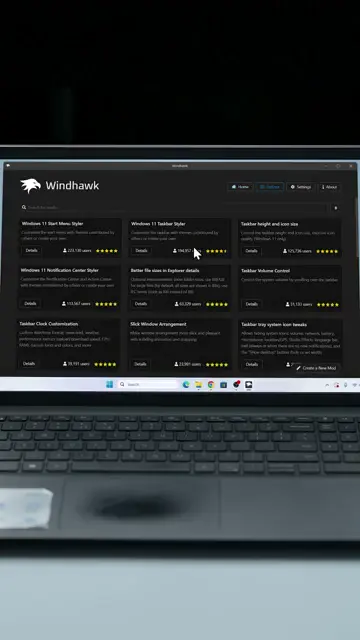
Step 4: Install Windhawk Modules
Upon launching Windhawk, add the modules for the Start Menu, Taskbar, and Notification Center to apply your desired customizations.
Frequently Asked Questions
How do I make my Windows 11 look more stylish?
You can adjust taskbar settings, download customization tools like Windhawk, and change the wallpaper.
What is Windhawk?
Windhawk is a customization tool that allows you to modify various Windows UI elements, including the start menu and taskbar.
Can I revert my Windows 11 changes?
Yes, you can easily revert back to default settings in the taskbar settings menu.
Do I need special skills to customize Windows 11?
No, most customization options are user-friendly and do not require advanced skills.
Watch the Video Tutorial
Conclusion
By following these straightforward steps, you can easily make your Windows 11 look insane under 50 seconds! Take the time to personalize your workspace, and enjoy the new aesthetic.
{“@context”:”https://schema.org”,”@graph”:[{“@type”:”HowTo”,”name”:”Make Windows 11 Look Insane in 50 Seconds”,”description”:”Transform your Windows 11 desktop appearance in under 50 seconds! Learn how to change the taskbar and start menu settings for a stylish look.”,”step”:[{“@type”:”HowToStep”,”position”:1,”name”:”Access Taskbar Settings”,”text”:”Begin by right-clicking on the taskbar. This action will prompt a menu from which you can select ‘Taskbar settings’ to manage what appears on your taskbar.”},{“@type”:”HowToStep”,”position”:2,”name”:”Disable Unused Features”,”text”:”In the taskbar settings, disable features such as widgets and chat to clean up your interface and make it visually appealing.”},{“@type”:”HowToStep”,”position”:3,”name”:”Download Windhawk”,”text”:”Open your browser and search for Windhawk. Download the software and follow the prompts to install it on your system, allowing for further customization.”},{“@type”:”HowToStep”,”position”:4,”name”:”Install Windhawk Modules”,”text”:”Upon launching Windhawk, add the modules for the Start Menu, Taskbar, and Notification Center to apply your desired customizations.”}]},{“@type”:”FAQPage”,”mainEntity”:[{“@type”:”Question”,”name”:”How do I make my Windows 11 look more stylish?”,”acceptedAnswer”:{“@type”:”Answer”,”text”:”You can adjust taskbar settings, download customization tools like Windhawk, and change the wallpaper.”}},{“@type”:”Question”,”name”:”What is Windhawk?”,”acceptedAnswer”:{“@type”:”Answer”,”text”:”Windhawk is a customization tool that allows you to modify various Windows UI elements, including the start menu and taskbar.”}},{“@type”:”Question”,”name”:”Can I revert my Windows 11 changes?”,”acceptedAnswer”:{“@type”:”Answer”,”text”:”Yes, you can easily revert back to default settings in the taskbar settings menu.”}},{“@type”:”Question”,”name”:”Do I need special skills to customize Windows 11?”,”acceptedAnswer”:{“@type”:”Answer”,”text”:”No, most customization options are user-friendly and do not require advanced skills.”}}]}]}



Leave a comment