
Key Takeaways:
- Delete specific photos from Google Photos
- Keep photos on your phone while deleting from Google
- Understand the trash feature in Google Photos
If you want to delete photos from Google Photos without removing them from your device, you can achieve this easily using a web browser. This method ensures that your photos remain safe on your phone while managing storage in Google Photos. Follow these simple steps to learn how to delete specific photos from Google Photos without impacting your device’s gallery.
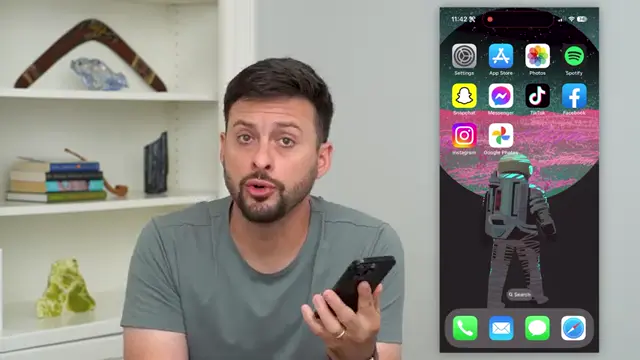
Step 1: Open Google Photos App
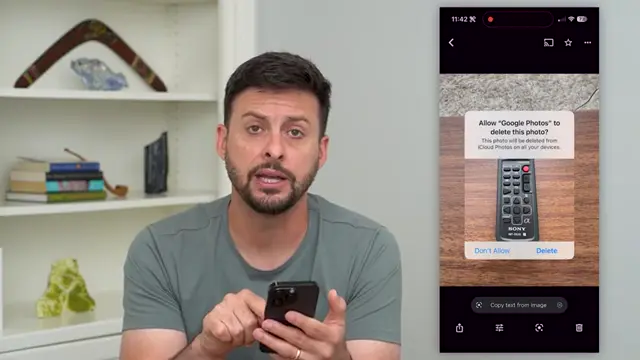
First, launch the Google Photos app on your device. If you want to delete a specific photo, tap on it to select it. Be cautious, as tapping the trash can icon will trigger a prompt to delete the photo from all devices, including your phone.
Step 2: Choose Not to Delete from Device
When prompted to confirm the deletion of the photo from your device, tap ‘Don’t Allow’. This step ensures that the photo remains on your phone while you’re managing it in Google Photos.
Step 3: Access Google Photos in Browser
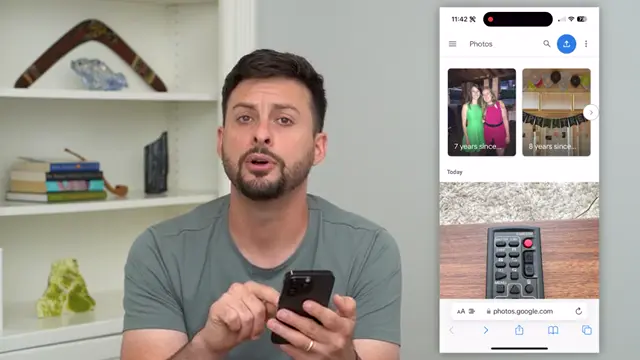
Now, to delete the photo from Google Photos, open a web browser like Chrome or Safari. Navigate to ‘photos.google.com’. Log in to your Google Account to access your photo library where you can manage your Google Photos without affecting your original files on your device.
Step 4: Delete Photo from Google Photos
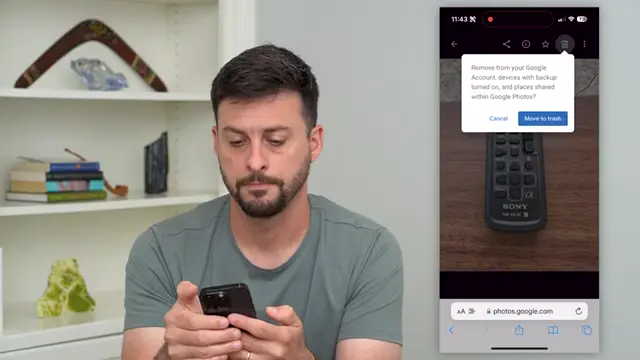
Locate the specific photo you want to delete from your Google Photos. Tap on it, then click the trash can icon at the top right and select ‘Move to Trash’. This will remove the photo from Google Photos but keep it saved on your phone.
Also recommended: How to Recover Deleted Photos in Google Photos for more step-by-step guidance.
Frequently Asked Questions
Will deleting from Google Photos remove it from my phone?
No, you can delete photos from Google Photos without removing them from your phone by following specific steps.
How can I recover deleted photos from Google Photos?
If you accidentally delete photos from Google Photos, check your trash folder in the app, or refer to this guide on How to Recover Deleted Photos in Google Photos.
How long do deleted photos stay in Google Photos trash?
Deleted photos remain in the Google Photos trash for 60 days before they are permanently deleted.
Can I manage Google Photos from my phone?
Yes, you can manage your Google Photos from the app, but for deleting without affecting your device, access it via a web browser.
Watch the Video Tutorial
Conclusion
Now you know how to delete photos from Google Photos while ensuring they remain on your phone. If you have any questions, feel free to ask in the comments!





Leave a comment