
Key Takeaways:
- Learn to unlock iPhone using voice commands.
- Understand how to enable Siri for unlocking.
- Follow step-by-step guide to set custom commands.
Unlocking your iPhone with voice commands is a convenient feature that allows for hands-free access. With Siri’s help, you can set up your device to respond to voice commands for unlocking. In this guide, we’ll take you through the simple steps required to set this up. From enabling voice control to customizing commands, you’ll be able to unlock your iPhone using your voice in no time!
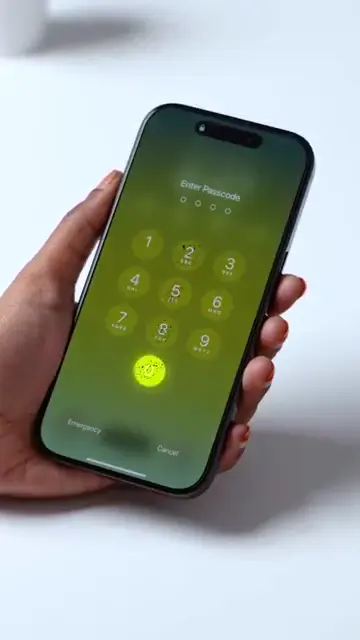
Step 1: Write Down Your iPhone Password
Before you begin, make sure to jot down your iPhone password. This is crucial for the setup process, as you’ll need it to initially unlock your device manually before enabling voice control.
Step 2: Enable Voice Control in Settings
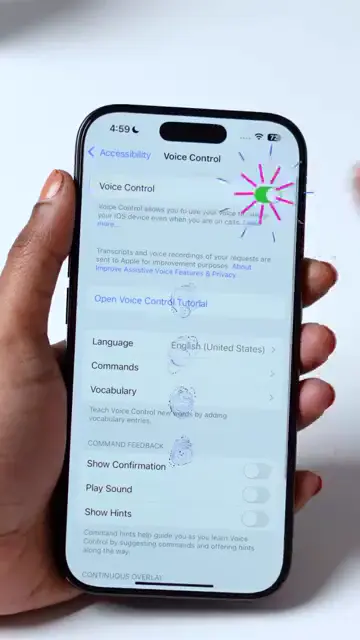
Navigate to your iPhone’s settings. Tap on ‘Accessibility’ and then select ‘Voice Control’ to enable voice commands, allowing you to use Siri to unlock your device.
Step 3: Set Up Custom Commands
Once voice control is enabled, go to ‘Commands’ and select ‘Custom’. This allows you to create personalized commands, like the ones you’ll use to unlock your iPhone.
Step 4: Input Your Custom Unlock Command
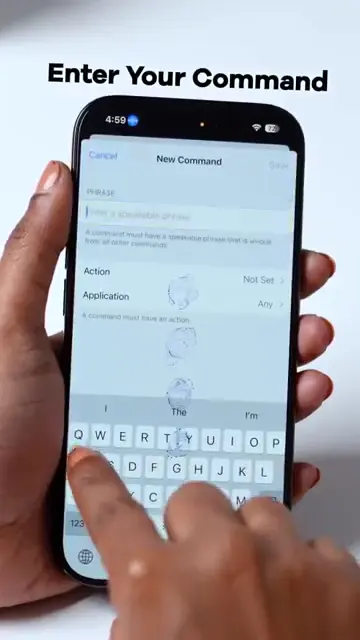
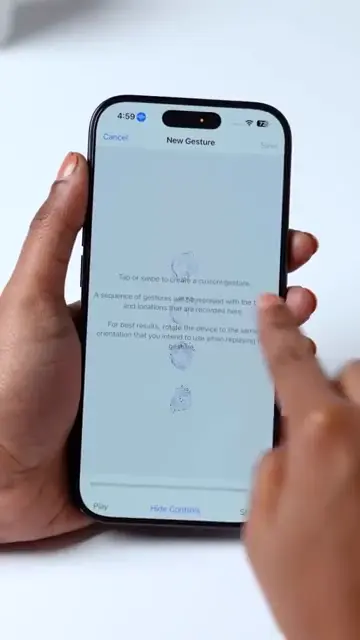
Type in the specific words or phrase you want to use to unlock your iPhone. Then, select ‘Action’ to define what Siri will do when you say that phrase, like running specific gestures.
Step 5: Save Your Custom Command
After entering your command details, make sure to save your settings. Now, you’ll be able to unlock your iPhone using just your voice by saying the phrase you’ve set up!
Frequently Asked Questions
Can I unlock my iPhone with Siri?
Yes, you can unlock your iPhone with Siri by setting up voice control and custom commands.
What do I need to do before using voice control?
You should first jot down your iPhone password as you’ll need it during the setup process.
How do I set up a custom command for unlocking?
Go to Settings > Accessibility > Voice Control, then create and save a custom command for unlocking.
Is there a risk in using voice commands to unlock my iPhone?
Using voice commands can be convenient, but make sure your voice recognition settings are secure to prevent unauthorized access.
Watch the Video Tutorial
Conclusion
By following these steps, you can successfully set up your iPhone to unlock with voice commands. Enjoy the convenience and ease of accessing your device hands-free with Siri!






Leave a comment