
Key Takeaways:
- Understand methods to recover deleted messages.
- Learn how to enable notification history on Android.
- Find out how to restore backups effectively.
Deleted WhatsApp messages can be frustrating to lose, but recovering them is possible through a few effective methods. Whether you’re on an Android or iPhone device, this guide will show you how to utilize your notification history and backup features to retrieve deleted messages. Follow the steps carefully to ensure that you can restore any important conversations you may have lost and regain access to valuable information.
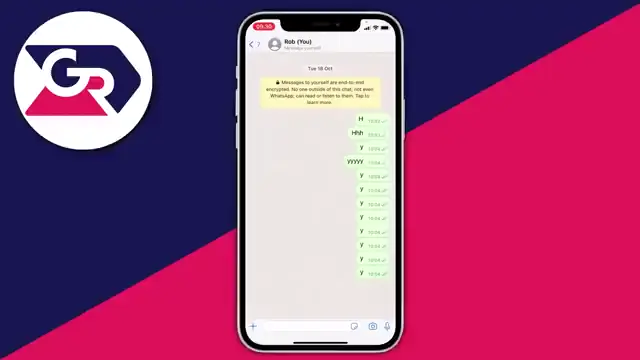
Step 1: Open Device Settings
Start by accessing the settings on your device. This is where you can configure important notification settings. Make sure to open the settings application on your Android or iPhone.
Step 2: Find Notification Settings
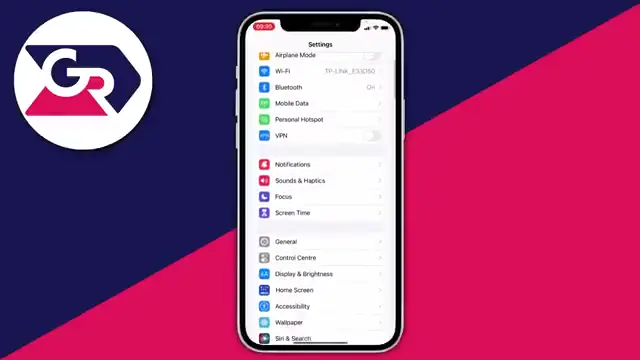
In the settings menu, locate the notification settings. This is essential for managing how notifications are handled, especially for WhatsApp messages.
Step 3: Enable Notification History on Android
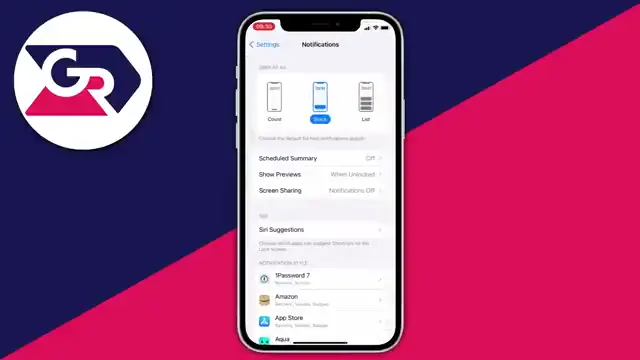
If you’re using an Android device, activate notification history. This feature allows you to keep a record of all notifications received, including deleted WhatsApp messages.
Step 4: Navigate to WhatsApp Settings
Open the WhatsApp application and navigate to Settings. You can find this in the bottom right of the chat page.

Step 5: Access Chat Options
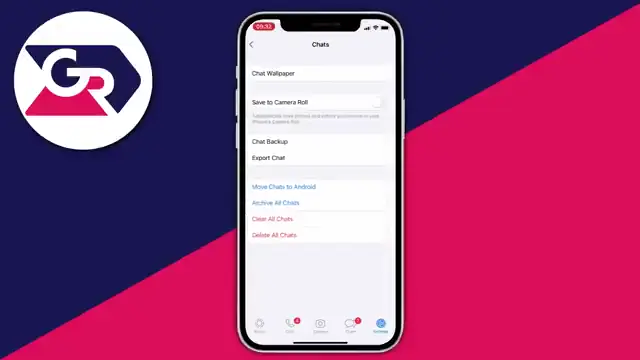
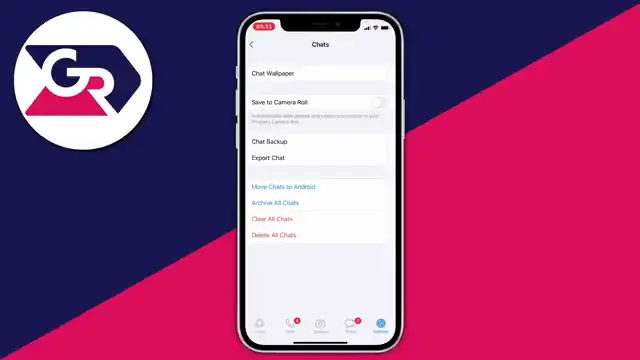
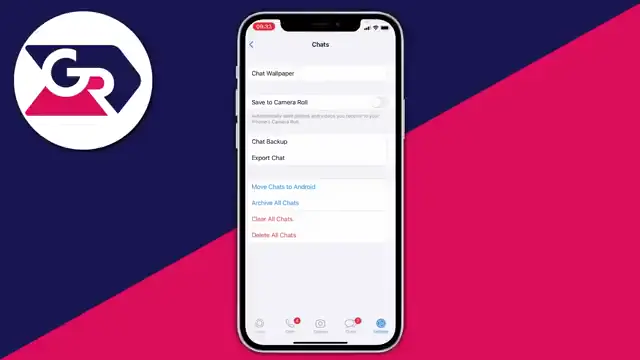
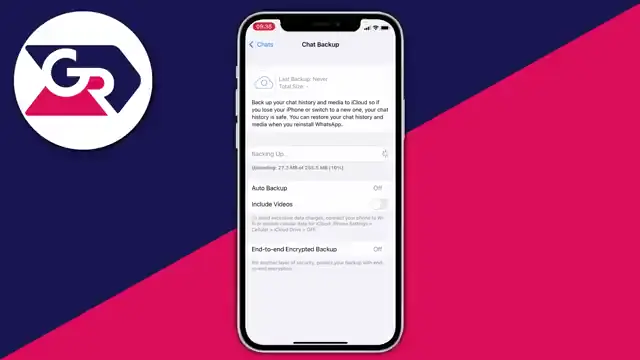
In the WhatsApp settings, tap on ‘Chat’ to access chat options, including backup settings.
Step 6: Access Chat Backup in WhatsApp
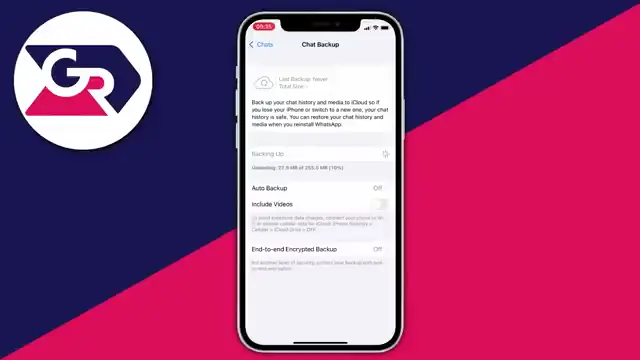
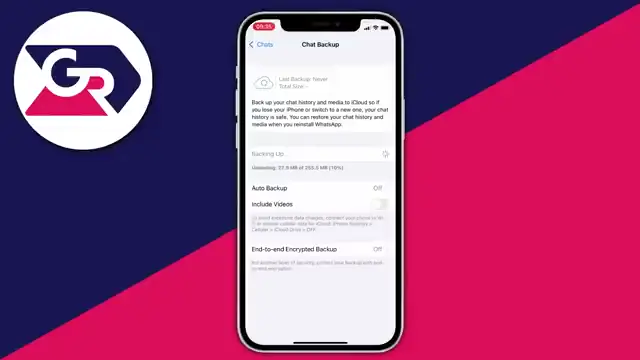
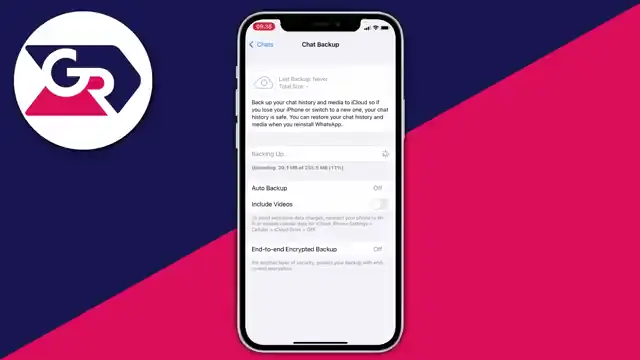
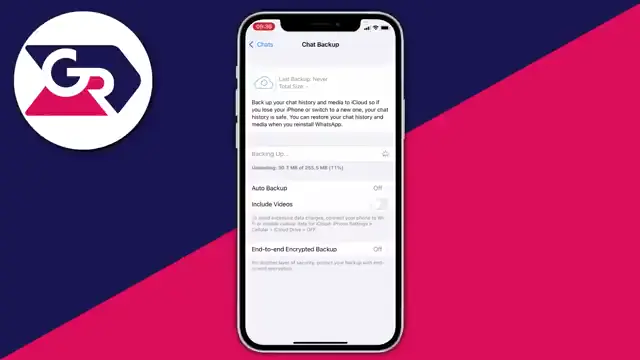
Within the chat options, select ‘Chat Backup’. This is crucial for restoring messages if they were saved before deletion.
Step 7: Restore from Backup
Ensure that your backup was made before the messages were deleted. Follow the prompts in WhatsApp to restore your chats from the most recent backup on iCloud or Android.
Step 8: Delete the WhatsApp App
If needed, delete the WhatsApp app from your device to initiate the reinstallation process. Make sure you are prepared to restore messages from backup.
Step 9: Re-Download WhatsApp
After deleting the app, go to your device’s app store and re-download WhatsApp. This will allow you to restore data from backup during setup.
Step 10: Restore from Backup During Setup
During the setup phase after reinstallation, WhatsApp will prompt you to restore from a backup. Make sure to select this option to recover your messages.
Step 11: Confirm Restoration of Backup
Follow the prompts to confirm the restoration of backed-up messages. This will help recover your deleted messages if they were included in the backup.
Step 12: View Recovered Messages
If the backup was successful, you should now be able to see the deleted messages that were restored from the backup.
Frequently Asked Questions
Can I recover messages from a deleted backup?
No, if the backup that includes the deleted messages is also deleted, you won’t be able to recover those messages.
What do I do if I can’t find my backup?
Check your cloud storage settings or contact your cloud service provider to recover old backups.
Is notification history available on iPhones?
No, iPhone does not support notification history; consider utilizing iCloud backups instead for recovery.
How often should I backup WhatsApp messages?
It’s recommended to set up daily or weekly backups to prevent loss of important messages.
Watch the Video Tutorial
Conclusion
By following these steps, you can effectively recover deleted WhatsApp messages using notification history and backups. Keep your settings updated and regularly back up your chats to minimize the risk of losing important conversations.





Leave a comment