
Key Takeaways:
- Steps to permanently delete your Snapchat account.
- How to navigate the Snapchat app settings.
- Important information about deactivation period.
Deleting your Snapchat account may seem daunting, but it’s actually a straightforward process. This guide will walk you through the steps to permanently delete your Snapchat account using the app on various devices. Whether you’re using an iPhone, Android, or Samsung phone, you’ll find the instructions easy to follow. Let’s dive in!
Step 1: Open the Snapchat App
Begin by launching the Snapchat app on your mobile device. Ensure that you’re logged into the account you wish to delete. This is the first step towards navigating the app’s settings to erase your profile.
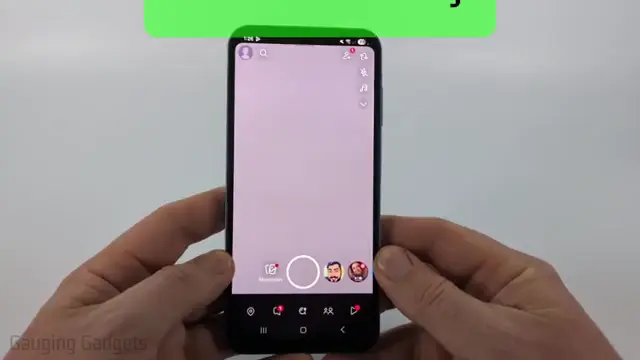
Step 2: Access Your Profile
Tap on your profile icon located in the top left corner of the app. This will take you to your personal profile where you will initiate the account deletion process.
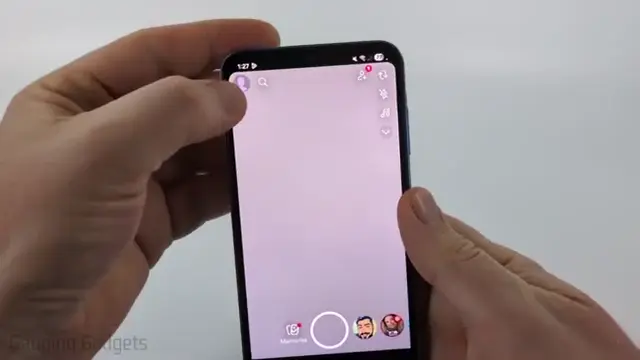
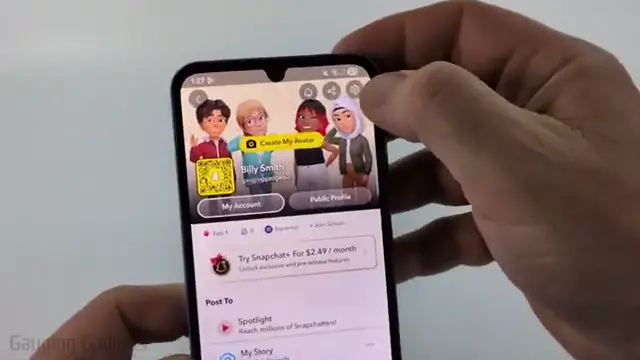
Step 3: Open Settings
In your profile, look for the gear icon in the top right corner. Tapping this will bring you to your Snapchat account settings where you can adjust various options.
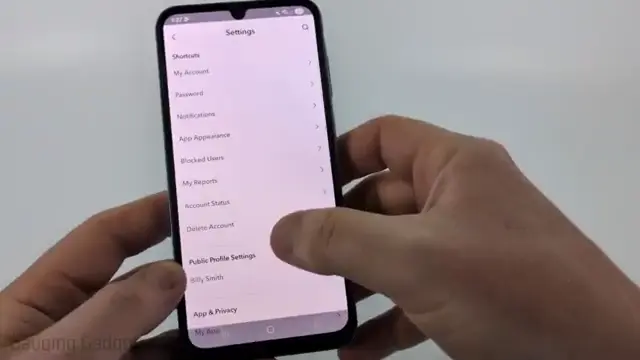
Step 4: Select Delete Account
Under the settings menu, find and select the option that says ‘Delete Account’ listed under the shortcuts. If you don’t see it, you might need to visit their help center for direct links.
Step 5: Log Into Your Account
After selecting delete account, a browser window will open within the app. Log back into your Snapchat account using your username and password to proceed with the deletion.
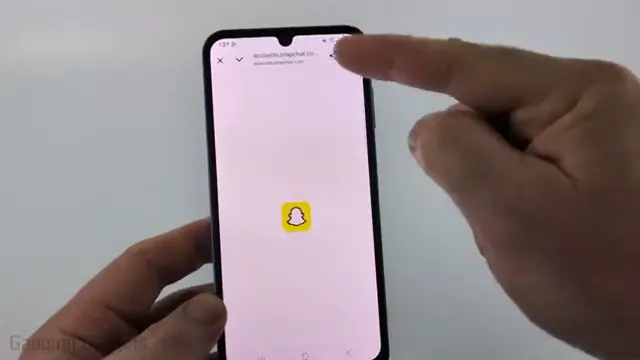
Step 6: Understand the Deactivation Period
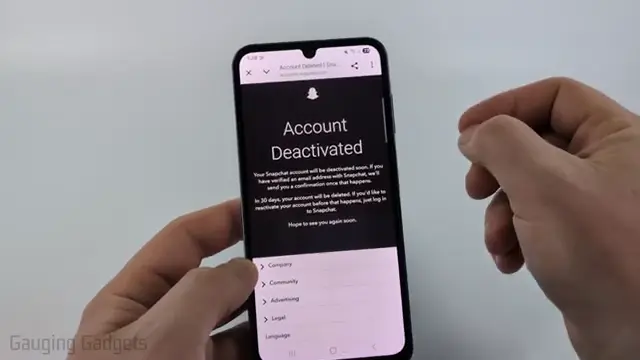
Upon successful login, you will see a note that your account will be deactivated for 30 days before permanent deletion. Make sure you do not log in during this period if you want to delete your account.
Also recommended: Easily Delete Your Facebook Account in 2026 for more step-by-step guidance.
Frequently Asked Questions
What happens after I delete my Snapchat account?
After deletion, your account will be deactivated for 30 days. If you don’t log in during this period, it will be permanently deleted.
Can I recover my Snapchat account after deletion?
No, once the account is permanently deleted after 30 days, all data will be lost and cannot be recovered.
Can I delete my Snapchat account from a computer?
Yes, you can delete your account from a computer by visiting the Snapchat website, but using the app is the recommended method.
Will my friends know if I delete my Snapchat account?
Your friends will not receive a notification, but they will notice that your account is no longer available.
Watch the Video Tutorial
Conclusion
Deleting your Snapchat account is simple and quick via the app. Follow these steps carefully to ensure your account is removed as intended.
If you use other messaging apps, you can also delete your Telegram account permanently and delete your TrueCaller account permanently.









Leave a comment