
Key Takeaways:
- Learn how to connect multiple monitors to your PC.
- Discover how to set up your main display and extend mode.
- Adjust refresh rates and display settings for optimal use.
Setting up multiple monitors on your PC can greatly enhance your productivity, but it can also be quite tricky. If you’re looking to set up your monitors correctly on Windows 10, follow these easy steps to ensure a smooth and efficient workspace.
Step 1: Connect Your Monitors
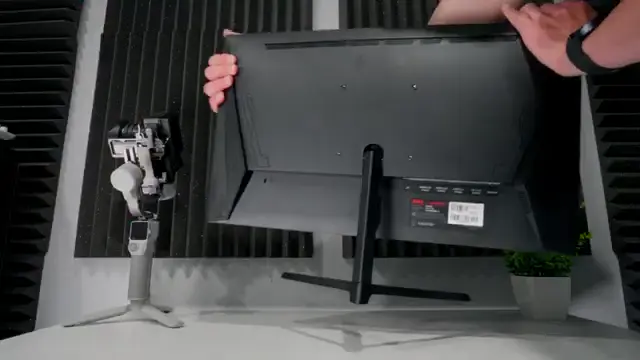
First, ensure that all your monitors are connected properly to your graphics card. Use compatible HDMI or display port cables to connect each monitor. Make sure to check for any obstructions and that cables are securely plugged in. If you’re unsure how to connect them effectively, check this guide on how to Make Chrome Default for assistance.
Step 2: Access Display Settings
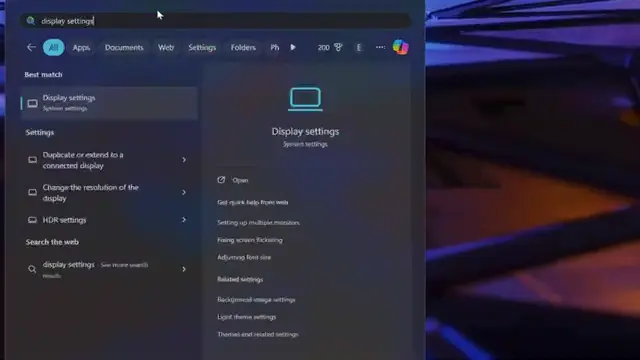
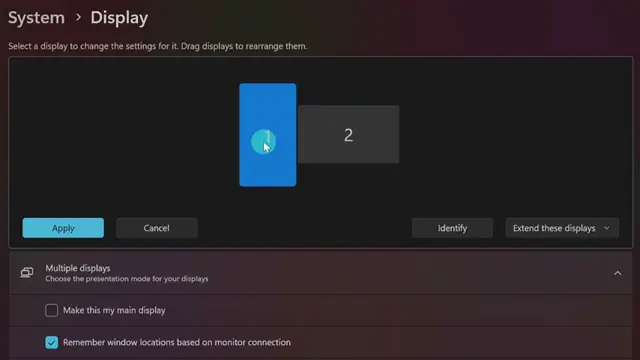
Boot into Windows and right-click on the desktop to select ‘Display settings’. This is where you can manage all your monitor configurations. You should see all connected displays as rectangles. If any are missing, use the ‘Detect other display’ button to find them. If issues persist, check your cable connections again.
Step 3: Identify Your Monitors
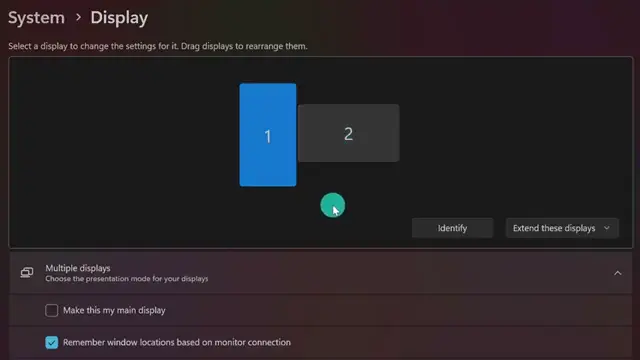
Use the ‘Identify’ button in the display settings to know which monitor corresponds to which rectangle on the screen. This helps in configuring your workspace accurately. Click and drag the rectangles to match your physical monitor arrangement for a seamless experience when moving your mouse across screens.
Step 4: Set Your Main Display
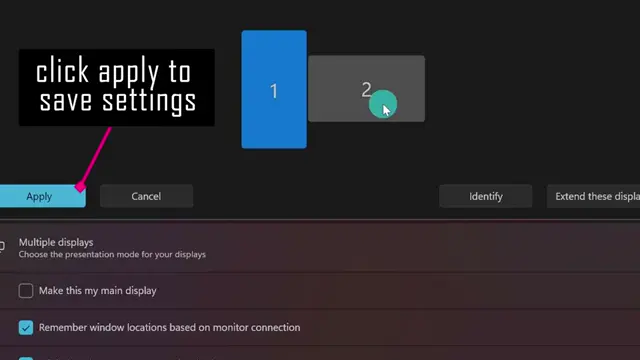
Click on the monitor you wish to set as your main display and check the ‘Make this my main display’ box. This ensures applications and game launches appear on the correct screen. It’s also essential to adjust the extend mode if you want to use the monitors as one big desktop, which is preferred in most cases.
Step 5: Adjust Display Orientation
If you have a vertical monitor, select it in the display settings and scroll down to display orientation. Set it to ‘Portrait’ to change the layout correctly. You may need to choose ‘Portrait flipped’ based on how you mounted your monitor.
Step 6: Configure Refresh Rates
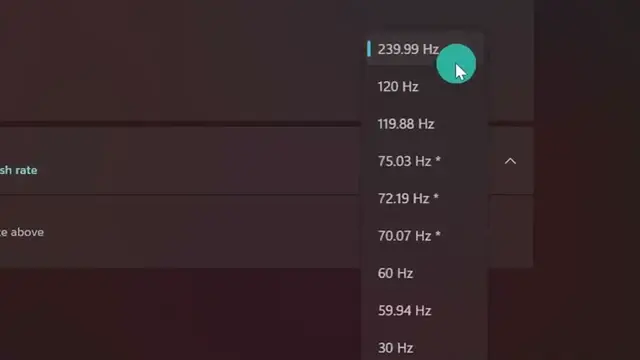
Go into Advanced Display settings to check and adjust the refresh rates of each monitor. This is crucial to ensure that you are getting the desired performance, especially if using a gaming monitor with high refresh rates.
Frequently Asked Questions
How do I connect multiple monitors to my PC?
Connect each monitor to your graphics card using HDMI or display port cables, ensuring all connections are secure.
What is the difference between extend and duplicate displays?
Extend allows each monitor to act as a separate workspace, while duplicate mirrors the same image on both screens.
How can I set a vertical monitor?
Select the monitor in display settings, then change the display orientation to ‘Portrait’ for vertical use.
Why is my second monitor not detected?
Check your cable connections, ensure the monitor is powered on, and use the ‘Detect’ button in display settings if needed.
Watch the Video Tutorial
Conclusion
By following these simple steps, you can effectively set up multiple monitors on Windows 10 to enhance your productivity. Enjoy a seamless workflow with your newly configured displays!








Leave a comment