
Unlock the full potential of your iPhone with these 10 hidden gestures! These handy tips will streamline your everyday tasks and make your iPhone experience more efficient. Let’s dive into each gesture step by step!
Step 1: Close Multiple Apps at Once
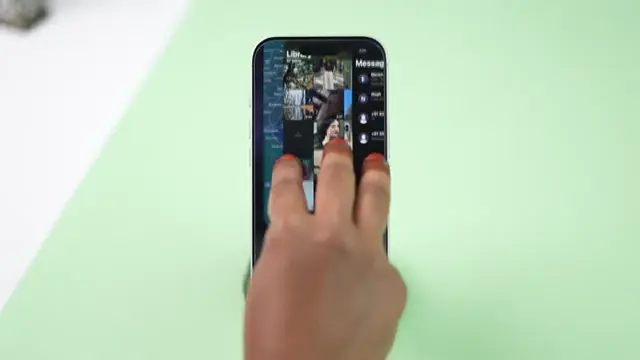
No need to swipe through apps individually! Place three fingers on up to three apps currently in view and swipe up with all three fingers to close them simultaneously.
Step 2: Select Multiple Photos Quickly
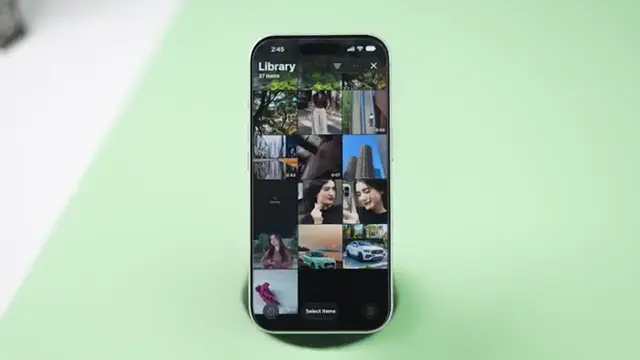
Open the Photos app, tap ‘Select’ in the top right corner, then touch and drag across the photos you want to select. You can also drag diagonally to cover multiple rows.
Step 3: Jump to the Beginning of Your Photos Library
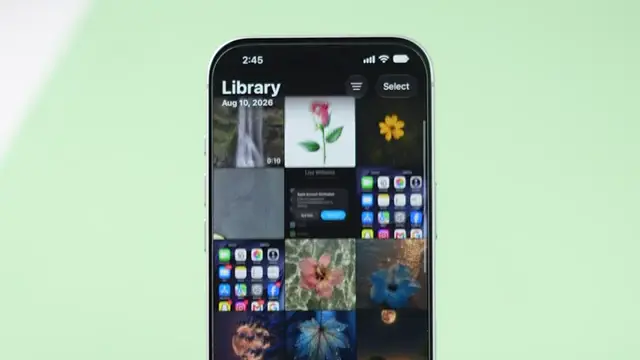
Tap the dynamic island at the top of your iPhone screen to jump back to the earliest photos in your library. To return to the most recent photos, tap ‘Library’ at the bottom left.
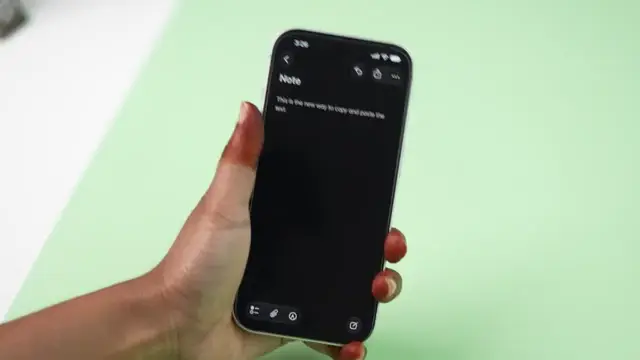
Step 4: Adjust List Indentation
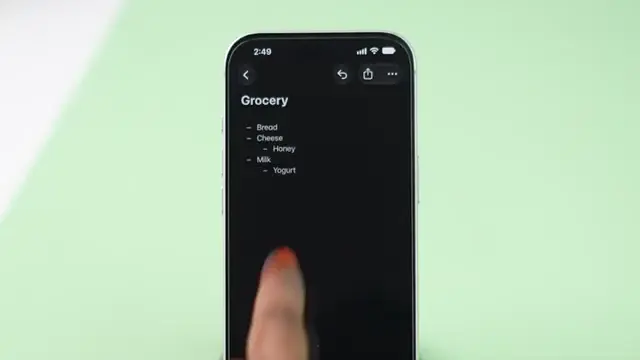
In a bulleted list, swipe right on a bullet point to increase its indentation or swipe left to decrease it. You can swipe multiple times for a larger change.
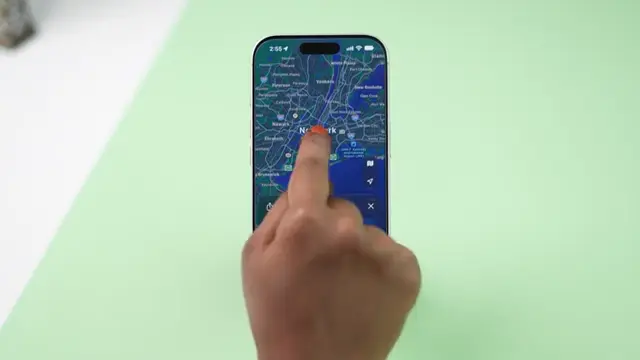
Step 5: Zoom Maps with One Hand
Double tap anywhere on the Apple Maps screen. After the second tap, keep your finger pressed down and swipe up to zoom in or down to zoom out for one-handed control.
Step 6: Shake to Undo Mistakes
To use the shake to undo feature, open Settings, go to Accessibility > Touch, and enable it. Then, whenever you make a typing mistake, give your iPhone a quick shake to undo your last action.
Step 7: Adjust Volume Precisely
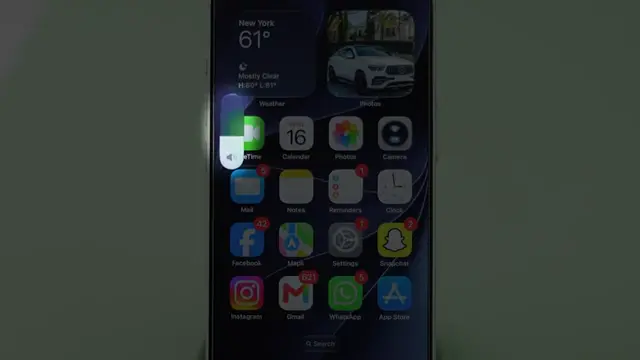
Press either volume button to bring up the volume slider. Touch and hold it, then drag the slider to fine-tune the volume exactly as you like.
Step 8: Drag and Drop Between Apps
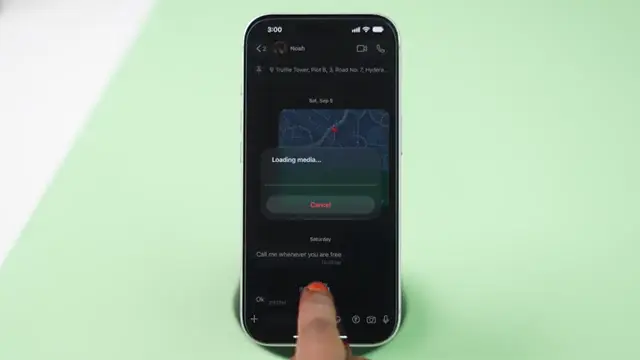
To move an item, touch and hold it with one finger. Use another finger to swipe up and switch to the app you want, then drag the item to your desired location and release.
Step 9: Create a New Safari Tab Quickly
Swipe left on the address bar in Safari to instantly create a new tab. This can be done one-handed for convenience.
Step 10: Move Apps Between Pages
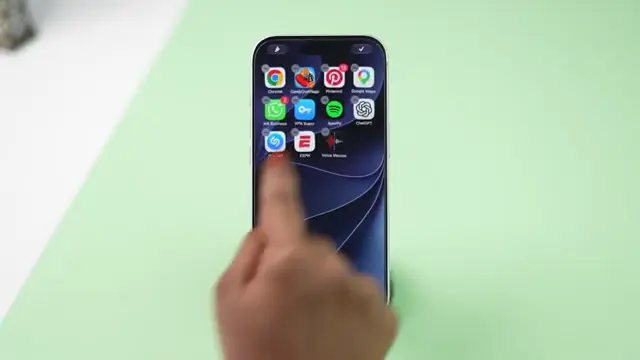
Touch and hold the app you want to move. Keep holding it, then drag it towards the edge of the screen to the desired page, and release to place it where you want.
Conclusion
These hidden iPhone gestures can greatly enhance your user experience, making common tasks quicker and easier. Experiment with these tips, and see how they can simplify your daily interactions with your device!









Leave a comment