
Key Takeaways:
- Understand the first actions a thief takes with an iPhone.
- Learn how to toggle airplane mode to secure your device.
- Steps to restrict features accessible when your iPhone is locked.
If you ever wondered what a thief might do immediately after stealing your iPhone, it involves disabling tracking features. This guide explains how to block potential thieves from accessing your iPhone’s functions like Airplane Mode, which can hinder your ability to locate it. By taking a few simple precautionary steps, you can significantly enhance your iPhone’s security against theft.
Step 1: Understand the Thief’s First Move
Thieves often disable tracking features on stolen iPhones. The first thing a thief would do is prevent the original owner from locating the device quickly and easily. Knowing this can help you take necessary precautions to secure your iPhone.

Step 2: Disable Airplane Mode Access
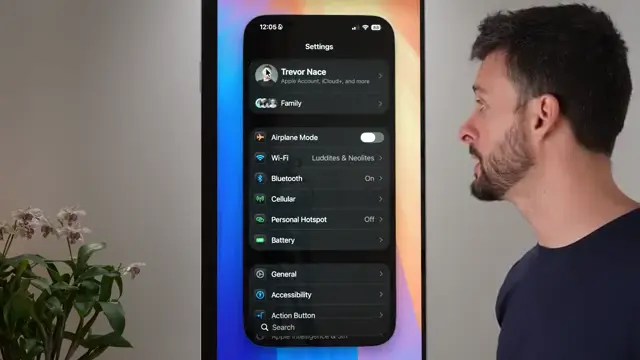
To enhance your iPhone’s security, ensure that features such as Airplane Mode cannot be accessed when your device is locked. Thieves could tap Airplane Mode to disconnect tracking, making it vital to secure these settings.
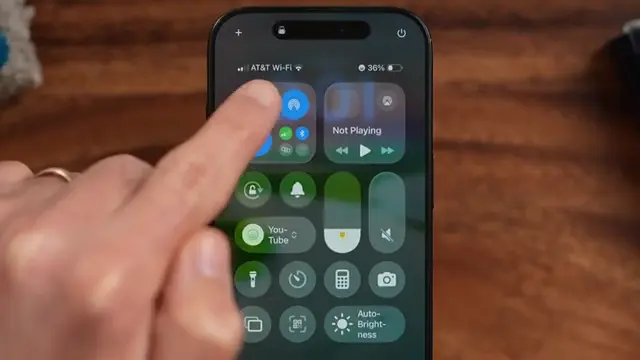
Step 3: Change Settings for Enhanced Security
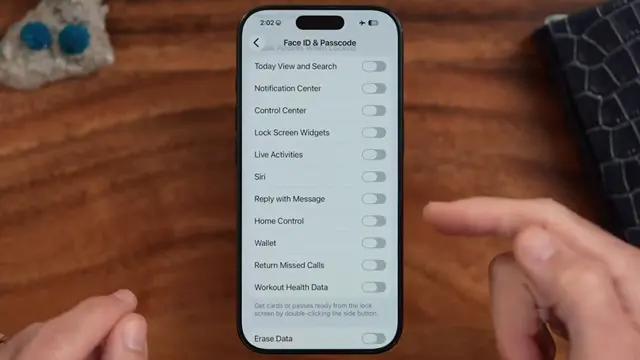
Unlock your iPhone and navigate to the Settings app. Scroll down to ‘Face ID & Passcode’ and adjust the settings for ‘Allow Access When Locked.’ Disable access to Airplane Mode and other features that a thief might exploit.
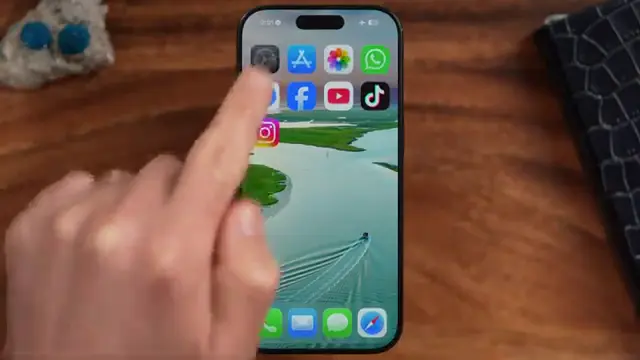
Step 4: Enter Passcode
You will need to enter your iPhone’s passcode to change settings. Ensure you have your passcode handy to make necessary adjustments.
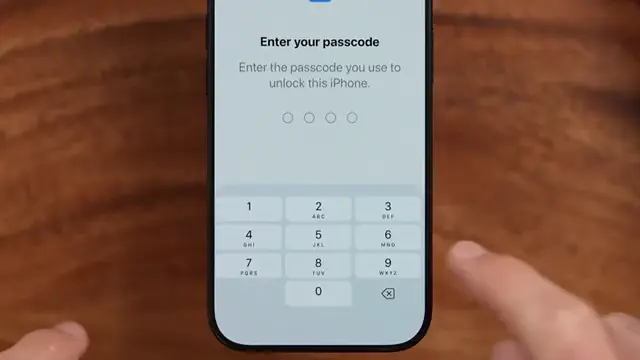
Step 5: Access Allow Access When Locked
Scroll down from the Face ID & Passcode settings to find options for ‘Allow Access When Locked.’ This is crucial for securing your device.
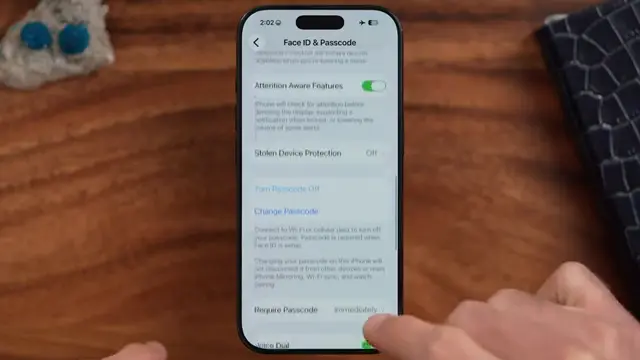
Step 6: Restrict Control Center Access
Make sure to disable access to Control Center when your iPhone is locked. This prevents thieves from disabling tracking features easily.
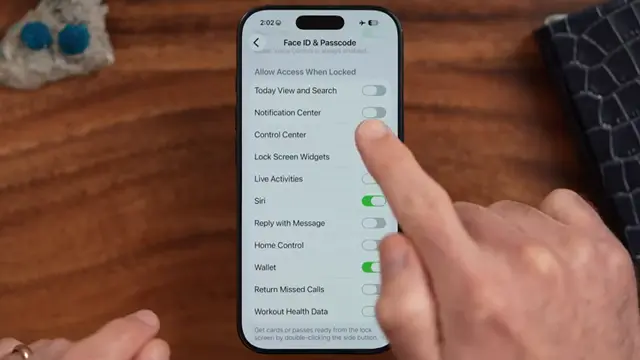
Step 7: Disable Siri Access When Locked
Turn off Siri access when your iPhone is locked to prevent thieves from using voice commands to enable airplane mode.
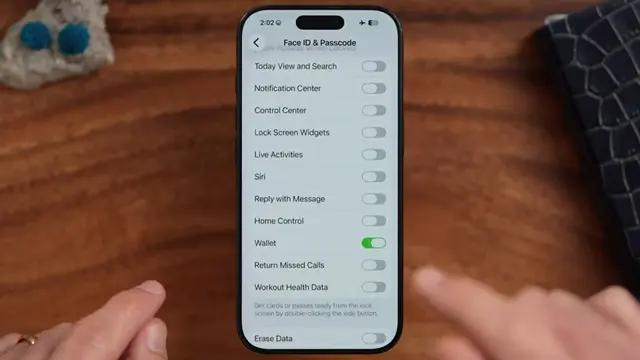
Step 8: Restrict Wallet Access When Locked
Ensure that access to your Wallet app is disabled when the iPhone is locked to prevent thieves from making unauthorized transactions.
Frequently Asked Questions
What should I do immediately if my iPhone is stolen?
If your iPhone is stolen, first use iCloud’s ‘Find My’ feature to locate it. You can also put the device in Lost Mode to lock it.
How does airplane mode affect tracking my iPhone?
When airplane mode is enabled, it disables Wi-Fi, Bluetooth, and cell data, preventing any tracking signals from reaching your iPhone.
Can I prevent access to certain features when my iPhone is locked?
Yes, you can adjust settings under ‘Face ID & Passcode’ to restrict access to various features when your iPhone is locked.
Is it possible to track my iPhone if it’s on airplane mode?
No, if your iPhone is on airplane mode, it cannot be tracked as it disconnects all network services.
Watch the Video Tutorial
Conclusion
By following these steps, you can protect your iPhone from potential theft. Remember to regularly check your security settings to ensure your device remains safe.



Leave a comment