
Key Takeaways:
- Learn to add custom photo widgets on iOS 14.
- Understand how to access and customize your photos.
- Discover how to configure slideshow intervals for widgets.
Adding custom photo widgets to your iPhone’s home page using iOS 14 enhances your device’s aesthetic. This guide will walk you through the steps of using a photo widget app to showcase your favorite pictures. We’ll cover everything from accessing your photo library to adjusting settings for your new widgets. Follow the steps below to get started with custom photo widgets on your device!
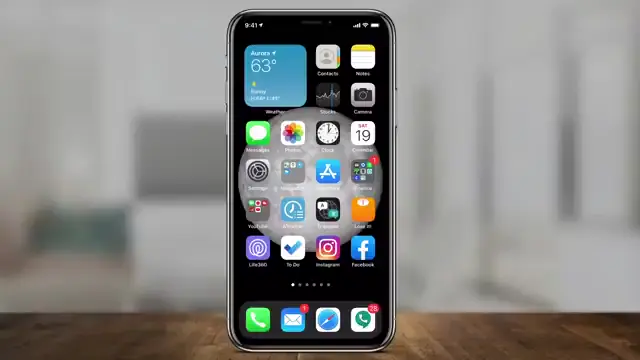
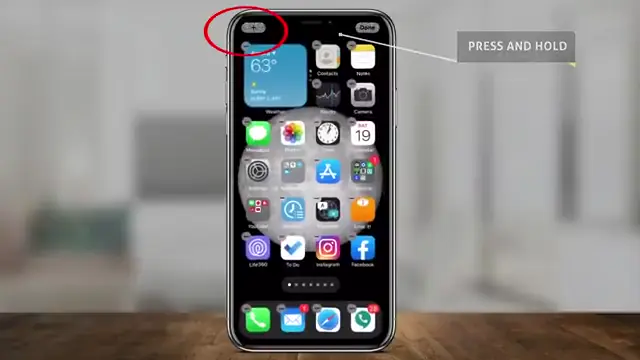
Step 1: Press and Hold to Add Widget
To begin, press and hold in a blank area of your home page until a menu appears. This is the first step to customize your home screen by adding new widgets.
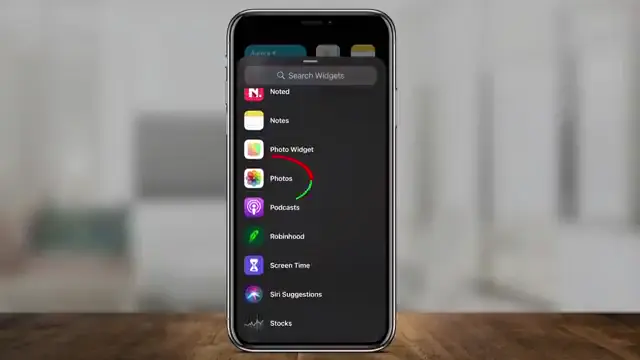
Step 2: Select Photos to Add Widget
Scroll down and locate the ‘Photos’ option. By selecting this, you can create a standard widget from your photo library, but it won’t allow for customization—all your photos will be shown randomly.
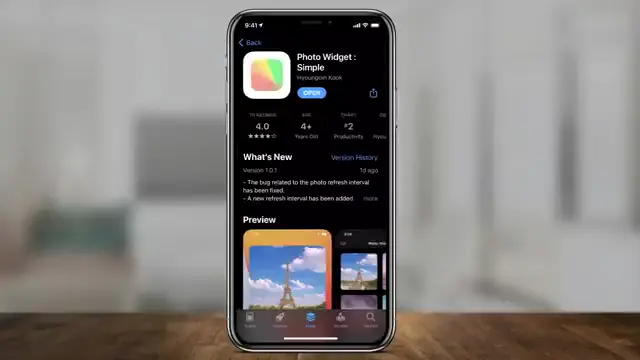
Step 3: Download the Photo Widgets App
Next, head to the App Store and download the ‘Photo Widgets’ app. This app allows you to choose specific photos for your custom widget, providing more control over what appears on your home screen.
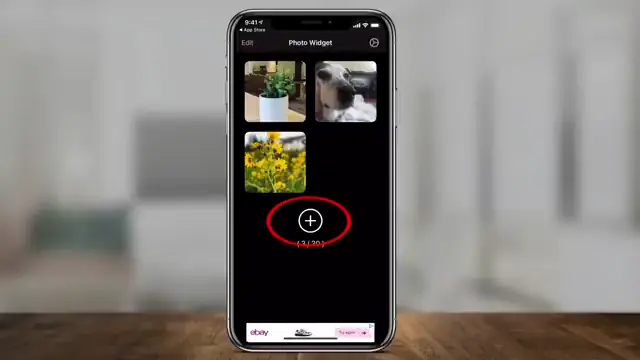
Step 4: Add Your Photos to the App
After opening the ‘Photo Widgets’ app, press the plus sign to access your photo library and select up to 30 pictures you want to display. This customization step is essential to setting up your unique widget.
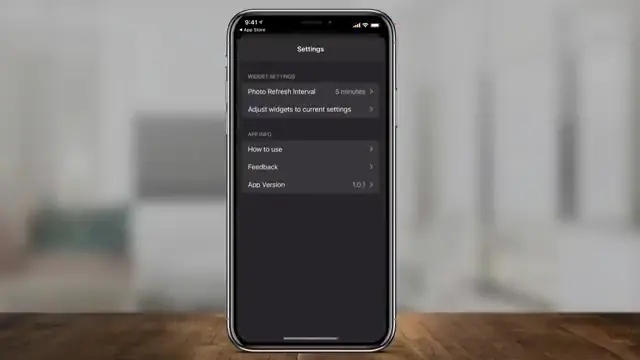
Step 5: Set Photo Refresh Interval
Press the setting gear right on top here, and make sure your photo refresh interval is set to 5 or 10 minutes, allowing it to cycle through the images like a slideshow every few minutes.
Step 6: Add the Custom Photo Widget to the Home Page
Return to your home page, press and hold again, tap the plus sign, and instead of the regular ‘Photos’ option, choose ‘Photo Widget.’ This will allow you to add your custom widget to the home screen.
Frequently Asked Questions
How can I create a custom slideshow of photos on my widget?
You can create a custom slideshow by selecting your photos in the ‘Photo Widgets’ app and setting a refresh interval for the widget.
What is the maximum number of photos I can add to the custom photo widget?
You can add up to 30 pictures to the custom photo widget using the Photo Widgets app.
Will the widget display the same photo all the time?
No, if set to refresh, the widget will cycle through the selected photos at the interval you specify.
Can I change the size of the photo widget?
Yes, when adding the widget, you can choose from multiple size options to best fit your home page layout.
What should I do if I’m unable to find the ‘Photo Widgets’ app in the App Store?
Double-check your internet connection and try searching for different keywords related to the app.
Watch the Video Tutorial
Conclusion
By following these steps, you can easily add and customize photo widgets on your iPhone with iOS 14. Enjoy showcasing your favorite memories right on your home screen!



Leave a comment