
Key Takeaways:
- Learn how to download your own YouTube videos
- Discover how to subscribe to YouTube Premium for downloads
- Understand the steps to download other users’ videos
Downloading YouTube videos can be a straightforward process, whether you’re interested in your own uploads or content from others. In this guide, you’ll learn two primary ways to download YouTube videos effectively. The first method focuses on downloading your own content through YouTube Studio, while the second method involves using YouTube Premium to access other users’ videos. Let’s dive into the steps and get started!
Step 1: Introduction to Downloading YouTube Videos
This guide will show you how to download YouTube videos for personal use. We’ll focus on downloading your own videos first.

Step 2: Access YouTube Studio
To download your own videos, start by going to your YouTube Studio. Click on your profile icon and select ‘YouTube Studio’ from the dropdown menu.
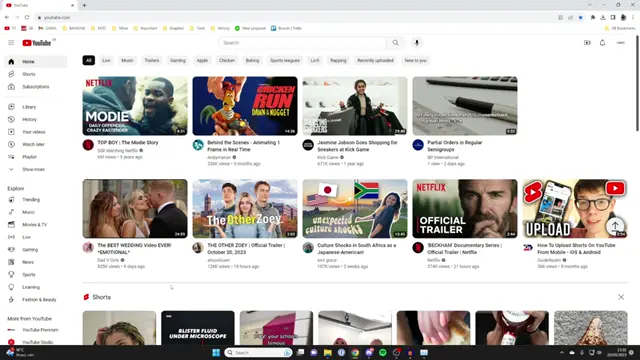
Step 3: Select Your Video
In YouTube Studio, navigate to the left sidebar and tap on ‘Content’. Choose the video you want to download by hovering over it to see the ‘Options’ button (three dots).
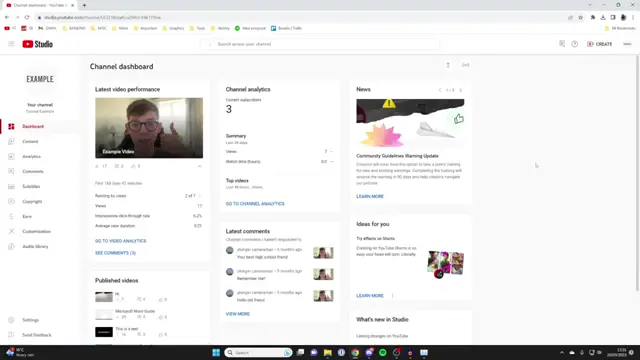
Step 4: Download Your Video
After selecting the video, click on the ‘Options’ button (three dots). From the dropdown, select ‘Download’, and the video download should begin shortly.
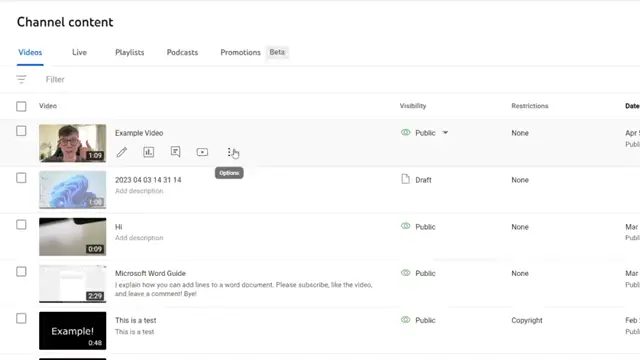
Step 5: Find a Video to Download
If you want to download videos from other users, first find a video you’re interested in downloading. Click on the video to open it.
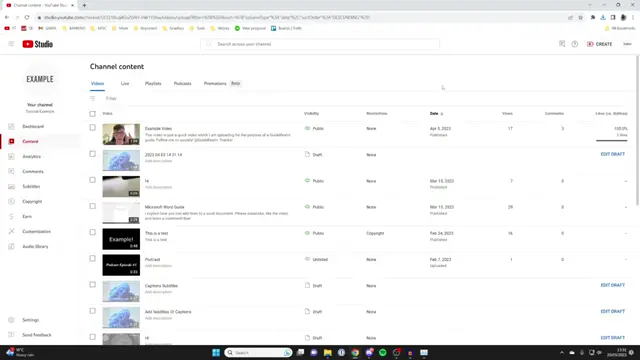
Step 6: Using YouTube Premium to Download
Below the video, look for the download button. To download this video, you will need a YouTube Premium subscription, which provides various benefits.
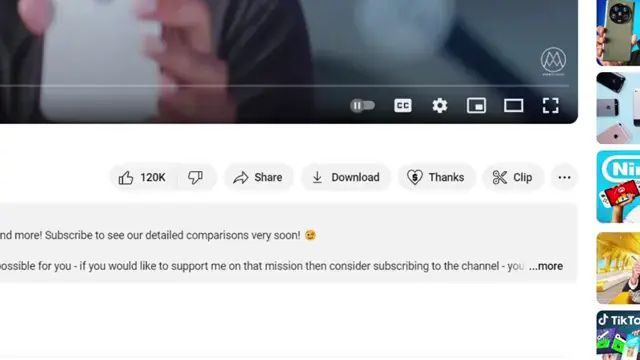
Step 7: Subscribe to YouTube Premium
If you haven’t subscribed yet, consider signing up for YouTube Premium. It offers additional features, including the ability to download videos directly.
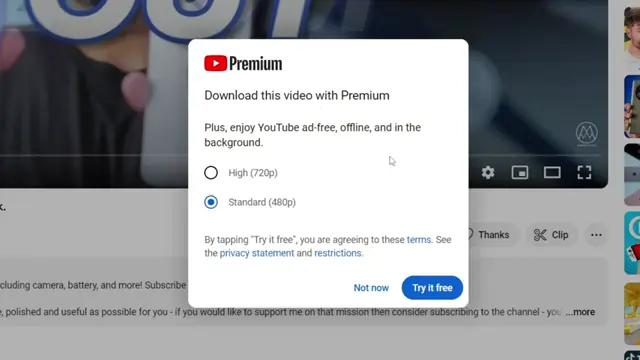
Step 8: Start the Download Process
Once subscribed, click the download button that appears below the video. You will see the download progress in the bottom left of your screen.
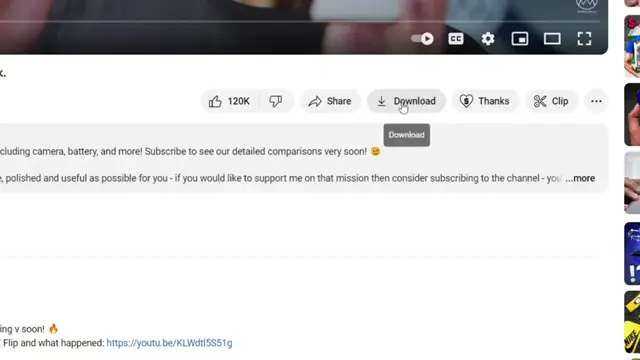
Step 9: Enjoy Your Downloaded Video
After the download is complete, you can watch the video offline whenever you want, which is a great feature of YouTube Premium subscriptions.
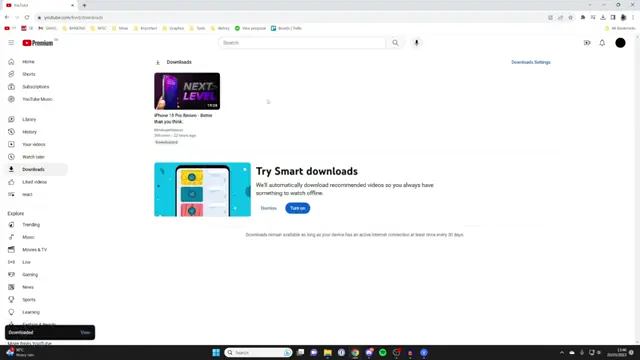
Frequently Asked Questions
Can I download any YouTube video for free?
You can only download your own videos for free. Other videos require YouTube Premium.
What is YouTube Premium?
YouTube Premium is a subscription service that allows you to download videos and enjoy ad-free content.
How do I access YouTube Studio?
Click on your profile icon in the top right corner and select ‘YouTube Studio’ from the dropdown.
Is there a limit to the number of videos I can download with YouTube Premium?
There may be limits on how many videos can be stored offline, but you can download as many as you want while you’re subscribed.
Watch the Video Tutorial
Conclusion
Downloading YouTube videos can enhance your viewing experience, especially for offline usage. Follow the outlined methods to enjoy both your own content and that of others, provided you have the appropriate subscriptions. Happy downloading!





Leave a comment