
Key Takeaways:
- Simple steps to delete your Facebook account
- Understanding the consequences of account deletion
- How to navigate the Facebook app for deletion
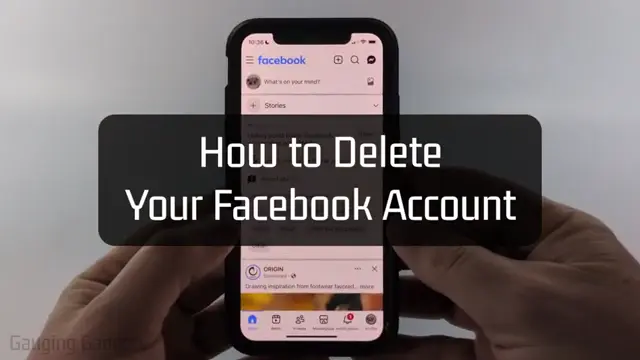
If you’re looking to delete your Facebook account, you’re in the right place! In this guide, we’ll walk you through the steps to permanently remove your account using the Facebook app on your smartphone.
Step 1: Open the Facebook App
Start by opening the Facebook app on your smartphone, whether it’s an iPhone, Android, or Samsung device. This is where we’ll begin our account deletion process.
Step 2: Access Menu Settings
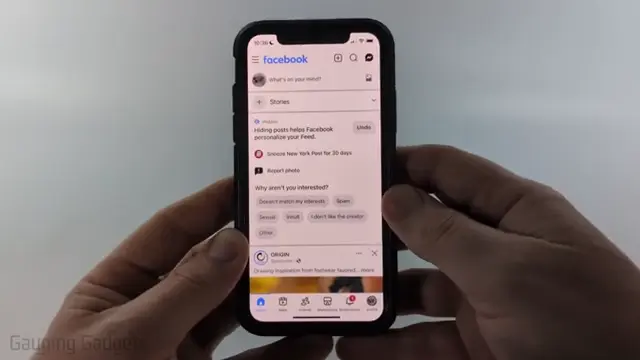
Tap on the menu button located at the top left of the app, next to the Facebook logo. This will open up a list of options to navigate through.
Step 3: Go to Settings and Privacy
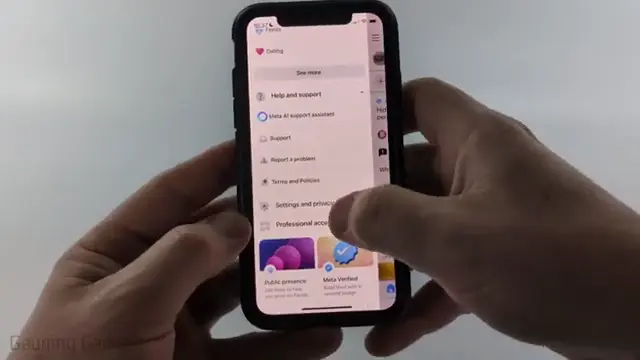
Scroll down in the menu and find ‘Settings and Privacy’. Tap to expand that section, then select ‘Settings’ to reach the settings menu.
Step 4: Manage Accounts
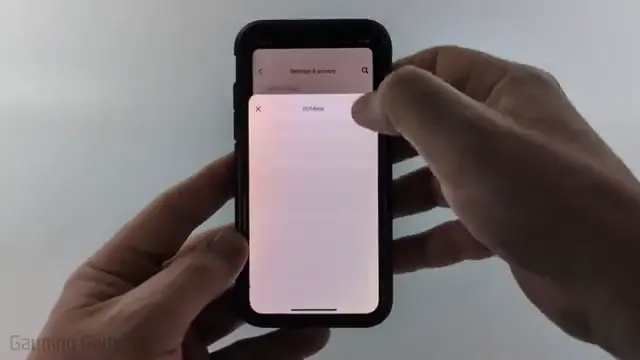
In the settings menu, look for ‘Account Center’ and select it. Then, scroll down to ‘Manage Accounts’. Here, you can view linked accounts. Identify the Facebook account you want to delete.
Step 5: Select the Account to Delete
Next to the Facebook account you want to delete, tap on ‘Manage’. You will then see options for deactivation or deletion.

Step 6: Delete Account Option
Choose ‘Deactivation or Deletion’ and select ‘Delete Account’. Afterward, tap ‘Continue’ to proceed to the next steps in the deletion process.
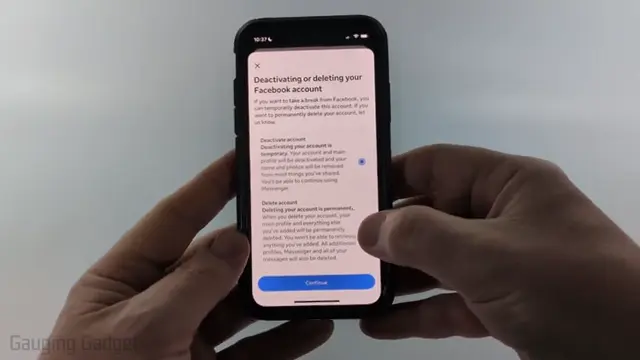
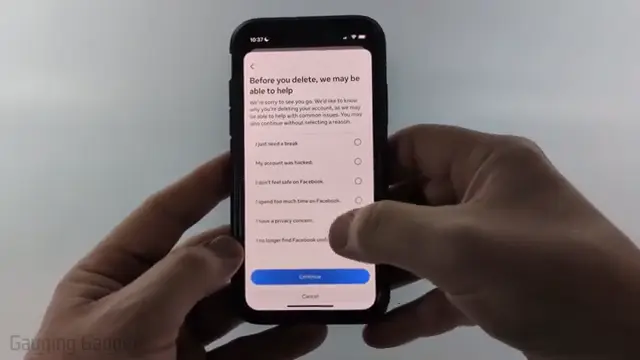
Step 7: Provide Reason for Deletion
You will be prompted to select a reason for wanting to delete your account. Choose from the options provided, then hit ‘Continue’ once more. For a comprehensive guide on 9GAG accounts, check out HOW TO DELETE YOUR 9GAG ACCOUNT.
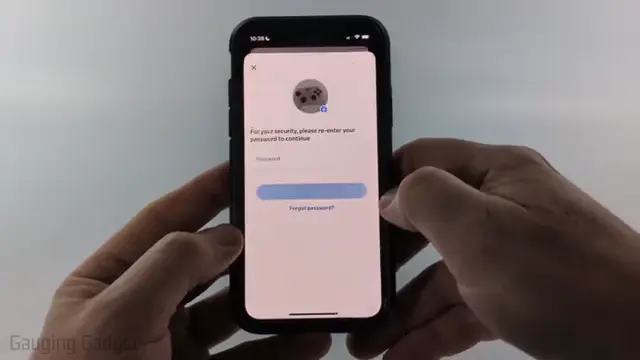
Step 8: Final Confirmation
You’ll receive important information regarding the consequences of deleting your account. Once you’ve reviewed it, continue by entering your Facebook password to confirm your decision.
Step 9: Account Successfully Deleted
After confirming the deletion, your Facebook account will be permanently deleted. This action cannot be undone, so make sure you really want to proceed with this.

Frequently Asked Questions
Can I recover my deleted Facebook account?
No, once you permanently delete your Facebook account, it cannot be recovered.
What happens to my data after I delete my account?
After deletion, all your personal data will be removed from Facebook, and you will lose access to all associated content.
How long does it take to delete my Facebook account?
The deletion process begins immediately but may take a few days to complete depending on the system’s load.
Can I temporarily deactivate my Facebook account instead of deleting it?
Yes, you can deactivate your account, which allows you to reactivate it later by simply logging back in.
Watch the Video Tutorial
Conclusion
Deleting your Facebook account is a straightforward process that safeguards your privacy. Make sure to follow the steps carefully and understand the implications of your decision.










Leave a comment