
Target Audience: Beginners | Estimated Read Time: 2 min
Key Takeaways:
- Learn to lock the YouTube app on Android
- Prevent accidental exits from YouTube
- Understand app pinning settings
Locking the screen while watching YouTube on your Android device can help prevent accidental exits and ensure uninterrupted viewing. In this guide, you’ll learn how to lock the YouTube app screen efficiently with easy step-by-step instructions.
Step 1: Access Settings
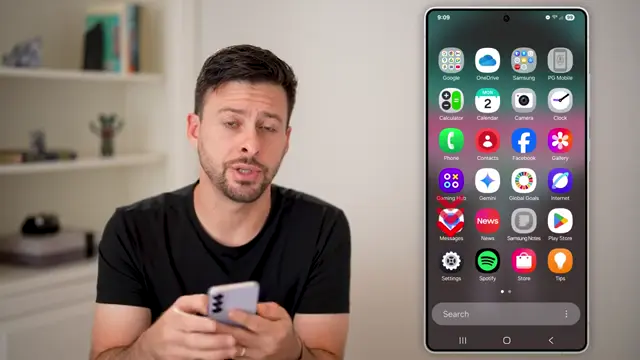
To start, swipe up and tap on your settings located at the bottom left of your screen. This will bring up your device settings where you can make necessary adjustments.
Step 2: Navigate to Security Settings
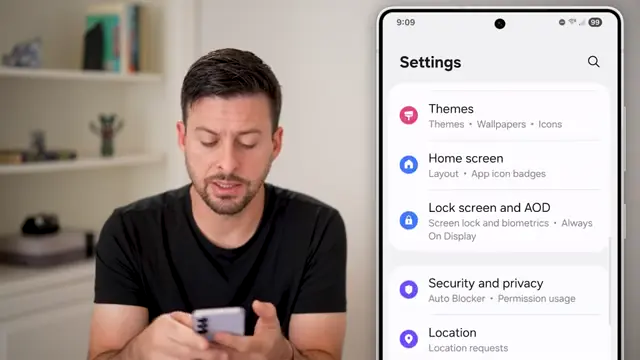
Once you are in settings, scroll down until you reach the ‘Security and Privacy’ section. Tap on it to proceed to the next step where we’ll enable app pinning.
Step 3: Enable App Pinning
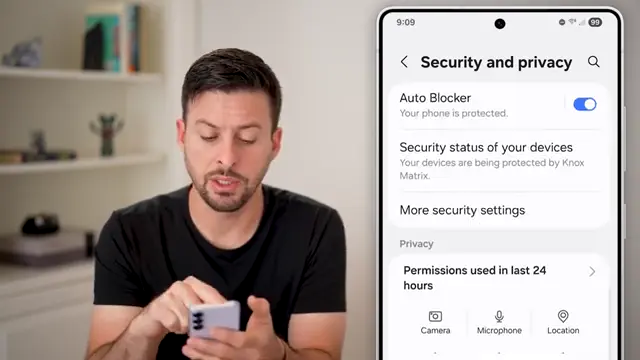
Next, scroll down until you find ‘More security settings’. Tap on that, and then look for the option that says ‘Allow apps to be pinned’. Turn this on to enable the desired feature.
Step 4: Open YouTube and Pin It
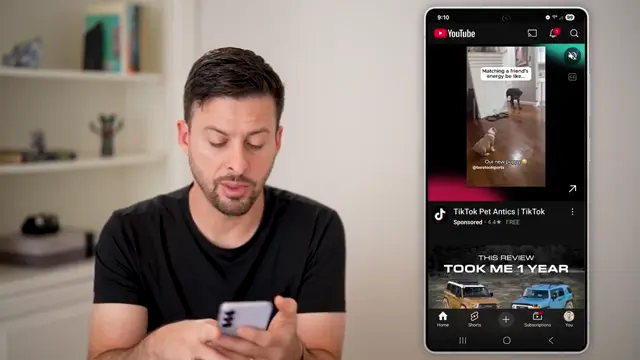
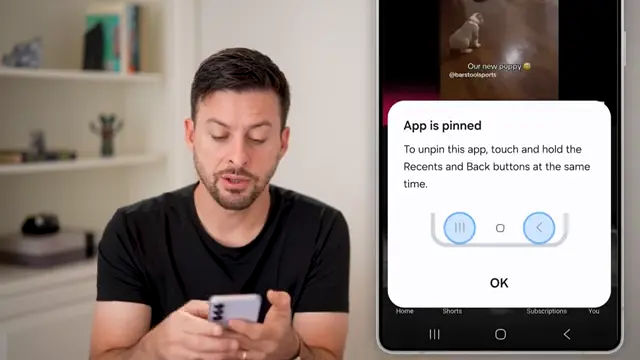
After enabling app pinning, open the YouTube app. Tap on the three lines at the bottom left of the screen, then tap on the YouTube icon at the top to access the pin option. Choose ‘Pin this app’ to lock your screen.
Step 5: Unpinning the App
To unpin the YouTube app, you will need to tap the three lines and the back arrow simultaneously. This step ensures you can exit the locked app once you’re done watching.
Frequently Asked Questions
Why would I want to lock the YouTube screen?
Locking the YouTube screen helps prevent accidental exits, especially for kids or when watching content without interruptions.
Can I pin other apps like Netflix or Instagram?
Yes, many apps can be pinned on Android following similar steps, as long as the app pinning feature is enabled.
How do I unlock a pinned app?
To unlock a pinned app, you usually need to tap the three lines and the back arrow simultaneously on your device.
Is this feature available on all Android devices?
Most modern Android devices support app pinning, but the exact steps may vary based on your device model and software version.
Watch the Video Tutorial
Conclusion
Now you know how to lock the YouTube screen on your Android device! Enjoy uninterrupted viewing and make sure to explore other features to get the most out of your YouTube experience.








Leave a comment