
Key Takeaways:
- Learn how to access YouTube settings.
- Understand how to manage search history settings.
- Discover steps to stop YouTube from saving history.
Are you concerned about your privacy on YouTube? In this guide, we’ll show you how to stop YouTube from saving your search history with just a few simple taps on your device.
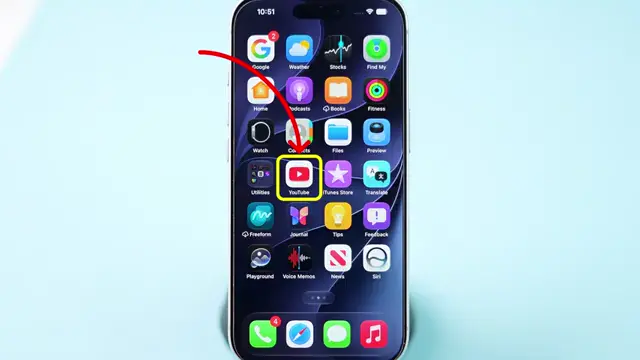
Step 1: Open the YouTube App
Start by opening the YouTube app on your device to access your settings. This will allow you to manage your history effectively.
Step 2: Access Your Profile
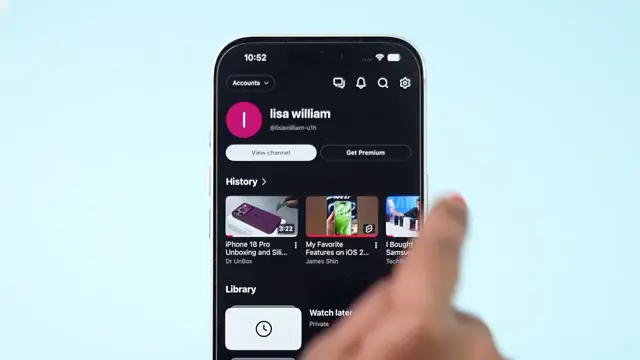
Tap on the profile icon located in the bottom right corner of the screen. This will take you to your account settings where you can make changes to your history settings.

Step 3: Go to Settings
Next, tap on the settings icon in the top right corner to access additional options related to your YouTube experience, including the management of your search history.

Step 4: Manage All History
Select ‘Manage All History’ from the settings menu. This option allows you to view and control your search history settings within YouTube.
Step 5: Turn Off Search History Saving
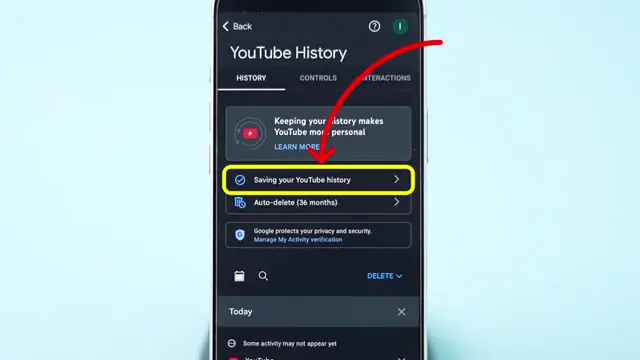
Now, tap on ‘Saving your YouTube history’ and then select the ‘Turn Off’ option. This will immediately stop YouTube from saving your search history moving forward.
Step 6: Confirmation of Changes
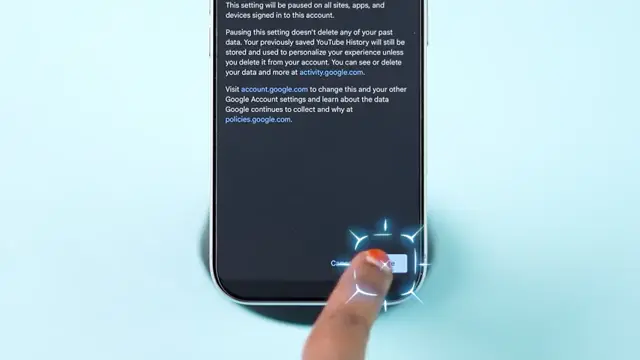
Once you turn off the saving option, you will see a confirmation that your search history will not be stored anymore. This ensures greater privacy in your searches on YouTube.
Frequently Asked Questions
How do I stop YouTube from saving my search history?
To stop YouTube from saving your search history, access the settings through your profile icon and turn off the saving option.
What happens when I turn off YouTube search history?
When you turn off search history, YouTube will no longer save any of your search queries, providing more privacy.
Can I access my YouTube search history after turning it off?
No, after turning off saving your search history, you will not be able to access any saved past searches.
Is it easy to stop YouTube from saving my history?
Yes, it’s a straightforward process that involves just a few taps in the app.
Watch the Video Tutorial
Conclusion
By following these steps, you can easily manage your search history on YouTube and enhance your privacy while using the platform.











Leave a comment