
Key Takeaways:
- Learn how to update your iPhone for Face ID fixes.
- Identify and clean your iPhone’s front camera area.
- Check and adjust Face ID settings to improve recognition.
Is your Face ID not recognized on your iPhone? Don’t worry! In this guide, we’ll go through a series of straightforward steps to solve this issue effectively.
Step 1: Update Your iPhone
Start by opening the settings app on your iPhone. Scroll down slightly and tap on General settings, then look for Software Update. If an iOS update is available, make sure to download and install it to resolve Face ID issues.

Step 2: Clean Front Camera Area
Check the front-facing camera area of your iPhone. If you have a screen protector, clean it with a microfiber cloth, as dirt or smudges might interfere with Face ID recognition.
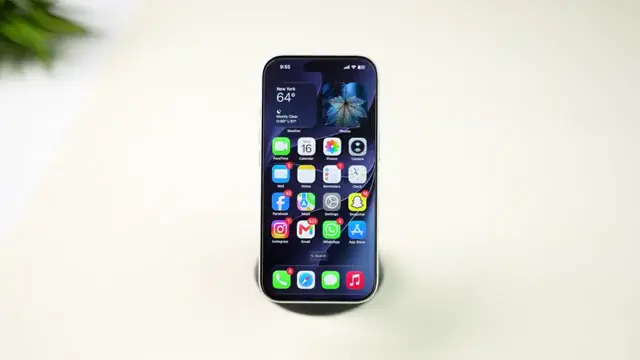
Step 3: Check Face ID Settings
Back in the settings app on your iPhone, scroll down to find Face ID & Passcode settings. Ensure the appropriate Face ID options are turned on for the apps you want to use with it.
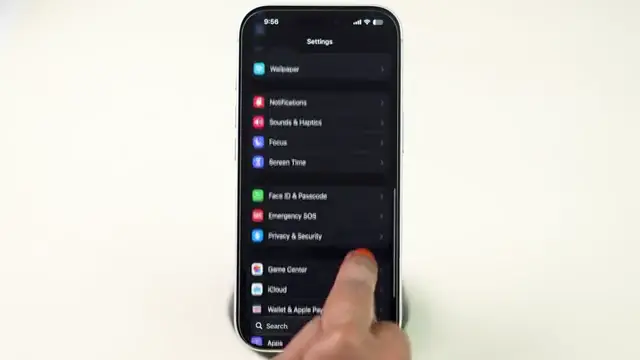
Step 4: Set Up Alternate Appearance
Inside the Face ID & Passcode settings, look for ‘Set Up an Alternate Appearance’ to allow Face ID to recognize another appearance if needed. Follow the steps to add a new Face ID.
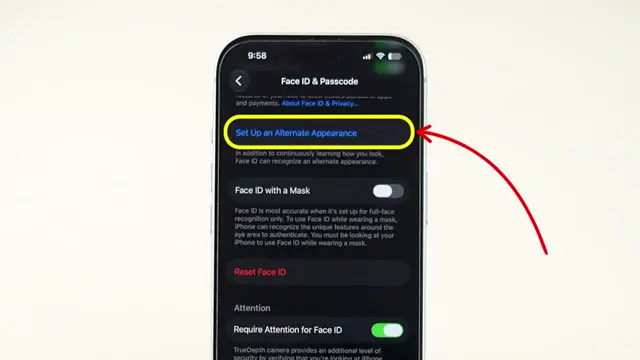
Step 5: Reset Face ID
If Face ID continues to fail, you can reset it. This action deletes your current Face ID data, and you can freshen up the setup. Return to Face ID & Passcode settings to perform this reset.
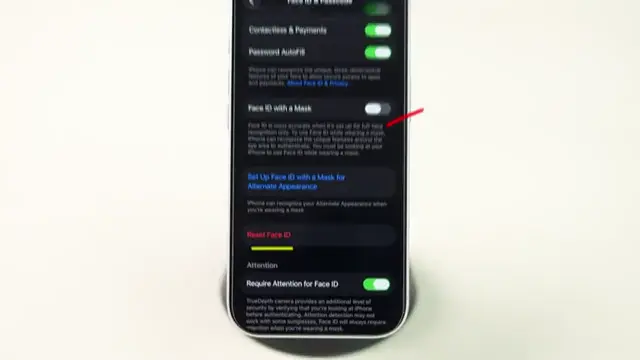
Step 6: Turn Off Attention Aware Features
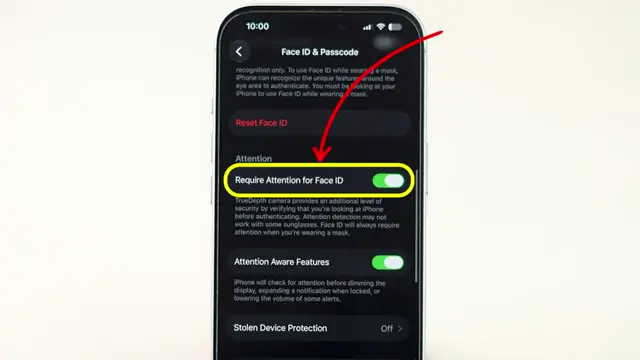
In the Face ID & Passcode settings, switch off ‘Require Attention for Face ID’ and any other attention aware features. This may improve Face ID recognition by making it less sensitive to attention requirements.
Frequently Asked Questions
What should I do if Face ID still doesn’t work after following the steps?
If Face ID still fails, consider contacting Apple Support for further assistance.
How can I ensure my iPhone is running the latest iOS for Face ID?
Regularly check the Software Update section in your iPhone’s settings to ensure you’ll be using the latest iOS version.
Can I use Face ID with a mask on?
While Face ID is designed for facial recognition, Apple has provided updates that allow facial recognition through masks for certain features.
Does resetting Face ID delete any of my data?
No, resetting Face ID only removes your Face ID data. Your personal data remains safe.
Watch the Video Tutorial
Conclusion
By following these steps, you should be able to resolve any issues with Face ID on your iPhone. Remember to keep your device updated and check the settings regularly for the best performance.










Leave a comment