
Key Takeaways:
- Identify monitor inputs for connections.
- Use the right cables and adapters.
- Customize display settings for optimal use.
Setting up dual monitors on your Mac can greatly enhance your productivity, providing more screen space and flexibility for multitasking. In this guide, we will walk you through the steps to connect your monitors using different inputs such as HDMI and VGA. Whether you have older or newer Mac models, you’ll find effective methods to connect dual displays with ease.
Step 1: Identify Monitor Inputs
Begin by checking the types of inputs your monitors support. One may have VGA and another HDMI or DisplayPort. This will guide what cables and adapters you’ll need to connect your Mac.
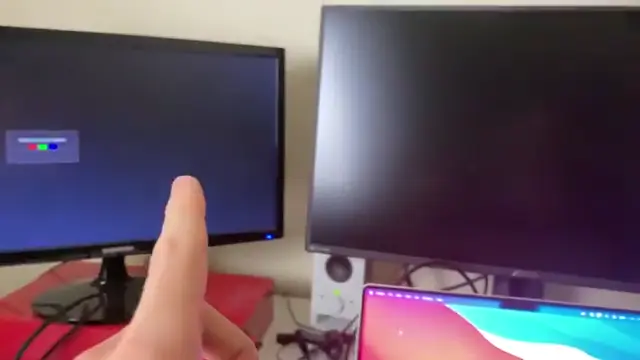
Step 2: Connect the First Monitor
After identifying the inputs, connect your first monitor to the Mac using the appropriate cable, such as HDMI or VGA. Ensure to plug the cable securely into both the Mac and the monitor.
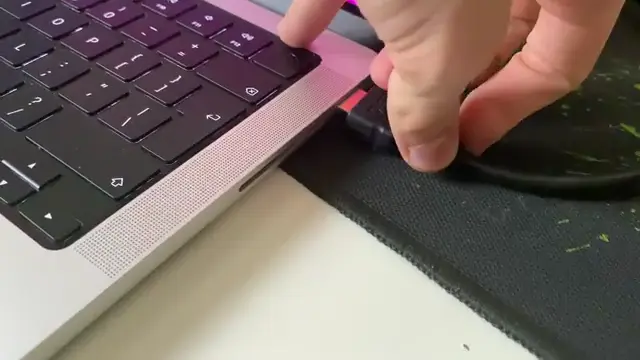
Step 3: Connect the Second Monitor
Next, connect the second monitor using any required adapters (like VGA to USB-C) and plug it into the Mac. This will enable the second display.
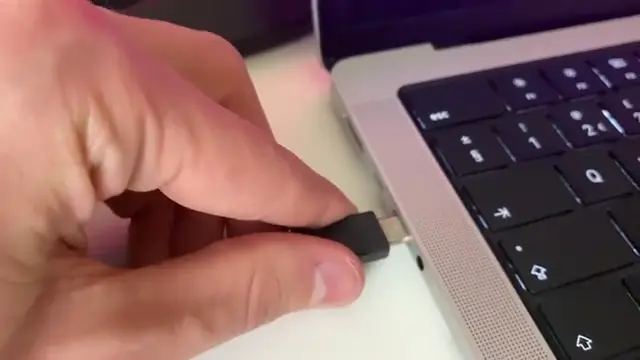
Also recommended: How to Set Up Multiple Monitors on Windows 10 for more step-by-step guidance.
Frequently Asked Questions
What type of adapter do I need for dual monitors?
You may need a USB-C to VGA or HDMI adapter, depending on your Mac’s output ports and the type of input your monitors support.
Can all Macs support dual monitors?
Most Macs can support dual monitors, but the available outputs on your Mac will determine the types of connections you can make.
How do I arrange my dual monitors?
Go to System Preferences > Displays and select ‘Arrangement’ to drag and arrange your monitors according to your setup.
What if my monitors don’t show up?
Make sure all connections are secure, check the monitor power, and verify that the correct input is selected on the monitors.
Watch the Video Tutorial
Conclusion
Setting up dual monitors on your Mac simplifies your workflow and enhances your computing experience. Following these steps will ensure you make the most out of your dual-monitor setup.





Leave a comment