
Key Takeaways:
- Create and format documents in Google Docs
- Organize your documents using Google Drive
- Share and collaborate with others in real time
Google Docs is a powerful tool from Google that allows users to create and edit documents online. Whether you’re familiar with word processors like Microsoft Word or are new to document editing, Google Docs offers features that make collaboration easy and intuitive. In this guide, we will explore the essential functions of Google Docs, including how to create a document, formatting options, and sharing capabilities.
Step 1: Access Google Docs
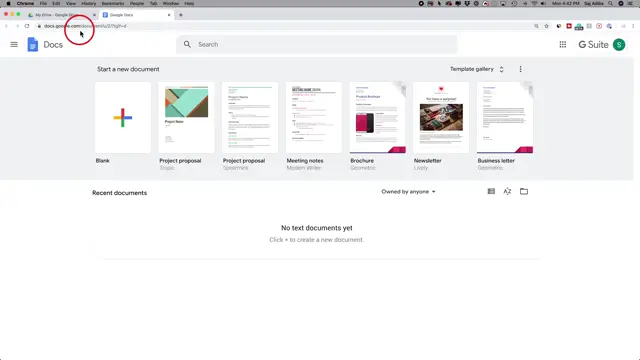
To start using Google Docs, simply visit docs.google.com in your web browser. This is your gateway to creating documents without needing to download any software.
Step 2: Create a New Document
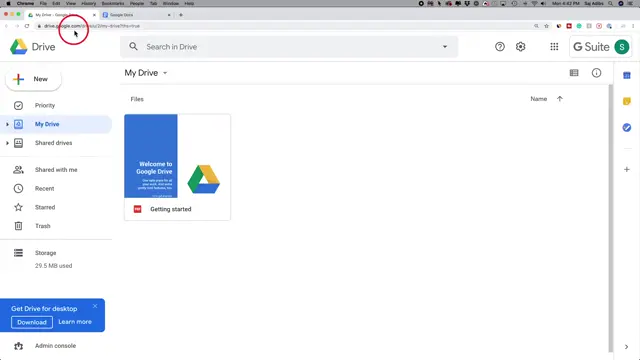
Alternatively, you can navigate to drive.google.com. Once there, press ‘New’, then select ‘Google Docs’ from the dropdown menu to create a new document directly from Google Drive.
Step 3: Name Your Document
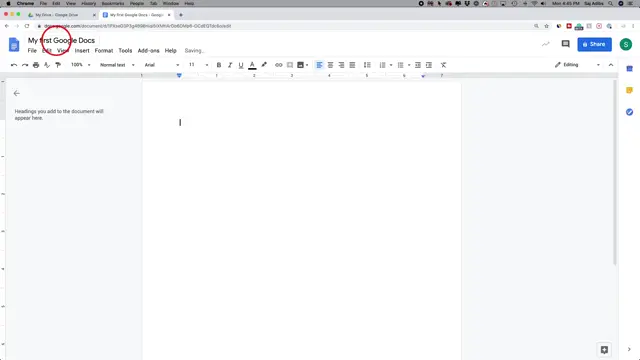
After starting a new document, it will initially be titled ‘Untitled Document’. You can double-click on the title area to erase this text and type in a name of your choice. Press ‘Enter’ to save it automatically to your Google Drive.
Step 4: Organize in Google Drive
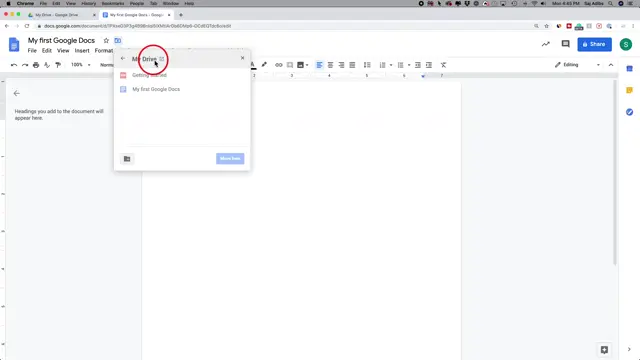
To keep your documents organized, use the folder icon to navigate to Google Drive. Here, you can create a new folder to store your document by pressing the check mark after naming the folder.
Step 5: Format Your Document
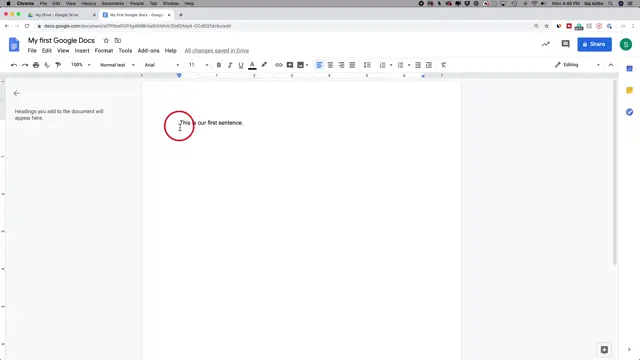
Begin typing your text into Google Docs. Use the formatting options at the top to change font style, size, and color. Highlight text to apply bold, italic, or underline features as needed.
Step 6: Use Spell Check
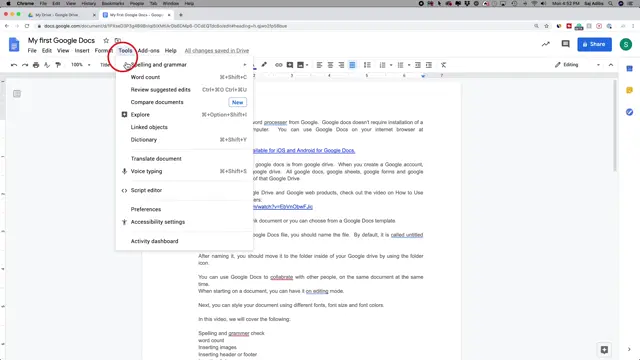
To check for errors in your document, navigate to the ‘Tools’ menu and select ‘Spelling & grammar’. This will highlight any misspelled words, allowing you to make corrections swiftly.
Step 7: Insert Links
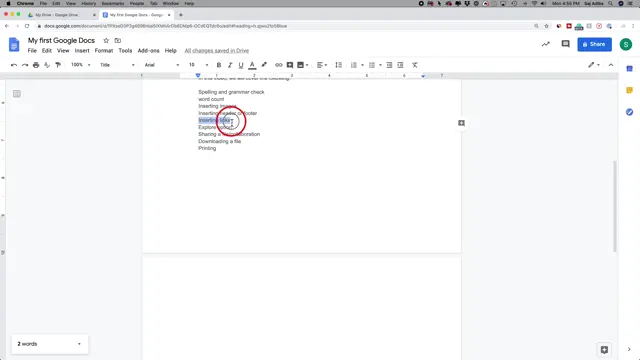
To add hyperlinks to your document, highlight the desired text and click the ‘Insert Link’ icon. Type or paste the URL you want to link to, and press ‘Apply’ to create the link.
Step 8: Insert Images
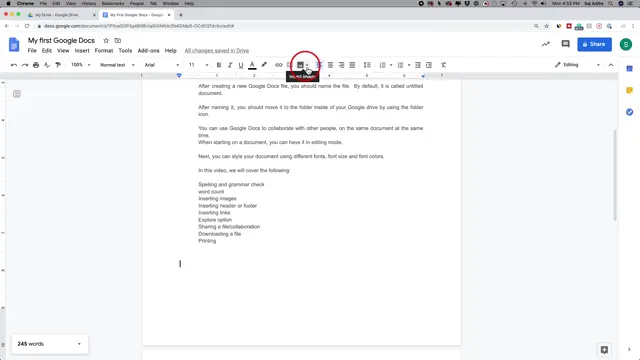
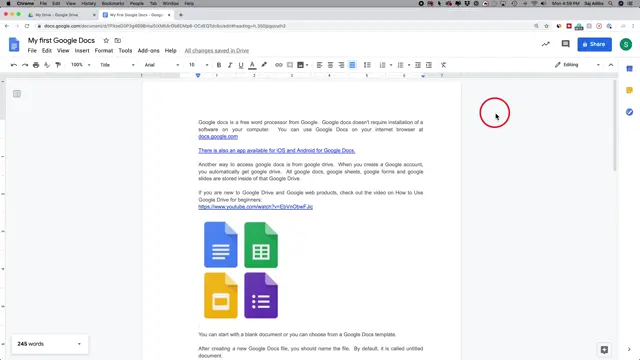
To include images in your document, use the ‘Insert’ menu. You can upload images from your computer, or search the web directly within Google Docs to find images to insert.
Step 9: Share Your Document
To share your document with others, click the ‘Share’ button. You can enter email addresses of collaborators and select their permissions—either allowing them to edit, comment, or just view the document.
Step 10: Download Your Document
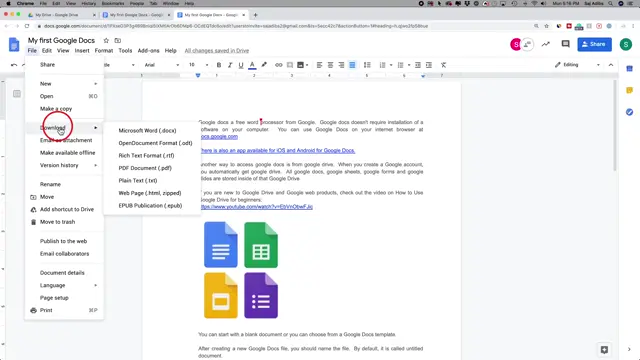
To download your document for offline use, click on the ‘File’ menu, select ‘Download’, and choose your preferred format, such as PDF or Microsoft Word.
Frequently Asked Questions
What is Google Docs?
Google Docs is a free online word processor from Google that allows users to create, edit, and collaborate on documents in real-time.
How do I share a document in Google Docs?
To share a document, click the ‘Share’ button, enter the email addresses of collaborators, and set their permissions.
Can I use Google Docs offline?
Yes, you can use Google Docs offline by enabling offline access in Google Drive settings, allowing you to work without an internet connection.
How does Google Docs save my work?
Google Docs automatically saves your work in real-time as you type, so you don’t have to worry about losing any changes.
How can I collaborate using Google Docs?
You can collaborate in real-time by sharing the document with others and allowing them to edit or comment.
Watch the Video Tutorial
Conclusion
With its collaborative features and ease of use, Google Docs is an excellent choice for anyone needing a reliable word processing tool. By following this beginner’s guide, you can confidently navigate Google Docs and take full advantage of its capabilities.





Leave a comment