
Key Takeaways:
- Learn how to access settings on your phone
- Discover how to configure private DNS
- Experience an ad-free smartphone
Blocking ads on your Samsung or Android phone can enhance your browsing experience significantly. By utilizing a private DNS provider, you can prevent unwanted advertisements from appearing while you use your device. This guide will walk you through the necessary steps to set up private DNS on your phone and enjoy an ad-free environment without complicated software.
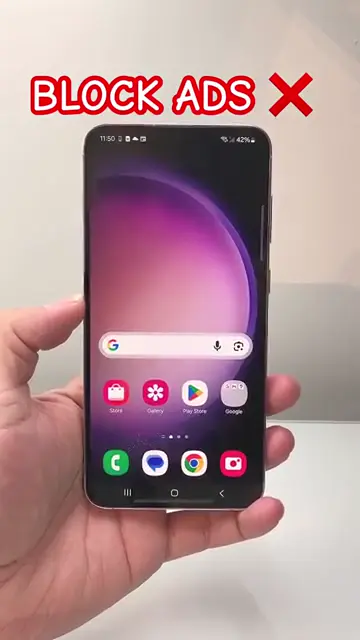
Step 1: Access Phone Settings
Begin by unlocking your Samsung or Android phone and navigating to the Settings app. It’s typically represented by a gear icon on your home screen or apps list.
Step 2: Go to Connections
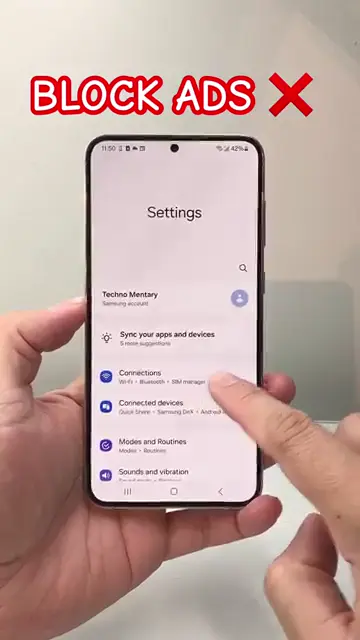
Within the Settings menu, find and tap on ‘Connections’. This section manages your network settings and connections.
Step 3: Select Private DNS
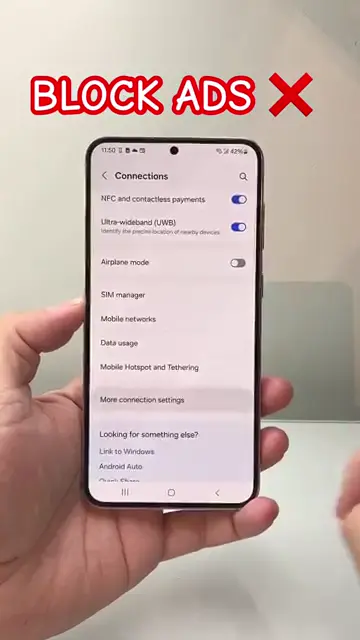
Scroll to find and tap on ‘More connection settings’. Here, locate the option labeled ‘Private DNS’. This will allow you to configure DNS settings to block ads.
Step 4: Configure DNS Provider
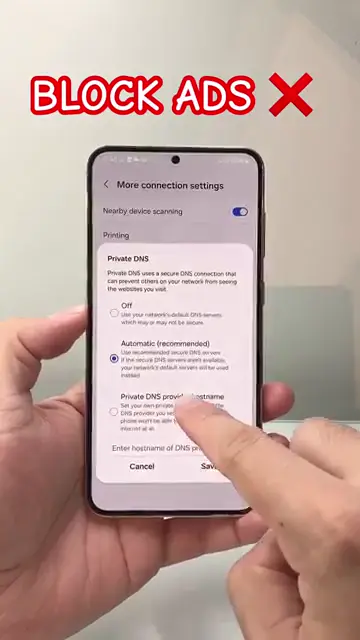
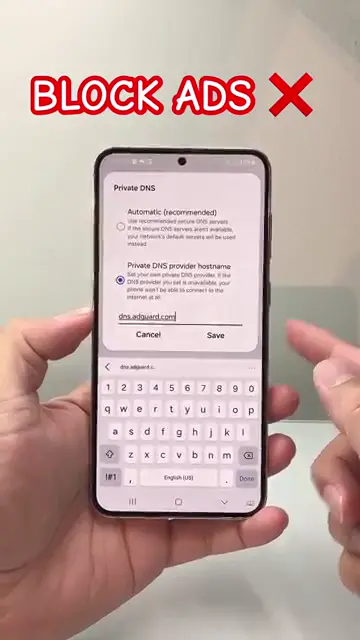
In the Private DNS settings, select ‘Private DNS provider hostname’ and enter ‘dns.adguard.com’. This DNS provider will help prevent ads from displaying on your phone.
Step 5: Save Your Settings
After entering the DNS address, ensure to hit ‘Save’. This will apply the changes you’ve made to block ads effectively on your device.
Frequently Asked Questions
How does blocking ads work on my phone?
Blocking ads works by routing your internet connection through a private DNS that filters out ad content before it reaches your device.
Will using private DNS slow down my internet?
In most cases, using private DNS will not significantly slow down your internet speed and may even improve it by filtering unwanted content.
Can I revert these changes if needed?
Yes, you can always go back to your DNS settings and change it back to Automatic or switch to a different DNS provider.
Is this method safe for my privacy?
Using reputable private DNS providers can enhance your privacy by not logging your browsing activity compared to most advertising networks.
Watch the Video Tutorial
Conclusion
By following these straightforward steps, you can significantly reduce the number of ads you encounter on your Samsung or Android phone, leading to a more enjoyable and less intrusive experience.




Leave a comment