
Key Takeaways:
- Understand how to access privacy settings.
- Learn to customize visibility options.
- Steps to lock your Facebook profile.
Locking your Facebook profile is essential for ensuring your privacy and controlling who can see your information. This guide will walk you through the steps to officially lock your Facebook profile, ensuring that your content is only visible to selected individuals. Follow the simple steps below to make necessary changes to your settings and secure your account.
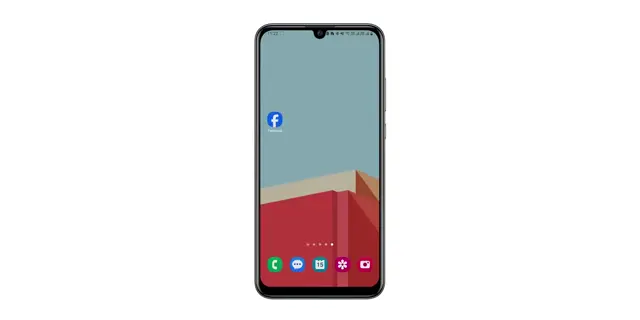
Step 1: Access Facebook Settings
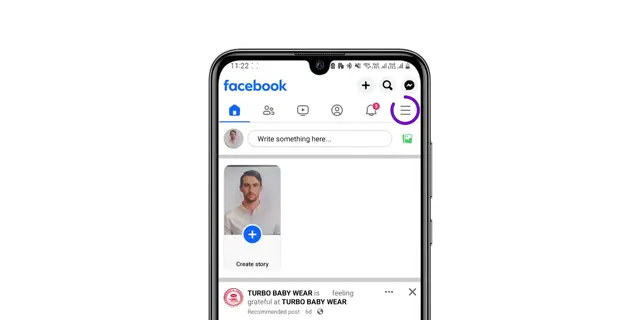
To begin, navigate to your Facebook homepage and locate the three horizontal lines or menu icon at the top-right corner of the screen. Clicking this will open a menu containing various options for managing your account.
Step 2: Select Settings and Privacy
From the menu that appears, choose ‘Settings & Privacy’, and then click on ‘Settings.’ This area allows you to customize various settings regarding your Facebook profile and security. Pay attention to privacy-related options here.
Step 3: Customize Audience Settings
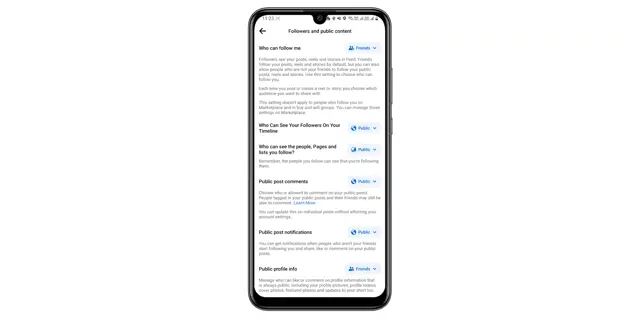
In the settings area, navigate to the ‘Visibility’ section. Here, you can customize your audience settings by changing the features from public to friends or adjusting them according to your requirements.
Step 4: Adjust Profile and Tagging Settings
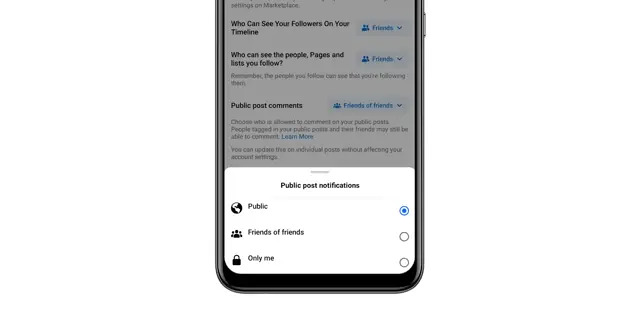
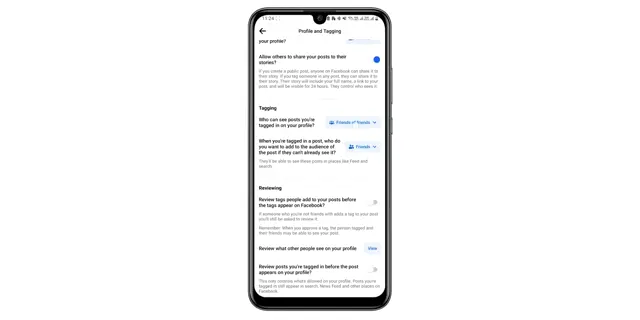
After you’re in the settings area, click ‘Profile and Tagging’ settings. Here, you can modify who can tag you and who can see posts you’re tagged in, which is crucial for controlling your visibility.
Step 5: Lock Your Profile
Finally, navigate back to the main settings menu and select ‘Profile Locking’. Here, tap the option to ‘Lock Your Profile.’ This action will restrict your profile’s visibility to friends only, enhancing your privacy.
Frequently Asked Questions
What does locking my Facebook profile do?
Locking your Facebook profile restricts access to your information, allowing only friends to view your profile and posts.
Can I unlock my Facebook profile later?
Yes, you can unlock your Facebook profile at any time through the same settings menu.
Do I need to lock my profile for each friend?
No, locking your profile applies to all users who are not your friends, regardless of individual friend settings.
Will locking my Facebook profile affect my followers?
Yes, locking your profile will limit visibility for your followers; only friends can see your profile once it is locked.
Watch the Video Tutorial
Conclusion
By following these steps, you can secure your Facebook profile and control who views your information. Regularly review your privacy settings to ensure your account remains private.
{“@context”:”https://schema.org”,”@graph”:[{“@type”:”HowTo”,”name”:”How to Lock Your Facebook Profile Officially”,”description”:”Learn how to lock your Facebook profile officially by adjusting privacy settings and securing your account details.”,”step”:[{“@type”:”HowToStep”,”position”:1,”name”:”Access Facebook Settings”,”text”:”To begin, navigate to your Facebook homepage and locate the three horizontal lines or menu icon at the top-right corner of the screen. Clicking this will open a menu containing various options for managing your account.”},{“@type”:”HowToStep”,”position”:2,”name”:”Select Settings and Privacy”,”text”:”From the menu that appears, choose ‘Settings & Privacy’, and then click on ‘Settings.’ This area allows you to customize various settings regarding your Facebook profile and security. Pay attention to privacy-related options here.”},{“@type”:”HowToStep”,”position”:3,”name”:”Customize Audience Settings”,”text”:”In the settings area, navigate to the ‘Visibility’ section. Here, you can customize your audience settings by changing the features from public to friends or adjusting them according to your requirements.”},{“@type”:”HowToStep”,”position”:4,”name”:”Adjust Profile and Tagging Settings”,”text”:”After you’re in the settings area, click ‘Profile and Tagging’ settings. Here, you can modify who can tag you and who can see posts youu2019re tagged in, which is crucial for controlling your visibility.”},{“@type”:”HowToStep”,”position”:5,”name”:”Lock Your Profile”,”text”:”Finally, navigate back to the main settings menu and select ‘Profile Locking’. Here, tap the option to ‘Lock Your Profile.’ This action will restrict your profile’s visibility to friends only, enhancing your privacy.”}]},{“@type”:”FAQPage”,”mainEntity”:[{“@type”:”Question”,”name”:”What does locking my Facebook profile do?”,”acceptedAnswer”:{“@type”:”Answer”,”text”:”Locking your Facebook profile restricts access to your information, allowing only friends to view your profile and posts.”}},{“@type”:”Question”,”name”:”Can I unlock my Facebook profile later?”,”acceptedAnswer”:{“@type”:”Answer”,”text”:”Yes, you can unlock your Facebook profile at any time through the same settings menu.”}},{“@type”:”Question”,”name”:”Do I need to lock my profile for each friend?”,”acceptedAnswer”:{“@type”:”Answer”,”text”:”No, locking your profile applies to all users who are not your friends, regardless of individual friend settings.”}},{“@type”:”Question”,”name”:”Will locking my Facebook profile affect my followers?”,”acceptedAnswer”:{“@type”:”Answer”,”text”:”Yes, locking your profile will limit visibility for your followers; only friends can see your profile once it is locked.”}}]}]}






Leave a comment