
Key Takeaways:
- Learn how to download apps on old iPads.
- Understand the sign-in process for downloading apps.
- Discover ways to access popular apps like YouTube.
Downloading apps on older iPads such as the iPad Mini or iPad 1, 2, 3, and 4 can be challenging due to compatibility issues with the App Store. However, there are effective workarounds to access popular applications, including social media and utility apps, without having to upgrade your device. In this guide, we will demonstrate step-by-step how to download these apps seamlessly by using your Apple ID. Follow along as we outline the necessary instructions to get your favorite apps up and running on your older iPad model.
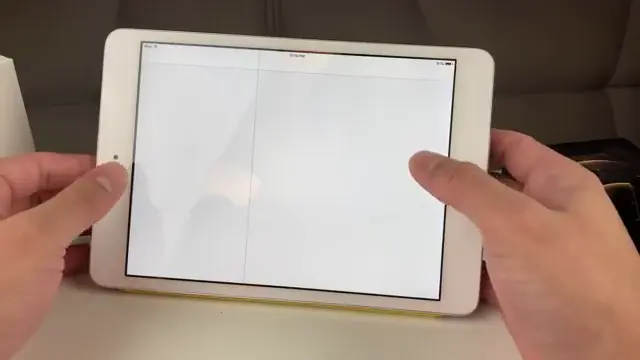
Step 1: Sign into Your iTunes Account
Begin by signing into your iTunes account. Go to the Settings app, navigate to ‘iTunes and App Store’, and enter your Apple ID credentials. This step is crucial for accessing your purchased apps.
Step 2: Search for the Desired App
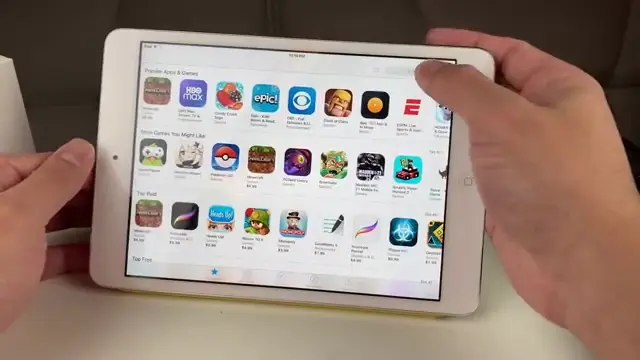
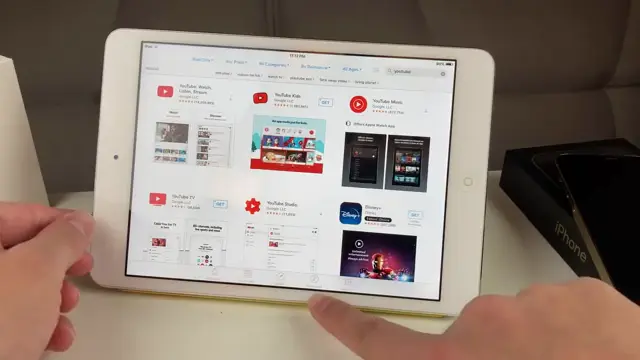
After signing in, open the App Store and search for the app you wish to download, like YouTube. Be prepared for a compatibility warning; this is normal for older devices.
Step 3: Use a Newer Device to Sign In
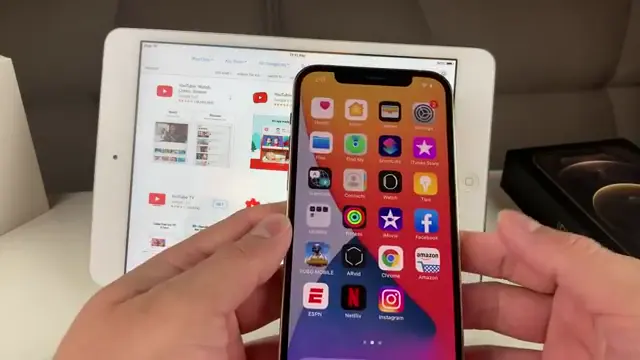
To download the desired app, find a newer Apple device running a compatible iOS version. Sign into your Apple ID and then download the app there. This will allow you to gain access to older versions of apps for your older iPad.
Step 4: Download the Last Compatible Version
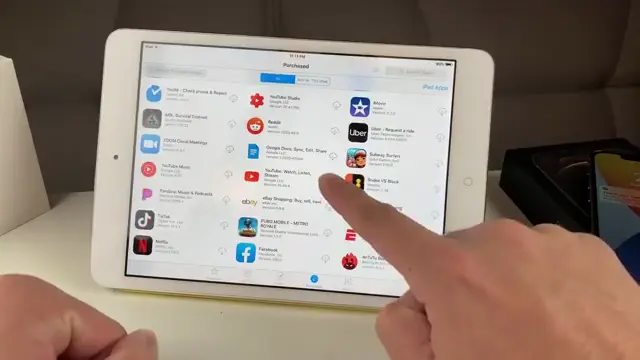
Once you find the app, click the download button (cloud with an arrow). The App Store will prompt you to download the last compatible version, overcoming the installation restrictions.
Step 5: Sign Out After Downloading
After the app has finished downloading, you can sign out of the other user’s account if you used one to download the app. This will detach their account while keeping the app downloaded.
Step 6: Accessing Downloaded Apps
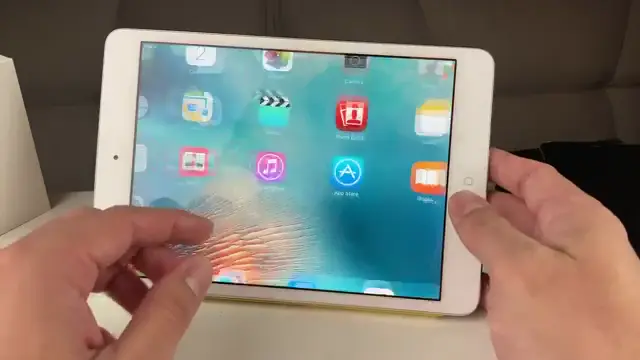
To access all the apps you’ve downloaded, go to the purchases menu in the App Store. This menu will show you a list of all compatible apps linked to your Apple ID.
Frequently Asked Questions
Can I download any app on my old iPad?
Not all apps are compatible with older iPads, but many popular ones provide older versions for download.
What if I don’t have a newer Apple device?
You can ask a friend or family member to sign in with their Apple ID to help you download the app.
Will the downloaded apps work correctly?
Most compatible versions will work, but some features may not be available due to hardware limitations.
Is there a risk while using someone else’s account?
Always make sure to sign out of their account after downloading to protect their privacy.
Watch the Video Tutorial
Conclusion
By following these steps, you can effectively download and enjoy apps on your old iPad, unlocking a second life for your device. Don’t forget to reach out if you encounter any issues during the process!



Leave a comment