
Key Takeaways:
- Steps to turn off iPhone tracking features
- Ways to enhance your privacy on iPhone
- How to manage app access to your location
Many iPhone users aren’t aware that their device could be tracking their activity, location, and even listening to them via the microphone. If you’re concerned about privacy, you can easily disable these features on your iPhone. This guide will walk you through the necessary steps to turn off tracking and ensure your personal information stays private.
Step 1: Open the Settings App
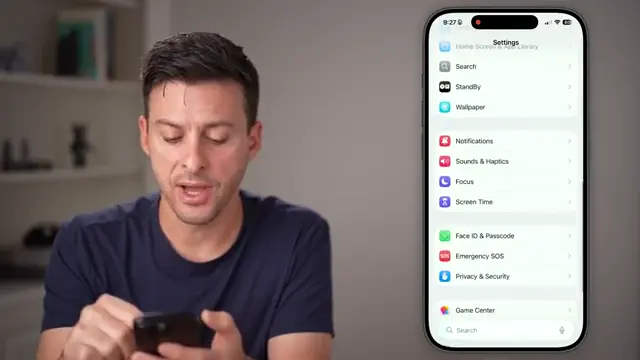
Begin by unlocking your iPhone and locating the Settings app on your home screen. This app is where all your privacy and tracking settings are stored. Tap on the Settings icon to proceed.

Step 2: Access Privacy Settings
In the Settings app, scroll down until you find the ‘Privacy & Security’ option. Tap on it to access various settings related to your device’s tracking capabilities.
Step 3: Disable App Tracking
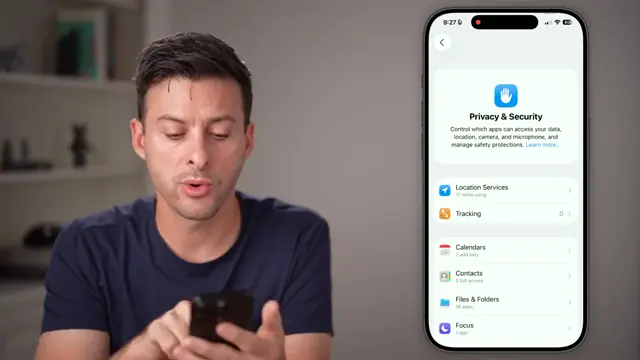
Within the Privacy settings, look for the ‘Tracking’ section and tap on it. Here, you can see which apps are allowed to track your activities. Toggle the switch to disable tracking for all apps to prevent them from accessing your information across the web.
Step 4: Manage Location Services
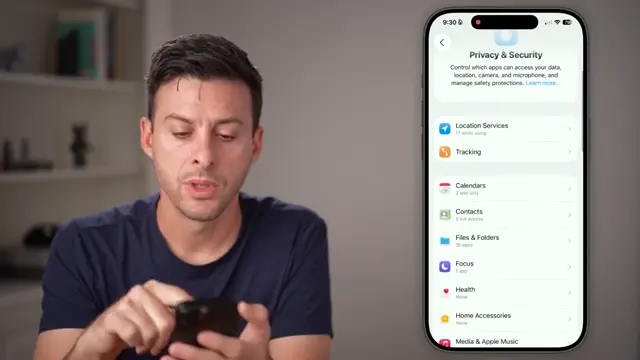
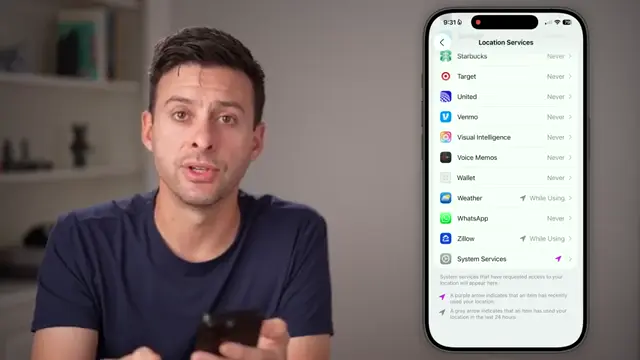
Next, return to the main Privacy settings and select ‘Location Services.’ Here, you can view which apps are accessing your location. Review each app and set their location access to ‘Never’ for those you do not want tracking you.
Step 5: Disable Significant Locations
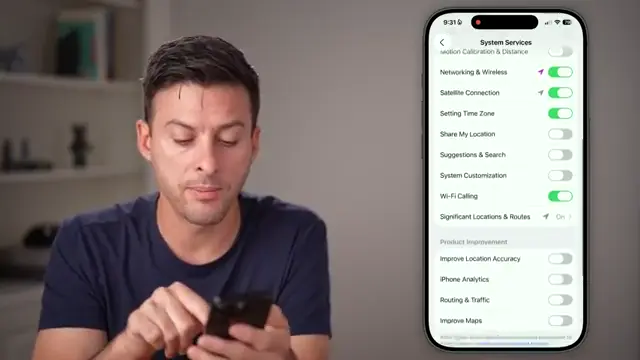
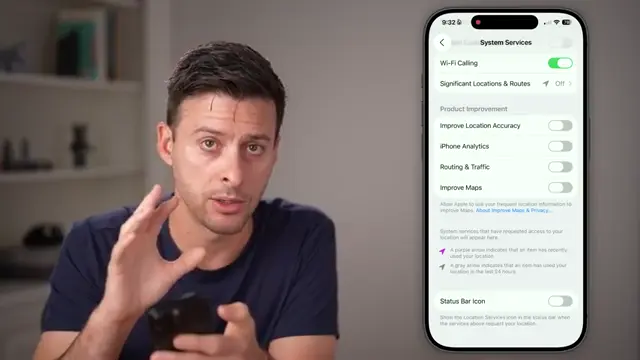
In the Location Services settings, scroll down to ‘System Services’ and tap on it. Here, you can turn off ‘Significant Locations’ which tracks places you frequently visit. This helps to protect your privacy by preventing Apple from knowing your common locations.
Step 6: Turn off Apple Advertising
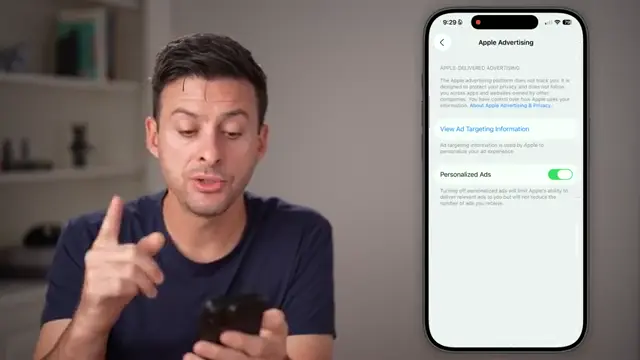
In the Privacy & Security settings, find ‘Apple Advertising’ and tap on it. Toggle the switch to turn off personalized ads from Apple, which uses your information to target advertisements.
Step 7: Turn off Analytics & Improvements
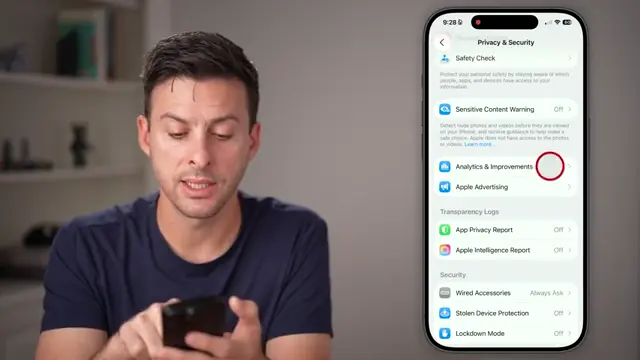
Still in the Privacy settings, scroll down and tap on ‘Analytics & Improvements.’ Disable all options here to stop sharing your device analytics and usage data with Apple.
Step 8: Turn off Other System Services
Under ‘Location Services,’ tap on ‘System Services’ to view additional features that may track your location. Disabling options like ‘Apple Pay Merchant Identification’ may enhance your privacy.
Step 9: Turn off Improve Location Accuracy and Maps
Under ‘Product Improvement,’ find settings related to improving location accuracy and maps usage. Turn these options off to further limit tracking by Apple.
Step 10: Turn Off Daily Diagnostics
In the Analytics settings, be sure to disable ‘Daily Diagnostics.’ This stops your device from sending daily usage reports and diagnostics back to Apple.

Step 11: Disable Limited Motion & Audio Data
While in the Analytics section, turn off the option for ‘Limited Motion and Audio Data’ to prevent your iPhone from collecting this sensitive information.

Step 12: Turn Off Health & Activity Tracking
Also, in the Analytics settings, make sure to turn off any settings related to improving health and activity tracking, which can also send data to Apple.

Step 13: Turn Off AR Location Accuracy
Lastly, disable options for ‘Improve AR Location Accuracy’ in the analytics settings to stop sharing your location data related to AR functionality.

Frequently Asked Questions
How do I stop my iPhone from tracking me?
You can stop your iPhone from tracking you by disabling app tracking and location services in the privacy settings.
Will turning off tracking affect my apps?
Yes, turning off tracking may affect how apps operate, especially those that require location data for functionality.
Can I turn off tracking completely?
Yes, you can turn off tracking by adjusting the settings in the ‘Privacy & Security’ section of your iPhone.
What happens if I disable significant locations?
Disabling significant locations means your iPhone will no longer remember and share the places you visit frequently.
Watch the Video Tutorial
Conclusion
By following these steps to disable tracking and listening features, you are taking significant measures to protect your privacy on your iPhone. Regularly review your settings to ensure that your information remains secure.






Leave a comment