
Target Audience: Beginners | Estimated Read Time: 5 min
Key Takeaways:
- Understand how Google scans your emails.
- Learn how to disable smart features in Gmail.
- Protect your personal information from AI.
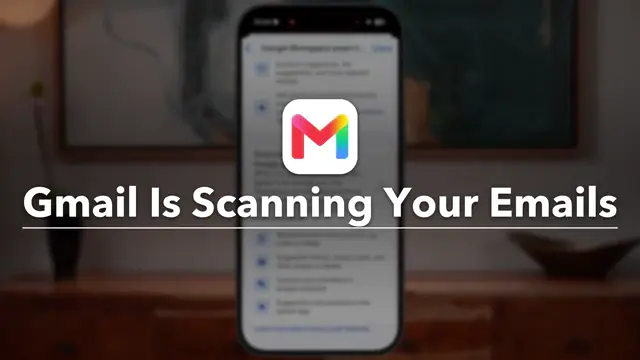
Gmail uses AI to enhance your email experience, but this comes at the cost of your privacy. In this guide, we’ll show you how to turn off smart features that allow Google to scan your emails, giving you control over your personal data.
Step 1: Open the Gmail App
Begin by launching the Gmail app on your device, whether it’s an iPhone, Android, or computer. This is the first step to manage your settings effectively. Each device has a unique interface, so be prepared for slight variations.
Frequently Asked Questions
Why is Gmail scanning my emails?
Gmail uses AI technologies like Google Gemini to offer smart suggestions and improve user experience by scanning emails.
How do I turn off smart features in Gmail?
To turn off smart features, go to Gmail settings on your device, search for ‘smart features’, and toggle them off.
Can I disable Gmail scanning for my other Google accounts?
Yes, you must individually turn off smart features for each Google account you have.
What personal data does Google’s AI access?
Google’s AI may access your emails, Google Drive files, calendar events, and photos depending on the settings you’ve enabled.
Watch the Video Tutorial
Conclusion
By following these simple steps, you can regain control over your email privacy and ensure that Google’s AI is not scanning your personal information without your consent.









Leave a comment