
Key Takeaways:
- Learn how to locate the SIM tray on iPhone 11.
- Understand how to correctly insert the SIM card.
- Troubleshoot common SIM-related issues.
If you’ve just bought a new iPhone 11 and need help with setting up your SIM card, you’ve come to the right place. In this guide, we will walk you through the process of inserting and removing a SIM card, making it easier for you to get your iPhone up and running. Follow these simple steps to ensure a smooth setup and connection to your network.
Step 1: Locate the SIM Tray on Your iPhone 11
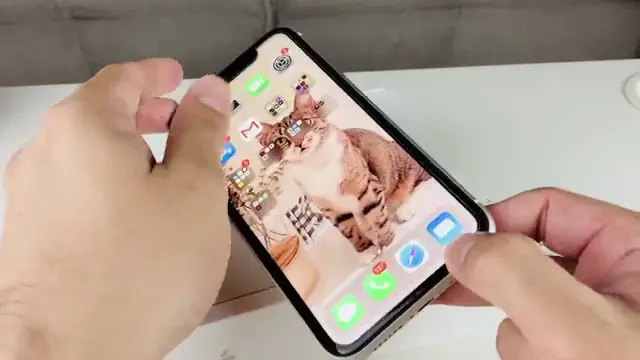
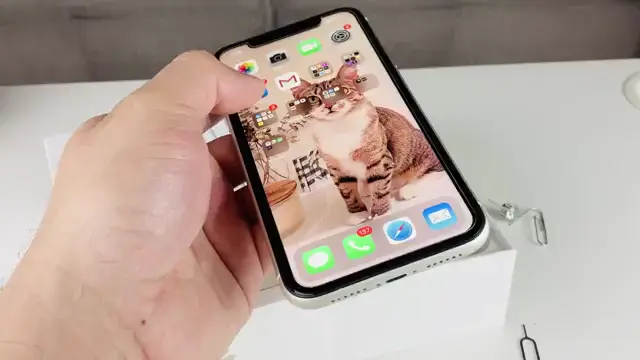
Start by finding the SIM tray on the right-hand side of your iPhone 11. This is usually a small, oval-shaped hole. Make sure not to confuse it with the reset button.
Step 2: Use SIM Ejector Tool to Remove SIM Tray
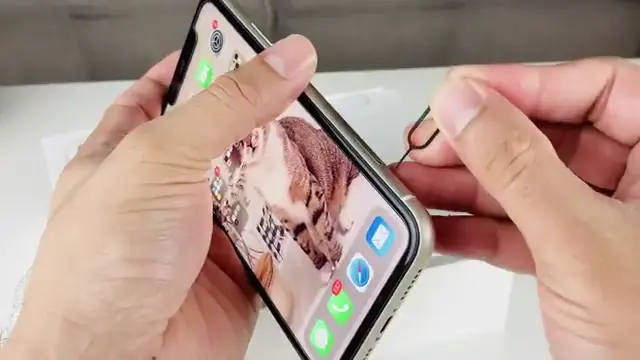
Next, take the SIM ejector tool (or a paperclip) and insert it gently into the hole of the SIM tray. Press firmly until the SIM tray pops out, allowing you to access it.
Step 3: Insert Your SIM Card Correctly
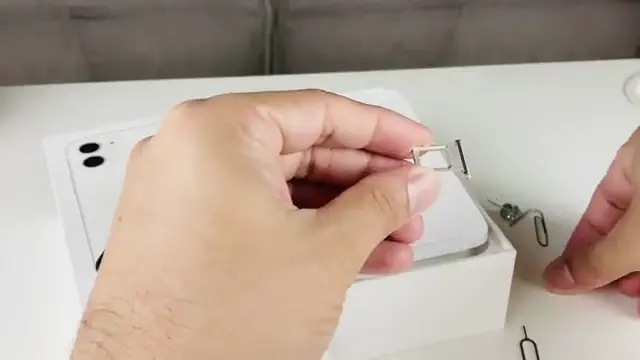
Ensure your nano SIM card is facing upward when placing it into the tray. Align the cut corner of the SIM with the tray’s cutout so that it fits perfectly.
Step 4: Troubleshoot SIM Issues if Necessary
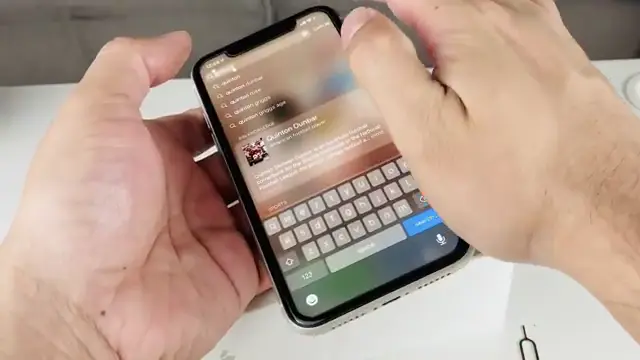
If your iPhone doesn’t recognize the SIM card, start troubleshooting by restarting your phone. If the problem persists, ensure your SIM is not damaged or request a replacement from your carrier.
Step 5: Locate the Instruction Pamphlet Template
In case you need additional information, locate the instruction pamphlet that comes in the iPhone 11 box. This can guide you in setting up your device.
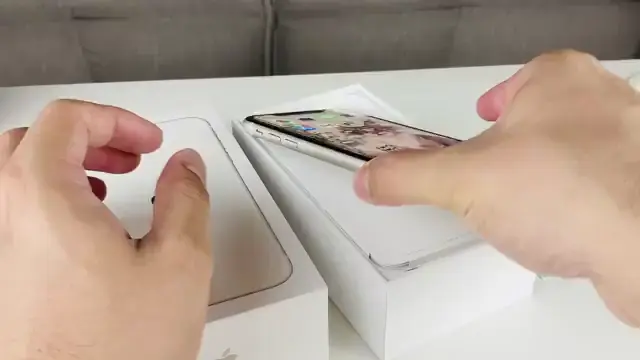
Step 6: Bend a Paperclip for Ejecting the SIM Tray
If you don’t have a SIM ejector tool, you can create one using a paperclip. Simply take the paperclip and bend it to insert into the SIM tray hole.
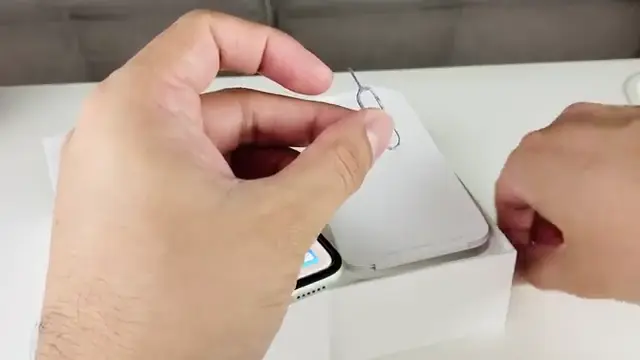
Step 7: Use a Suitable Alternative if Necessary
If you have no SIM ejector tool or paperclip, you can use an old earring or similar item to eject the SIM tray. Just ensure it fits and is sturdy enough to apply adequate pressure.
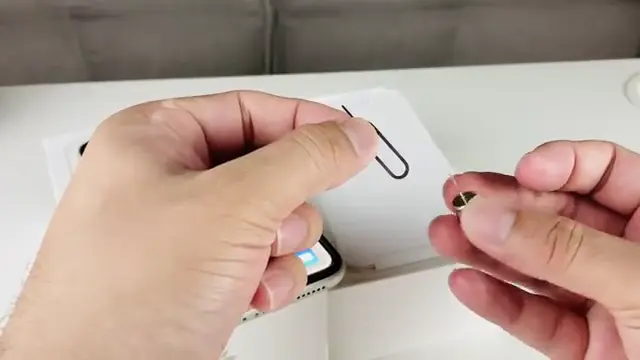
Step 8: Take the IME Number of the Phone
To troubleshoot SIM compatibility, go to your iPhone settings. Navigate to General, then About, to find the IME number needed for service eligibility.
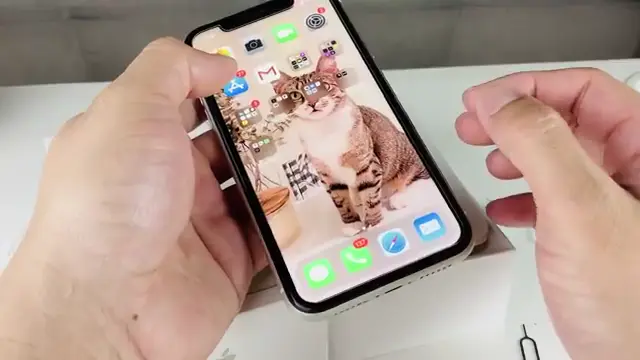
Step 9: Check IMEI Compatibility with Your Carrier
Once you have the IMEI number, visit your carrier’s website to determine if your phone is compatible. This step is crucial for ensuring that your iPhone works with the network.
Frequently Asked Questions
How do I know if my SIM card is compatible with my iPhone 11?
Check if your SIM is a nano SIM, as this is required for the iPhone 11.
What should I do if the SIM tray won’t come out?
Ensure you are using a proper ejector tool and are applying enough pressure. If it still doesn’t budge, consult an apple technician.
Can I use a different SIM card from another carrier?
Yes, but make sure your phone is unlocked. Carrier-specific phones may only work with their designated SIM cards.
What if my iPhone isn’t reading the SIM card?
Try restarting your iPhone or replacing the SIM card if it’s damaged.
Watch the Video Tutorial
Conclusion
By following these steps, you’ll be able to insert or remove the SIM card on your iPhone 11 with ease. If you run into any issues, use the troubleshooting tips provided to resolve common problems. Enjoy using your new device!






Leave a comment