
Key Takeaways:
- Learn how to check for viruses on your iPhone.
- Identify suspicious apps consuming battery or data.
- Remove unrecognized apps and update iOS for security.
If you’re concerned that your iPhone might have caught a virus, it’s important to take action to check and remove it. This guide walks you through the steps to identify any potential threats on your device, ensuring your safety and security. Follow these instructions carefully, and you’ll be able to protect your iPhone effectively.
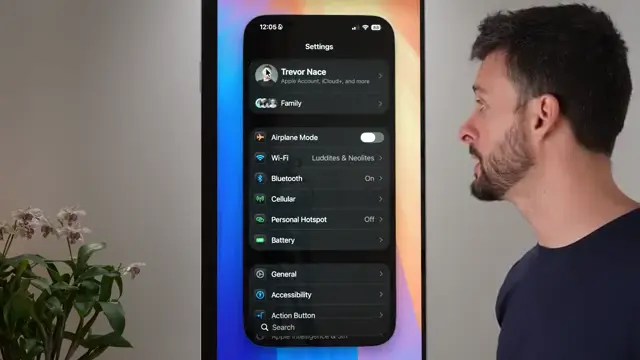
Step 1: Open Settings on Your iPhone
Start by unlocking your iPhone and locating the Settings app. This is where you’ll begin your virus check. Tap on the Settings app icon to open it.
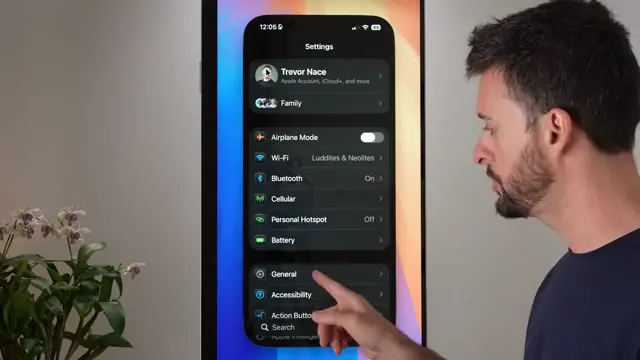
Step 2: Tap on General
In the Settings menu, scroll down and tap on the ‘General’ option. This section contains important device settings that you need to check for signs of a virus.
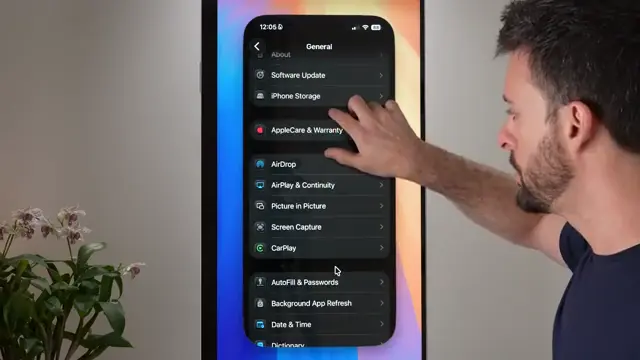
Step 3: Check VPN and Device Management
Within the General menu, continue scrolling down until you see ‘VPN & Device Management.’ Tap on it to see if any suspicious profiles have been installed without your knowledge.
Step 4: Inspect Battery Usage
Return to the main Settings menu and select ‘Battery.’ Here, you can see which apps are consuming battery power, which can indicate malicious behavior. Scroll down to review the battery usage by app.
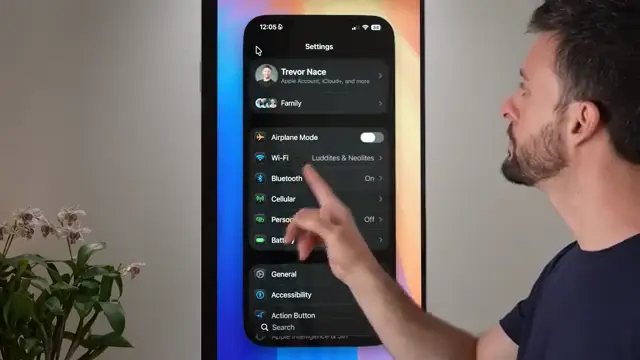
Step 5: Check Cellular Data Usage
Go back to the main Settings screen and select ‘Cellular.’ Scroll down to see which apps are using your cellular data. Any unrecognized app may be a sign of a virus.
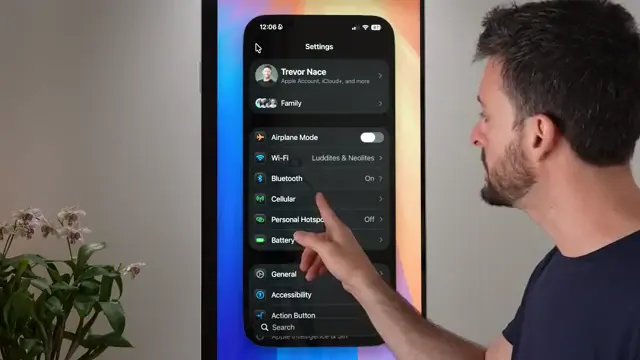
Step 6: Review iPhone Storage
Before finalizing your checks, navigate back to ‘General’ in Settings. Then select ‘iPhone Storage.’ This will show you all apps installed. Look for any apps you don’t recognize.
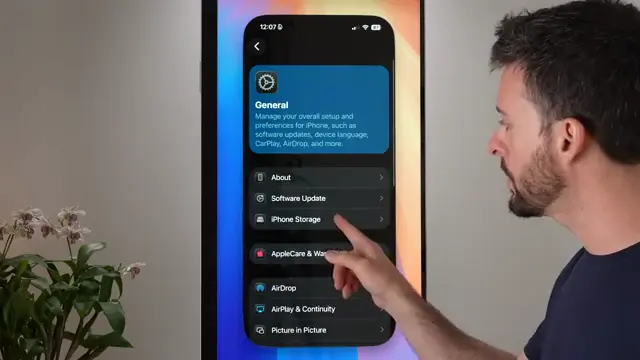
Step 7: Delete Suspicious Apps
If you identify any apps that seem suspicious or that you did not install, tap on the app and select ‘Delete App’ to remove it from your device.
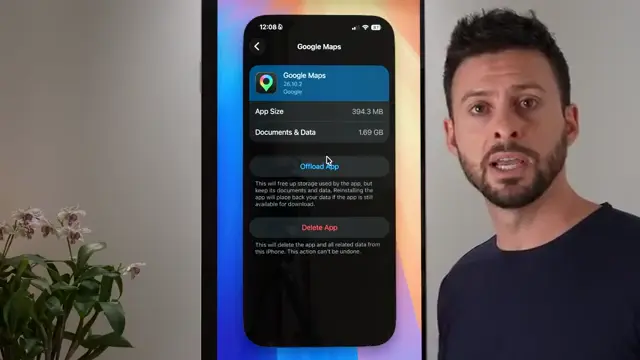
Step 8: Check Downloads in Files App
Open the Files app and select ‘Browse’ at the bottom right. Navigate to the ‘Downloads’ folder and inspect its contents for any unfamiliar files.
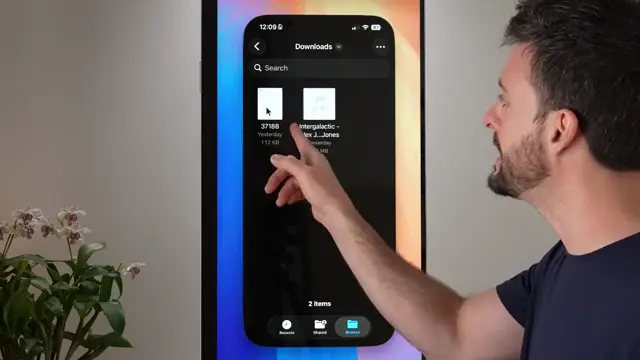
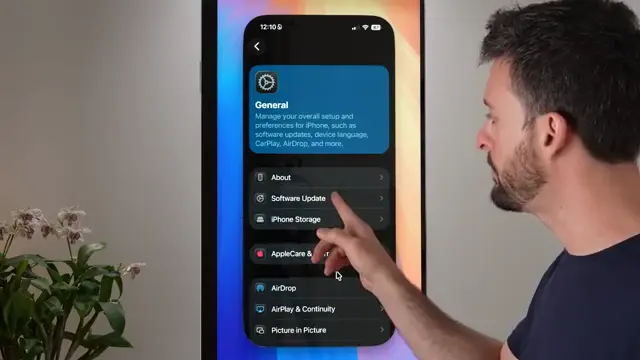
Step 9: Update iOS Software
Next, return to Settings, tap ‘General,’ and then select ‘Software Update.’ Ensuring that your iPhone is running the latest software helps protect against vulnerabilities.
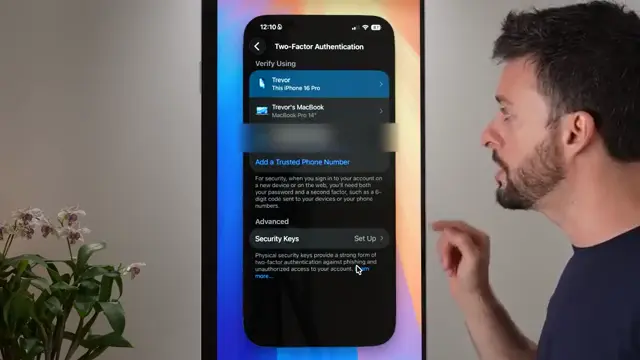
Step 10: Enable Two-Factor Authentication
To enhance security, tap on your name at the top of Settings, then ‘Sign in & Security.’ Enable two-factor authentication to add an extra layer of protection to your account.
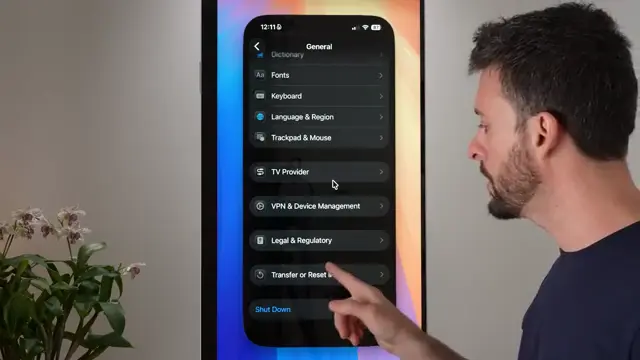
Step 11: Reset iPhone if Needed
If suspicions remain about a virus, return to the main Settings page. Tap ‘General,’ then scroll down to ‘Transfer or Reset iPhone.’ Here you can choose to reset settings or erase all content and settings as a last resort.
Frequently Asked Questions
How can I tell if my iPhone has a virus?
If your iPhone is running slowly, apps are crashing, or you see unfamiliar apps or profiles, these may be signs of a virus.
What should I do if I find a suspicious app?
If you find an app you don’t recognize, you should delete it immediately and monitor your device for any additional unusual behavior.
Will updating my iPhone help remove viruses?
Yes, updating your iPhone can install security patches that may help remove malware and viruses.
How often should I check my iPhone for viruses?
It’s good practice to check your iPhone regularly, especially after installing new apps or if you notice any unusual behavior.
Watch the Video Tutorial
Conclusion
By following these steps, you can effectively identify and remove any viruses from your iPhone. Always keep your device updated and monitor your apps for security to prevent future issues.



Leave a comment